iPhone Live Translation Phone Calls: Setup and Limits
 Equalang
In brief
Learn how iPhone Live Translation works on phone calls with iOS 26 and 27, which models support it, the 10 languages available, and real-world limits.
Keywords: iphone live translation phone call; apple intelligence phone translation; live translation supported languages; iphone call translation limits; translated calls
Quick Answer: Does iPhone Support Live Call Translation?
Yes, iPhone supports real-time Live Translation during one-on-one phone calls, but only on devices that support Apple Intelligence (iPhone 15 Pro, iPhone 15 Pro Max, and iPhone 16 models or later) running iOS 26 or iOS 27. It requires Siri and your device language to be set to a supported language, and both the caller's and receiver's languages must fall within Apple's 10 supported language variants.
During a supported call, the iPhone processes speech entirely on-device, speaks the translated audio aloud through the phone line so both callers hear it, and displays an on-screen transcription. However, turning it on automatically switches the phone to speakerphone (unless headphones are connected) and plays an audible alert informing both callers that translation is active.
Supported iPhone Models and Requirements
Apple introduced Live Translation in the Phone app with iOS 26 in September 2025, and the current iPhone User Guide is documented for iOS 27. Because Live Translation relies directly on Apple Intelligence, hardware availability is strictly limited:
- Supported iPhone models: iPhone 15 Pro, iPhone 15 Pro Max, and iPhone 16 models or later (Apple Intelligence is also supported on iPhone Duo and iPhone Air, as well as iPad and Mac models with M1 or later).
- Unsupported iPhone models: The standard iPhone 15, iPhone 15 Plus, iPhone 14 series, and all earlier iPhone models do not support Apple Intelligence, and therefore cannot use Live Translation in the Phone app.
- System setup: Siri and your device language must be set to an eligible language (such as English, Chinese, French, German, Italian, Japanese, Korean, Portuguese, Spanish, or other supported system languages).
- Pre-call download: Input and output language packs must be downloaded to the device before the call. If a language is not already installed, downloading it during a live call can take several minutes.
Supported Languages: Phone Calls vs. Other Apps
Language availability on Apple devices depends heavily on the specific app you are using:
1. Phone and FaceTime Calls (10 Language Variants)
Live Translation in the Phone app and FaceTime is restricted to one-on-one calls across 10 specific language variants:
- English (UK, U.S.)
- Chinese (Mandarin, simplified; Mandarin, traditional)
- French (France)
- German
- Italian
- Japanese
- Korean
- Portuguese (Brazil)
- Spanish (Spain)
Group calls in the Phone app or Group FaceTime are not supported.
2. Messages (16 Languages)
In contrast, Live Translation in Messages supports a broader list of 16 languages: English, Danish, Dutch, French, German, Italian, Japanese, Korean, Norwegian, Portuguese, Spanish, Swedish, Chinese (simplified and traditional), Turkish, and Vietnamese.
3. AirPods (In-Person and Calls)
Live Translation with AirPods works when paired with an Apple Intelligence-enabled iPhone running iOS 26 or later, on compatible hardware (AirPods 4 with Active Noise Cancellation, AirPods 5, AirPods Pro 2, AirPods Pro 3, or AirPods Max 2). It supports the same 10 variants as Phone and FaceTime.
Regional Availability and Limitations
Beyond hardware and language compatibility, geographic and account factors also apply:
- China mainland: Apple's Feature Availability documentation states that Chinese (Mandarin, Simplified) in Phone and FaceTime Live Translation is "not available in China mainland." Furthermore, Apple Intelligence features currently do not work on supported devices purchased in China mainland, nor on devices purchased elsewhere if the user is physically in China mainland with their Apple Account region set to China mainland.
- European Union: While AirPods Live Translation was initially delayed in the EU due to technical adjustments required by the Digital Markets Act (DMA) before expanding in late 2025, Phone and FaceTime Live Translation on iOS 27 carries no separate EU-wide exclusion on Apple's availability pages.
- Network fees: Apple notes that standard carrier cellular data charges may apply when downloading language packages or managing features over cellular networks.
Does the Other Caller Need an iPhone?
Apple's official documentation does not contain an explicit statement declaring that "the other person does not need an iPhone." However, Apple's technical architecture makes the requirement clear:
- Translation is executed locally on your iPhone using Apple-built on-device models.
- When you speak, your iPhone plays the translated audio through the voice channel, which the other caller hears directly through their earpiece or speaker.
- When the other caller responds, your iPhone captures their incoming voice, translates it, and speaks the translation to you while rendering live text on your screen.
Because the translation is transmitted as standard phone audio, Apple lists no device, platform, or carrier requirements for the other caller. (In contrast, FaceTime Live Translation generates on-screen captions).
How to Use Live Translation on a Phone Call
If your hardware and languages meet Apple's criteria, follow these steps to use the feature:
- Verify Apple Intelligence: Go to Settings and ensure Apple Intelligence is toggled on.
- Download language packs in advance: Open Settings > Apps > Translate > Languages or the Translate app, and download the expected language pair.
- Start the call: Dial or answer a one-on-one call in the Phone app.
- Enable Live Translation: During the call, tap the More button (...), then tap Live Translation.
- Select languages: Confirm your language and the caller's language. If a language shows as uninstalled, tap to begin downloading.
- Tap Start Translation: Both callers will immediately hear an audible notification announcing that the call is being translated.
- Speak naturally: If you are not using headphones, the iPhone will automatically switch the call to the speakerphone so you can hear the spoken translation and review the on-screen transcription.
Known Limits and Practical Considerations
- Forced speakerphone: If you are in an office or public transit without headphones, the automatic switch to speakerphone will broadcast the entire conversation to those around you.
- Mandatory notification: The feature alerts both parties upon activation. It cannot be used silently or without the other caller's awareness.
- Model uncertainty: Apple includes an explicit accuracy caveat: Apple Intelligence uses generative models, and outputs may vary. Critical numbers, names, or legal terms should always be verified verbally.
- Hearing aid routing: Apple Community user reports indicate that Live Translation audio does not currently route through MFi (Made for iPhone) or Bluetooth hearing aids as expected.
Alternative: What If Your Phone or Language Isn't Supported?
If you use an older iPhone (such as an iPhone 14 or base iPhone 15), if your contact is on Android or a computer, or if you need to speak languages outside Apple's 10 supported options (such as Arabic, Dutch, Vietnamese, Thai, Turkish, Indonesian, or Polish), native Phone Live Translation cannot assist.
In these scenarios, cross-platform web translation links provide a reliable alternative. Below, we demonstrate the workflow using Equalang:
- Create a call link: The call host opens equalang.com/call in any mobile or desktop browser (no app installation is required for either participant), selects the two languages, and enters a display name.
- Share the link: Equalang generates an invitation link that can be copied into an SMS, email, or chat app. When the other person opens the link on their smartphone or PC, they enter their name and request to join.
- Bilingual conversation: Once admitted, both callers speak in their native tongue. Each participant sees real-time bilingual subtitles on screen and hears a spoken voice translation, which can be muted or unmuted at any time.
- Export notes: After hanging up, Equalang provides a downloadable bilingual transcript and can generate an optional AI summary of discussion points and action items.
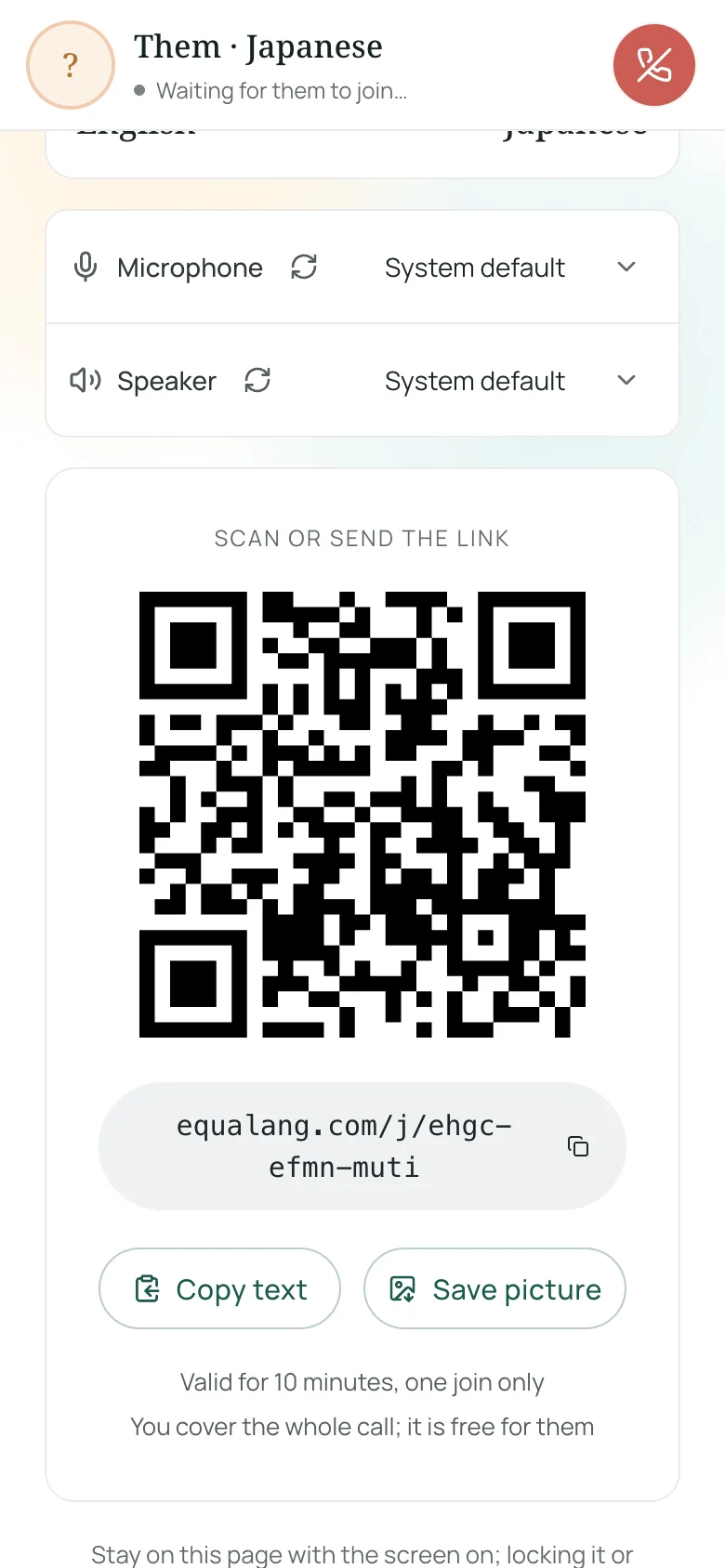
Note on usage boundaries: Web-link calls require an active internet connection (Wi-Fi or cellular data) and operate as browser audio sessions rather than standard cellular phone number calls. The call host covers session credits (35 credits/minute for live captions, and 150 credits/minute for voice synthesis, as detailed on /pricing). For broader cross-border client workflows, see our guide on web-link multilingual phone calls.
Sources
- Apple Support, "Use Live Translation on iPhone" (article 123720): https://support.apple.com/en-us/123720
- iPhone User Guide, "See translations during phone calls on iPhone" (iOS 27 guide): https://support.apple.com/en-us/guide/iphone/ly3pl0v38sek/ios
- Apple Support, "How to get Apple Intelligence" (article 121115): https://support.apple.com/en-us/121115
- Apple, "iOS and iPadOS 27 - Feature Availability": https://www.apple.com/ios/feature-availability/
- Apple Newsroom, "New Apple Intelligence features are available today": https://www.apple.com/newsroom/2025/09/new-apple-intelligence-features-are-available-today/
- Apple Support, "Use Live Translation with your AirPods" (article 123185): https://support.apple.com/en-us/123185
- Equalang, Translated Call and Credit Rates