Google Translate Conversation Mode on PC: What Works
 Equalang
In brief
Google Translate has no conversation mode on PC browsers. Learn what web voice input can do, why Interpreter mode changed, and 3 working desktop setups.
Keywords: google translate conversation mode pc; google translate live conversation desktop; translate conversation on laptop; google translate web speech input; bilingual conversation pc
No, Google Translate does not offer an automated two-way conversation mode on PC browsers or desktop computers.
Google's official computer support document for live translation states the limitation plainly:
“You can't talk and translate at the same time on Google Translate for the web, but you can use the Translate app on a phone or tablet.”
When you open Google Translate in a desktop browser, you will find tabs for text, documents, websites, and images, but no continuous "Conversation" or "Live translate" button. The continuous, hands-free speech-to-speech mode that automatically detects when one language stops and another starts exists exclusively within the Google Translate mobile apps for Android and iOS.
What Google Translate Voice Input Actually Does on a PC
While Google Translate on the web does not offer a continuous conversation mode, it does support basic, one-way voice input for individual phrases. Understanding how it operates clarifies what you can and cannot accomplish from a laptop:
- Manual activation per phrase: On your computer, open Google Translate, choose the source and target languages manually, and click the Microphone icon at the bottom. Speak a single word or phrase, then click Stop.
- Audio playback: To listen to the spoken translation, click the Listen icon. Google provides three playback speed options: Normal, Slow, or Slower.
- No automatic language detection: Google's documentation explicitly notes: “Translation with a microphone won't automatically detect your language.” You must set the languages beforehand.
- Browser restrictions: Fully supported voice input is available only in Google Chrome. Safari and Microsoft Edge have limited support. If you encounter the error message “Voice input isn't available,” it indicates that the feature is unsupported for that specific language in your browser.
- Manual swapping required for dialogue: If two people attempt to converse using the website, you must manually click the swap languages icon after each sentence, click the microphone, wait for recognition, click stop, and repeat the process for every turn.
The Status of Google Assistant Interpreter Mode and Microsoft Translator in 2026
Searchers often remember older workarounds involving Google Assistant or Microsoft Translator on desktop. Both ecosystems underwent significant deprecations:
Google Assistant Interpreter Mode
In previous years, users on Chromebooks, smart displays, or mobile devices could trigger a two-way spoken translation session by asking Google Assistant to launch "Interpreter mode." However, Google's official support documentation for Assistant changes lists Interpreter mode under underutilized features that are no longer supported:
“Translate your live conversation with someone who doesn't speak your language with interpreter mode. Translating a single word or phrase from one language to another will still work.”
Gemini does not replace this feature. Gemini Apps Help confirms that Interpreter mode is not supported within Gemini. (While that help page suggests switching back to Google Assistant, Google Assistant itself has deprecated the mode, and press reports in late 2026 noted the wider phase-out of Assistant on Android phones). Google Assistant continues to respond to "Hey Google" on non-mobile devices such as smart displays and speakers, but ongoing support for interpreter mode on those devices is not confirmed by Google. In enterprise environments, Google introduced Gemini 3.5 Live Translate audio in private preview for select Google Workspace business customers in Google Meet starting June 2026, but that is a business video-conferencing tool rather than a free consumer web feature.
Microsoft Translator Multi-Device Retirement
Microsoft previously allowed users to create or join multi-device live conversations from a web browser via room codes. In developer release notes for version 26.7.1 published on June 30, 2026 on the Apple App Store and Google Play, Microsoft stated:
“The multi-device conversation feature has been retired.”
Additionally, the standalone Microsoft Translator app for Windows desktop was retired and removed from the Microsoft Store, and former web conversation links on translator.microsoft.com now redirect to the general Microsoft Translator product page. (Separately, Microsoft Translator Pro began its phased retirement on September 15, 2026). While the Microsoft Translator mobile app still features a single-device Split Screen mode and speech translation in 100+ languages, desktop web conversation hosting is no longer available.
3 Practical Setups for Live Two-Way Translation on PC
If you need to conduct a bilingual conversation and have a PC in front of you, three main setups are available, each with distinct functional trade-offs.
Setup 1: Mobile App Side-by-Side (Google Translate or Microsoft Translator)
If you have a smartphone nearby, the official mobile apps remain the simplest free way to achieve hands-free turn detection:
- How to use it: Open the Google Translate app on Android or iOS, tap Live translate, and select Conversation. Translations play aloud through the device speaker, headphones, or earpiece (73 languages supported across the mobile apps). The app automatically detects when each speaker stops and starts. Alternatively, use the Split Screen mode in the Microsoft Translator mobile app.
- Trade-offs: Completely free and supports automatic turn-taking. However, it requires passing a phone back and forth or crowding around a small screen, making it awkward for formal meetings, desk interviews, or sharing detailed notes on a laptop screen.
Setup 2: Manual Single-Phrase Turn-Taking in Chrome
If you cannot use external tools or install software and only need to exchange brief logistical details on a PC:
- How to use it: In Google Chrome, open translate.google.com. Manually set Language A and Language B. Click the microphone, speak one sentence, click stop, and play the audio. Click the swap arrows so the other person can speak their reply into your laptop microphone.
- Trade-offs: Free, requires no extra software, and runs in any Chrome browser. However, the lack of auto-detection and the need to click four to five times per sentence makes natural dialogue difficult.
Setup 3: Browser-Based Live Two-Way Translation on PC
When conducting client consultations, interviews, or meetings where participants share a laptop or connect remotely, a browser-based interpretation tool eliminates the need for mobile screen-sharing.
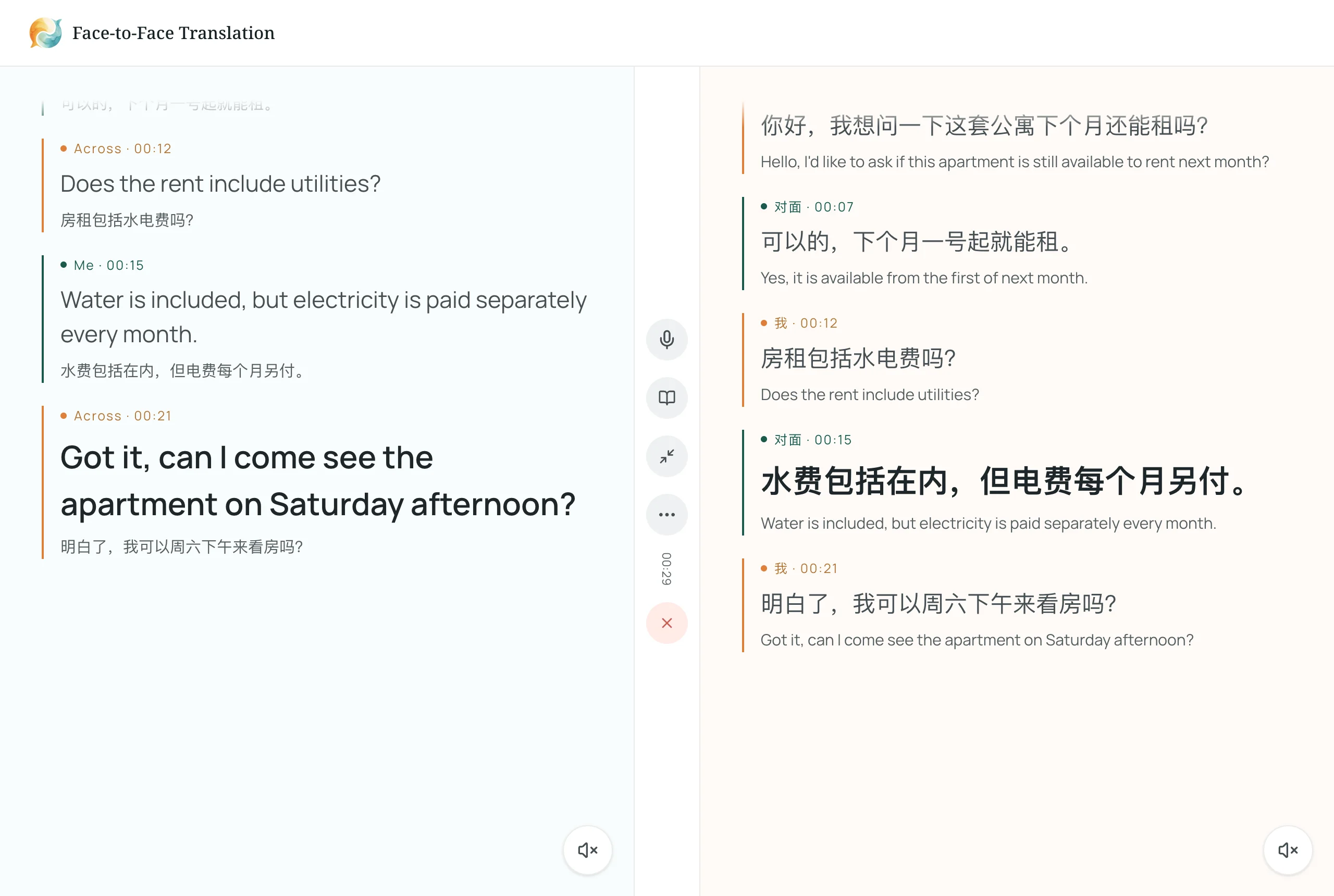
Below we demonstrate using Equalang (意扣), a web-based translation platform that provides continuous bilingual conversation tools directly in desktop browsers (Chrome, Edge, Firefox) without software installation.
Workflow A: In-Person Desk Conversations (Face-to-Face)
- Open Equalang Face-to-Face in your desktop browser.
- Select the two spoken languages.
- Choose the Side by Side layout. On a laptop screen, this places your language on one half of the monitor and your partner's language on the other.
- Enable your laptop microphone. As either person speaks, the system transcribes the speech and generates translated subtitles in real time on both sides of the screen.
- When finished, you can pause or export the full bilingual transcript. (Transcripts remain accessible in your account for 14 days).
Workflow B: Remote Laptop Calls (Translated Call)
If the person you need to speak with is not in the same room, passing a microphone back and forth is impossible.
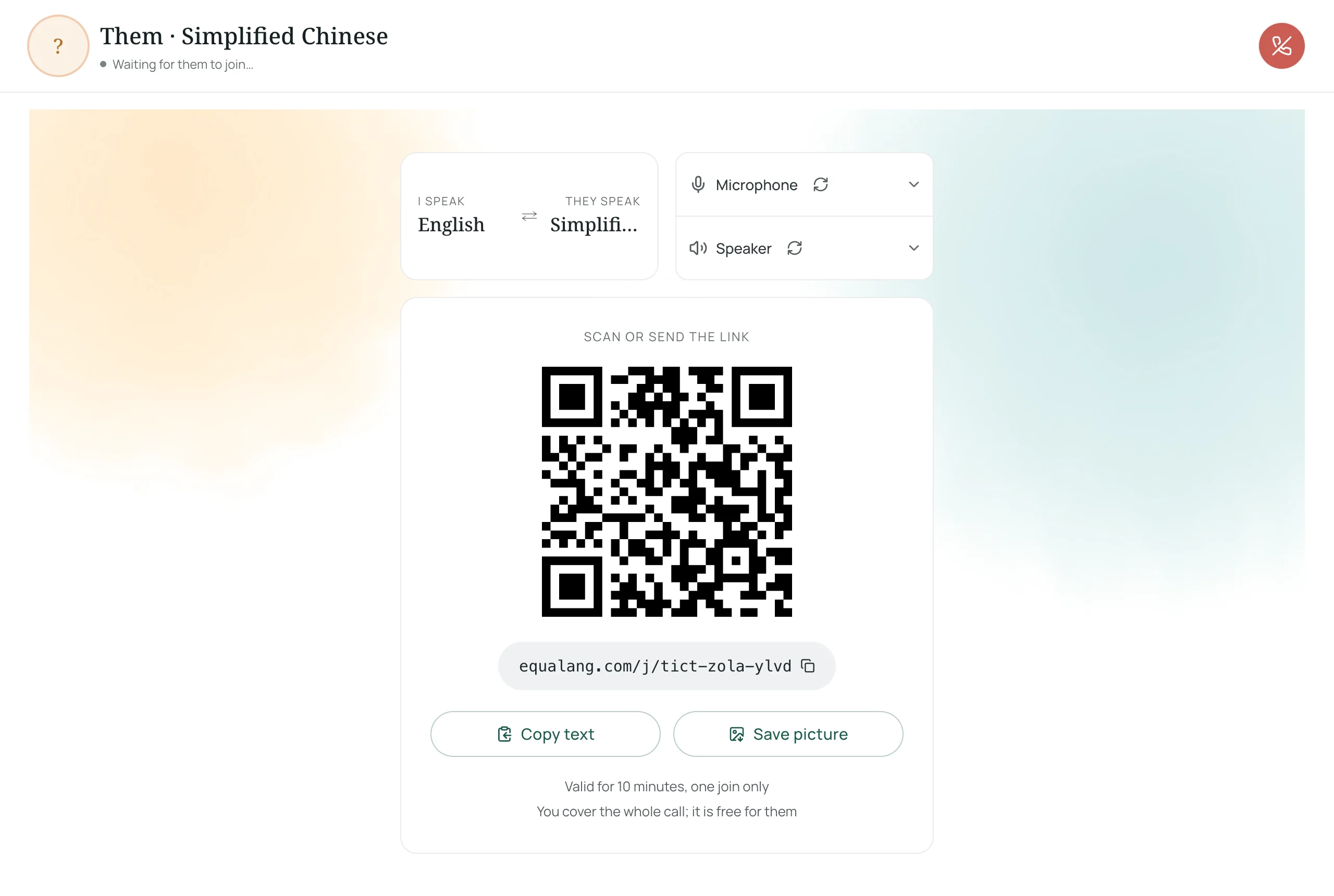
- In your browser, open Equalang Translated Call.
- Select both languages, enter your name, and generate an invite link.
- Send the link to the other participant. They can open it directly in their desktop or mobile browser without creating an account or installing plugins.
- Both participants speak their native language; each hears translated audio and sees real-time translated subtitles on their screen.
Trade-offs
Browser-based platforms like Equalang run natively on desktop displays, support dual-speaker transcript exports, and allow remote browser-to-browser calls. Unlike free mobile apps, however, real-time interpretation is a usage-based service. On Equalang, live captioning uses 35 credits per audio minute, and enabling translated voice output costs an additional 150 credits per output audio minute (new accounts receive 200 free trial credits upon registration). For further reading on structured in-person workflows, see our guide on talking face-to-face while traveling and communicating with overseas partners.
Troubleshooting & Frequently Asked Questions
Why does Google Translate show "Voice input isn't available" on desktop?
Google documents that this error indicates voice input is unsupported for that particular language in your browser. Google Chrome has the widest speech recognition coverage; Safari and Edge have limited support. Switching to Chrome or testing with a widely supported language pair (such as English and Spanish) can verify whether your microphone permissions are functioning.
Why does live translation cut off in the middle of long speech?
In Google Translate community threads, users frequently report live speech recognition cutting off unexpectedly. Browser speech recognition relies on automated voice activity detection (VAD). If you pause for more than a few seconds while gathering your thoughts, or if ambient room noise interferes, the browser assumes you have finished speaking. For continuous lectures or presentations where one person speaks at length, a dedicated stream tool like Equalang Live Listening is more appropriate than conversational turn-taking modes.
Does Gemini have an Interpreter mode on PC?
No. Gemini Help explicitly states: “Some features & services from Google Assistant are not supported in Gemini: Interpreter mode.” There is currently no hands-free conversational translation mode inside the consumer Gemini web interface.
Why can't I create or join a conversation room in Microsoft Translator?
Microsoft officially retired the multi-device conversation feature in app version 26.7.1 on June 30, 2026, and decommissioned the web conversation portal on translator.microsoft.com. Shared five-letter conversation codes are no longer supported.
Summary of Next Steps
If you only need to look up an isolated phrase on your laptop, use Google Translate in Chrome with manual turn-taking. If you have a phone on hand, Google Translate's mobile app provides automated speech detection at no cost. For professional desk conversations, structured meetings, or remote browser-to-browser calls where you need large-screen dual subtitles and exportable transcripts, open a session on Equalang Face-to-Face or share an invite via Equalang Translated Call.
Sources
- Google Translate Help, "Hear live speech to speech translations with live translate" — Computer: https://support.google.com/translate/answer/6142474?hl=en&co=GENIE.Platform%3DDesktop
- Google Translate Help, "Translate by speech" — Computer: https://support.google.com/translate/answer/6142468?hl=en&co=GENIE.Platform%3DDesktop
- Google Translate Help, "Hear live speech to speech translations with live translate" — Android: https://support.google.com/translate/answer/6142474?hl=en&co=GENIE.Platform%3DAndroid
- Google Blog, "Fluid, natural voice translation with Gemini 3.5 Live Translate" (June 9, 2026): https://blog.google/innovation-and-ai/models-and-research/gemini-models/gemini-live-3-5-translate/
- Google Assistant Help, "Changes we're making to Google Assistant": https://support.google.com/assistant/answer/9234753?hl=en
- Gemini Apps Help, "What you can do with your Gemini mobile app" — Android: https://support.google.com/gemini/answer/14579631?hl=en&co=GENIE.Platform%3DAndroid
- Microsoft Translator on the Apple App Store, Version 26.7.1 Release Notes (June 30, 2026): https://apps.apple.com/us/app/microsoft-translator/id1018949559
- Microsoft Translator, "Live conversations - Education": https://www.microsoft.com/en-us/translator/education/live-conversations/
- Microsoft Learn, "What is Microsoft Translator Pro?": https://learn.microsoft.com/en-us/azure/ai-services/translator/solutions/translator-pro/overview
- Equalang Face-to-Face Translation: https://equalang.com/face-to-face
- Equalang Translated Call: https://equalang.com/call