Google Meet Translated Captions: Turn On & Fix Missing
 Equalang
In brief
How to turn on translated captions in Google Meet, troubleshoot a missing toggle, or get live bilingual subtitles and transcripts on any account.
Keywords: google meet translated captions; google meet translated captions not working; google meet translated subtitles; google meet bilingual captions; save google meet transcript
To turn on translated captions in Google Meet, click More options (⋮) > Settings > Captions inside an active call, enable Captions, and toggle on Translated captions to pick the language you want to read. If the Translated captions toggle does not appear in your settings panel, your account or the meeting host does not have an eligible paid Google Workspace, Gemini, or Google One AI plan, or the spoken and target language pair is not supported natively. When you are joining from a personal Gmail account or standard Workspace tier—or when you need to read both the speaker's original words and the translation side by side and save the transcript afterward—you can open a browser-based bilingual listening window right next to your meeting.
How to Turn On Native Translated Captions in Google Meet
Google Meet separates standard speech-to-text transcription (Live captions) from cross-language translation (Translated captions). Turning on the CC button at the bottom of the call only transcribes what the speaker is saying in their own language unless translation is also configured.
Follow these steps on desktop at Google Meet once you are inside a meeting:
- Click the CC (Turn on captions) icon in the bottom control bar, or click More options (⋮) > Captions.
- Open the caption language menu by clicking the gear icon that appears on the caption bar, or go to More options (⋮) > Settings > Captions.
- Under Language of the meeting (or spoken language), select the language the other participants are actually speaking. If the meeting is in Japanese but this dropdown is still set to English, Meet will try to transcribe Japanese sounds as English words and translation will fail.
- Toggle on Translated captions and select the target language you want displayed on your screen.
- Close the settings dialog. The bottom caption bar will now show the translated lines instead of the spoken language.
Keep in mind that each participant controls their own caption view. Turning on translated captions on your screen does not change what other people in the call see, and it does not translate your own voice when you speak back.
Why Is "Google Meet Translated Captions" Not Working or Missing?
Searching for why Google Meet translated captions are not working usually comes down to three platform rules documented in the Google Meet translated captions help guide.
1. Your Account or the Host Lacks an Eligible Paid Add-On
While standard Live captions are available broadly across free and paid accounts, native Translated captions require an eligible paid edition—such as specific Google Workspace Enterprise or Business tiers, a qualifying Gemini for Google Workspace add-on, or Google One AI Premium for personal accounts. In many organization-hosted calls, feature availability depends on the meeting organizer's Workspace edition rather than the guest's account. If neither side has an eligible license, the Translated captions row is hidden completely from Settings > Captions.
2. The Spoken and Target Language Pair Is Unsupported
Google Meet does not support every spoken-to-target combination. Even on an eligible Workspace plan, selecting a spoken language that only supports same-language transcription will grey out or hide your target translation language. If a speaker switches languages mid-call—for instance, moving from English slides to a French Q&A—you also have to manually update the spoken language dropdown in settings before captions recover.
3. Native Captions Replace the Original Speech and Disappear
Even when the toggle works, Google Meet's native translated captions have two practical limits for work and study:
- No bilingual comparison: The translated line replaces the spoken language at the bottom of the video window. When a colleague mentions a product code, technical term, or proper noun that gets mangled in translation, you cannot see the original phrase to verify what they actually said.
- No saved bilingual history from the caption bar: Once a sentence scrolls off the two-line display at the bottom of the screen, you cannot scroll back up to re-read it or export the bilingual text after the call unless the host separately recorded a full meeting transcript to Google Drive.
How to Get Live Bilingual Captions and a Transcript on Any Account
If you are joining a call on a personal Gmail account, a standard company Workspace account without the translation add-on, or a webinar hosted by an external client, you do not need to ask the organizer to upgrade their license. You can run Equalang Live Listening in a separate browser window alongside your Google Meet tab to generate live bilingual subtitles and keep a full text record.
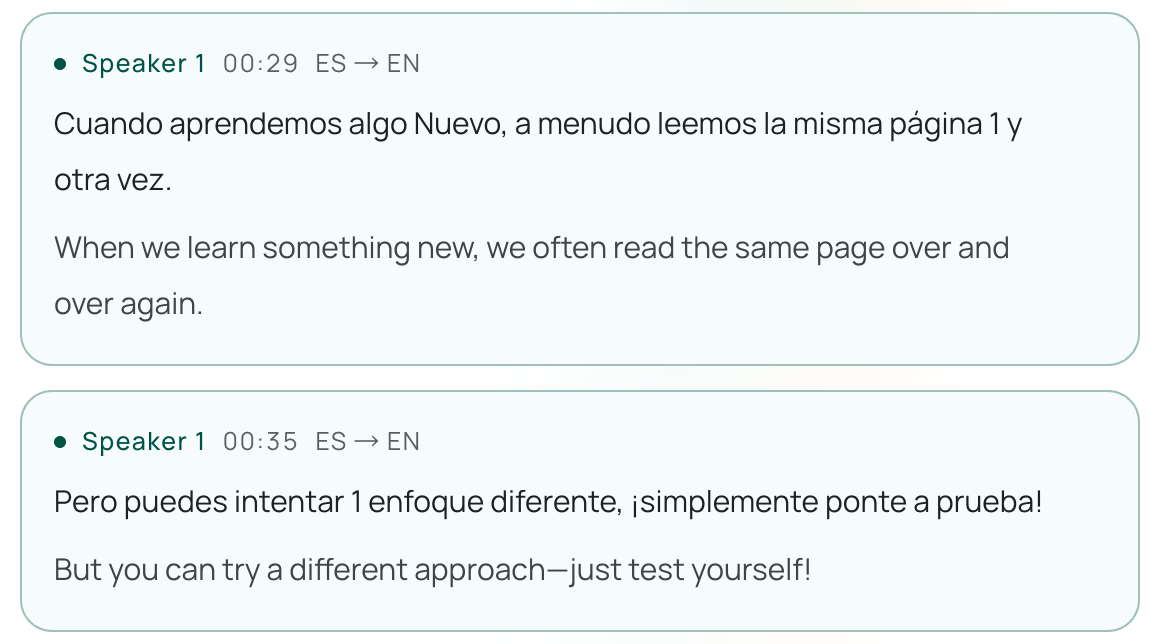
Step-by-Step Setup Alongside Google Meet
- Open the listening page: Before or during your call, open Live Listening in your browser on your laptop, tablet, or phone. No browser extension or desktop software installation is required.
- Set your languages: Choose what you want to read under I read / I listen (your native language) and what the meeting participants are speaking under They speak.
- Pick your display layout:
- Side-by-side · Skim: Displays your native language in large text with the original foreign speech in smaller text right above or beside it, so you can follow fast discussions at a glance while keeping technical terms visible.
- Side-by-side · Study: Displays the original foreign language in large text and your translation in smaller text—useful for international seminars or training sessions (see our guide on how to follow foreign-language lectures).
- Choose Standard or Low latency: Select Standard for everyday meetings, or switch to Low latency when you need faster caption turnaround during rapid Q&A (Low latency responds faster at a higher credit rate). You can pause and resume listening at any time during breaks.
Practical Tip for Capturing Meeting Audio
Because browser-based live listening captures audio through your device's microphone input, how you listen to the Google Meet call matters:
- Using laptop or desktop speakers: Unplug your headphones so your computer's microphone can pick up the meeting audio coming from your speakers cleanly in a quiet room.
- In a shared office or café: If you must keep headphones plugged into your laptop for Google Meet, open
/listenon your phone or tablet and hold its microphone near one earpiece, or route your computer's system audio through a virtual audio cable. - Audio quality boundaries: Just like human ears, speech recognition works best when one person speaks clearly at a time. Overlapping cross-talk, heavy background noise, or echo in a conference room can introduce recognition errors in the source transcript.
Export the Bilingual Transcript or Generate an AI Summary
When the Google Meet call ends, your captions do not vanish:
- Export bilingual records: Click export at the end of the session to download a complete transcript containing both the original spoken sentences and their translations.
- AI Meeting Summary: After ending the session, you can generate an AI summary tailored to the scenario (Auto-detect, Lecture / Class, Meeting / Business, Service / Consultation, or General) in your preferred language. Selecting Meeting / Business highlights owners and deadlines, and every summary bullet includes a View original link that jumps straight back to that exact moment in the transcript. The page displays the estimated credits before starting, and failed generations are not charged. Because summaries are generated by AI from the session transcript, always check the linked original lines for critical figures or commitments.
What If Both Sides Need to Speak Their Own Native Language?
Google Meet's captions—and live listening tools—are designed to help you understand what others are saying. But what if you are having a 1-on-1 meeting with an overseas client, supplier, or tutor where neither of you speaks the other's language fluently?
For two-way conversations, you can start an Equalang Translated Call instead:
- Log in, choose a supported language pair for both participants, enter your display name, and generate a call link.
- Send the invitation text or image to the other person. They open the link directly in their desktop or mobile browser, type their name, and request to join—the invitee does not need to install an app or register an account.
- Once you admit them, each person speaks in their own native language and hears the translated voice in theirs (voice readout is on by default and can be toggled off anytime), while reading translated captions on screen.
- All call credits are billed to the host who created the link. After hanging up, you can export the two-way bilingual transcript or run an AI summary.
Note that bidirectional voice interpretation supports a specific catalog of tested spoken language pairs, which is narrower than the read-only target languages available in Live Listening. Always check the language selector on /call before scheduling your session.
Credit Rates and Data Retention
If you only need same-language captions or your company already pays for an eligible Google Workspace Enterprise plan, use Google Meet's built-in captions first. When you need Equalang for unsupported accounts or bilingual transcripts, billing is pay-as-you-go rather than a monthly subscription:
- Free trial credits: New accounts receive 200 credits upon sign-up so you can test your audio setup before buying.
- Pay Only for Active Speech: Live Listening and Translated Call captions cost 35 credits per minute of audio actually sent for recognition (silent periods or muted microphones are not sent and not billed; continuous speech is split into slightly overlapping segments for accuracy, and those overlaps are included). Turning on translated voice readout adds 150 credits per minute of output audio. You can review full details on the Pricing page. Purchased credits never expire.
- Retention & privacy: Session transcripts stay in your History until you delete them (while optional audio recordings are kept for 6 months), so you can export, summarize, or permanently delete them anytime. Equalang does not sell personal data or use your submitted audio or transcripts to train AI models.
Frequently Asked Questions
Can I use Google Meet translated captions on a free Gmail account?
No. Standard live captions (in the speaker's original language) are free for personal Google accounts, but native translated captions require an eligible paid Google One AI Premium plan on your personal account or a meeting hosted by an eligible Google Workspace / Gemini organization.
Do I need to install a Chrome extension to get bilingual captions in Google Meet?
No extension is required if you use a side-by-side browser window. Opening Live Listening in a separate browser tab or on a second device lets you capture speaker audio and read live bilingual captions without injecting third-party scripts into your corporate Google Meet tab.
Can I save the translated captions from a Google Meet call?
Google Meet's bottom caption bar does not save a downloadable bilingual log when the call ends. If you run Equalang Live Listening during the meeting, you can export the full original-plus-translated text transcript immediately after stopping the session, or access it inside your account for up to 14 days.