Can’t Follow Twitch Streams? Enable Real-Time Bilingual Subtitles and Chat Translation
 Equalang
In brief
Twitch streamers often speak quickly without official subtitles. Learn how to use the Equalang browser extension to enable real-time bilingual subtitles and live chat translation.
Keywords: Twitch subtitles; real-time Twitch translation; live stream bilingual subtitles; Twitch chat translation; Equalang
When watching international streamers or esports tournaments on Twitch, language is often a major barrier to fully enjoying the content. Streamers and casters tend to speak quickly, frequently using colloquial slang and tactical gaming jargon. More importantly, most individual channels simply do not provide an official subtitle track, leaving viewers with no choice but to strain their ears to keep up.
Beyond the video stream itself, Twitch's fast-scrolling chat room on the right is an integral part of the live viewing experience. If you cannot understand the jokes, memes, or live reactions posted by other viewers, the experience feels incomplete. When facing live streams without subtitles, how can you use tools to get bilingual assistance for both the video and the chat? This article breaks down the limitations of existing solutions and walks through how to use the Equalang browser extension to enable real-time bilingual subtitles and chat translation.
1. Comparing Existing Solutions: Why Native Captions and Standard Translation Tools Fall Short
To follow live Twitch streams in a desktop browser, viewers currently rely on two primary types of solutions, though each comes with practical limitations:
-
Twitch Native Closed Captions (CC)
- Mechanism: The Twitch player supports closed captions embedded via CEA-608/708 standards or fed in by third-party streaming tools.
- Limitations: Twitch does not provide fully automated real-time speech transcription across the platform. For the CC button to appear on a stream, the streamer or tournament organizer must independently configure third-party speech recognition tools or live stenography streams. As a result, the vast majority of personal streamers do not offer CC subtitles. Even when an official channel does provide captions, they typically only display a single foreign language, with no side-by-side bilingual comparison on screen.
-
Built-in Browser Live Captions and Standard Web Translation Tools
- Mechanism: Certain browsers (such as Chrome) feature built-in live captions; other users attempt to use standard word-lookup or full-page web translation extensions.
- Limitations: On most computers, browser-level live captions only output text in the original spoken language without streaming translation, and they cannot display bilingual subtitles side-by-side or stacked on the video. Meanwhile, standard web translation extensions are designed for static web page text—they easily break or misalign when dealing with rapidly scrolling live chat rooms, and they cannot process audio within the video stream at all.
2. Using Equalang to Enable Real-Time Bilingual Subtitles and Chat Translation
Open any active Twitch live stream in your desktop browser. You can configure everything directly through the Equalang extension's in-player control panel:
1. Check and Adjust Speech Translation Settings
Once you enter a stream, click the Equalang menu icon in the bottom-right corner of the video player to expand the subtitle translation and live speech translation settings.
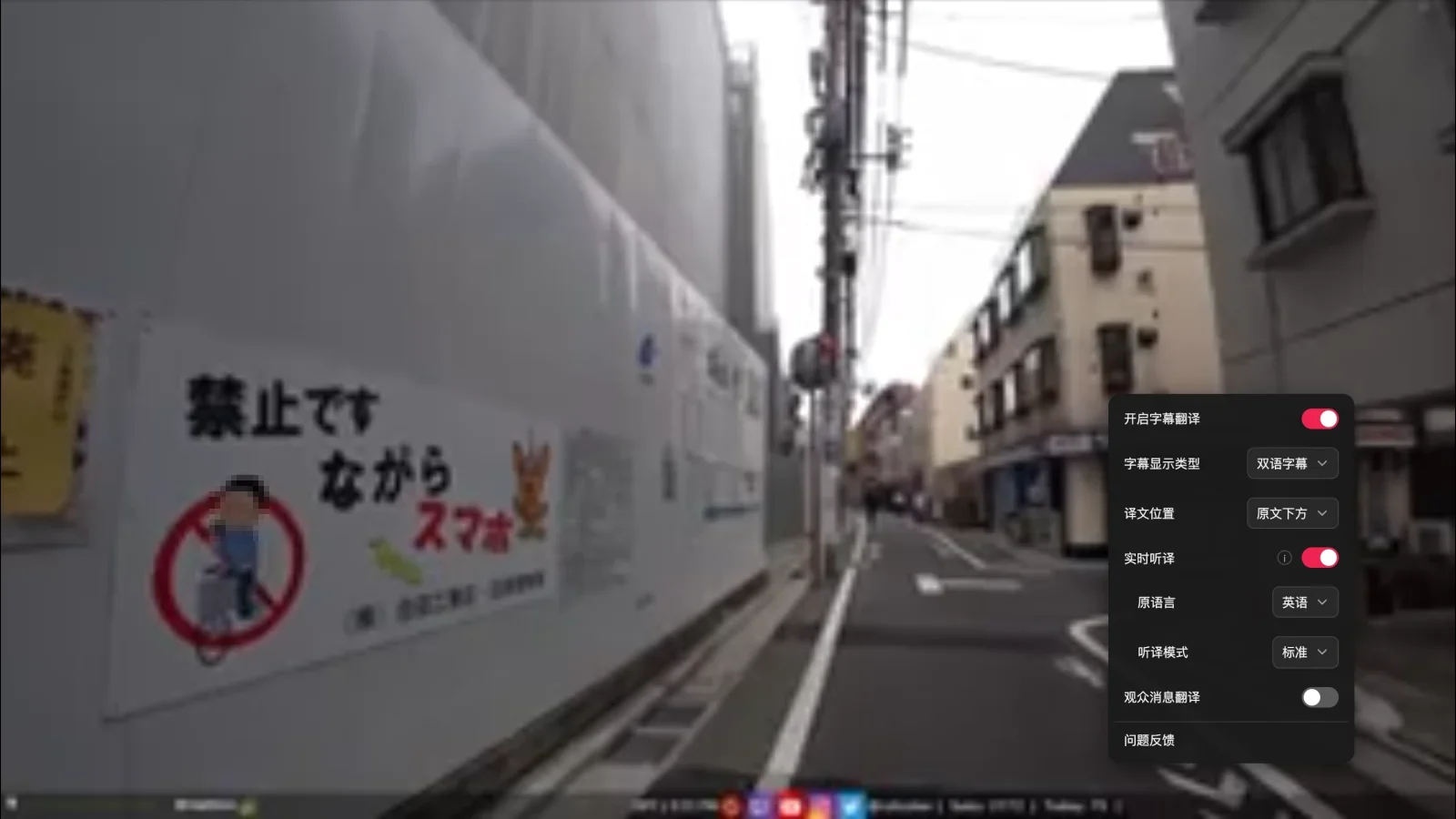
Within the menu, you can customize your subtitle display type ('Bilingual Subtitles' or 'Translation Only') and translation placement ('Below Original' or 'Above Original'). For live streams without built-in captions, keep 'Live Speech Translation' toggled on, set the source language to the language spoken by the streamer (e.g., 'English'), and set the transcription mode to 'Standard'.
2. On-Screen Real-Time Bilingual Subtitles
Once live speech translation is enabled, the extension begins processing the stream's audio and generating subtitles. When watching an English-speaking streamer, bilingual subtitles appear simultaneously at the bottom of the screen.
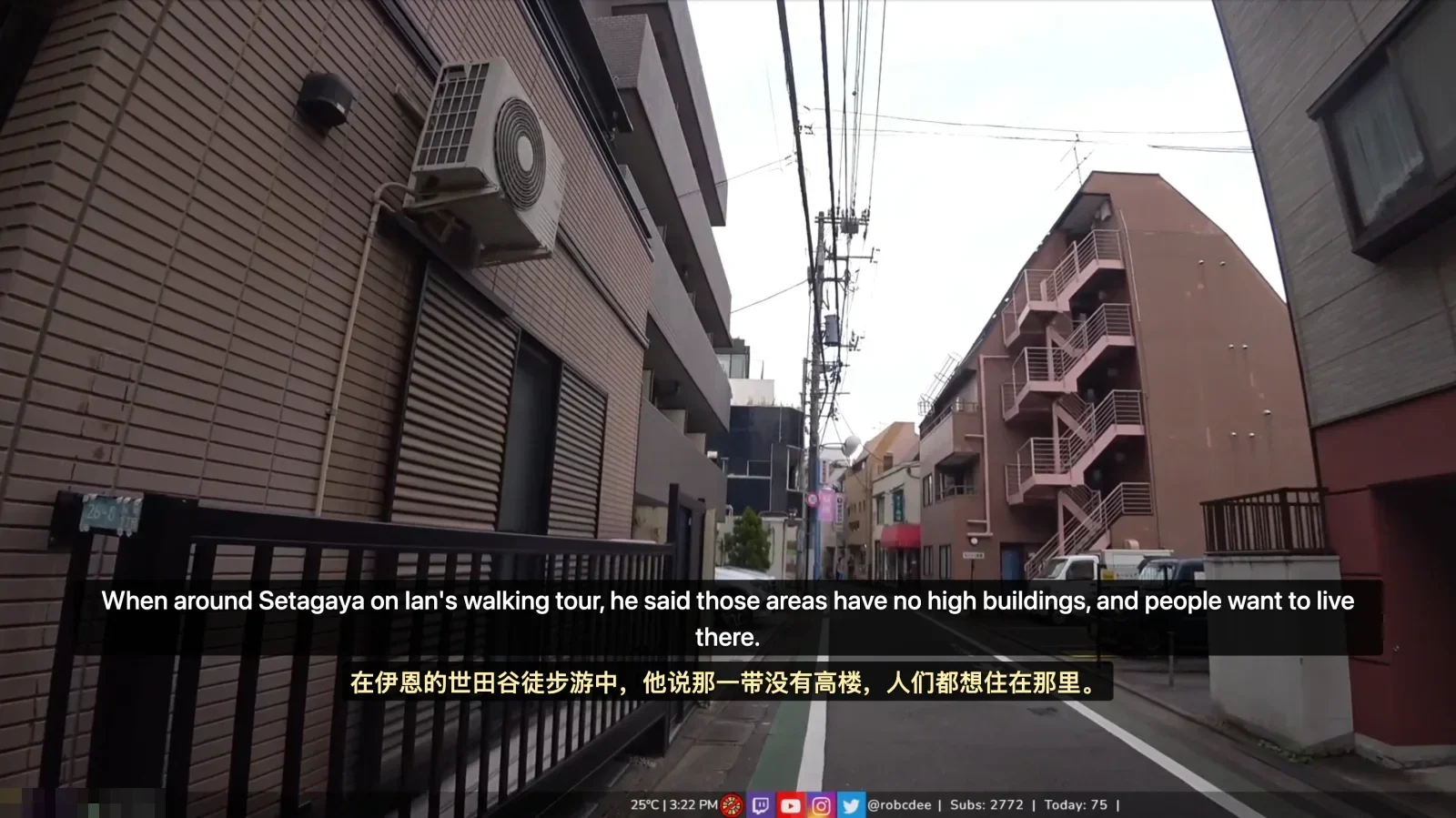
Having both languages on screen simultaneously is particularly practical: when a streamer mentions a place name, player gamertag, or slang term, if you need to double-check the translation, you can glance at the original English sentence right above it to clarify immediately, avoiding misunderstandings from machine translation alone.
3. Enable Viewer Chat Translation
If you want to keep up with viewer interactions in the chat room on the right, toggle on 'Viewer Chat Translation' in the Equalang menu.
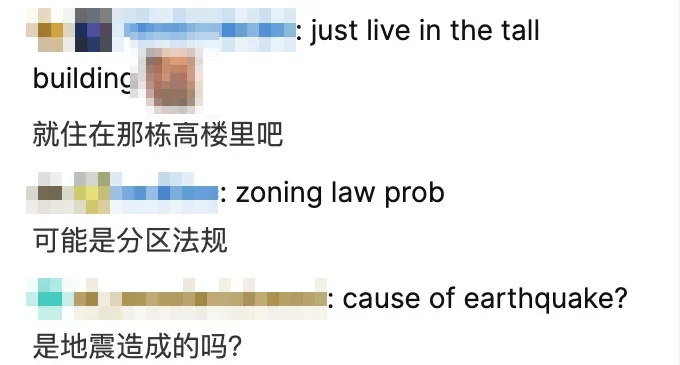
Once enabled, new English messages in the chat sidebar will display their corresponding translations directly beneath them. A few practical considerations to keep in mind:
- This feature is strictly a one-way reading aid to help you follow what other viewers are discussing; it does not post chat messages on your behalf or automatically translate your replies.
- Twitch-specific emotes or community memes may occasionally be translated literally as regular words (for instance, translating the emote 'MLADY' literally as 'My lady').
3. Considerations and Practical Limitations
When using live audio speech translation in practice, keep the following factors in mind:
-
Impact of Complex Background Audio on Recognition If a stream contains loud background music, in-game sound effects, or multiple people talking over one another, speech recognition accuracy may be affected. Whenever possible, choose streams where the speaker's voice is relatively clear.
-
Restrictions on DRM-Protected Content If a stream is encrypted with copyright DRM protection, the extension may not be able to access the audio stream, preventing real-time speech translation from functioning properly.
-
Sentence Segmentation and Processing Latency Live speech translation must first receive a sufficiently complete phrase or sentence before it can naturally segment and translate it within context. Consequently, subtitles will not appear instantaneously the moment a word is spoken; there is a natural buffering pause for semantic processing.
4. Practical Viewing Tips
- Fine-Tune Video Quality to Network Conditions: The Twitch player may stutter during network fluctuations. If you experience dropped frames or audio glitches, click the gear icon in the bottom-right corner of the player to manually set the stream quality to a tier appropriate for your current bandwidth (such as 1080p60 or 720p60) to maintain a smooth audio feed.
- Cross-Reference Key Terms with Bilingual Subtitles: When watching foreign streams, get into the habit of using the translation to quickly grasp the overarching meaning while verifying key terms against the original English. This allows you to follow the live action comfortably while naturally picking up authentic colloquial expressions.
Sources
- Twitch Official Help: Guide to Closed Captions: https://help.twitch.tv/s/article/guide-to-closed-captions
- Equalang Browser Extension: https://equalang.com/extension