How to Translate an Image or Screenshot on PC
 Equalang
In brief
Learn how to translate images and screenshots on Windows and Mac using built-in OCR tools, web services, and side-by-side photo translation.
Keywords: translate image on pc; translate screenshot; image translation pc; extract text from image; translate text in image
To translate an image or screenshot on a PC, your fastest path depends on whether you need the translated text overlaid directly inside the image or simply extracted as raw text:
- Direct clipboard paste (in-image overlay): Take a screenshot (
Win + Shift + Son Windows, orShift + Control + Command + 4on Mac), open a photo translation tool such as Equalang Photo Translation or Google Translate's Images tab, and pressCtrl + V(orCmd + V). The tool detects the language and displays the translated text over the original layout without requiring you to save an image file to your desktop first. - Windows built-in (local text extraction): Press
Win + Shift + Sto capture the area, click the capture notification to open Snipping Tool, select Text actions to run local optical character recognition (OCR), copy the extracted text, and paste it into any translation tool. - Mac built-in (system Live Text): Open your image or screenshot in Preview, highlight the text with your cursor, Control-click (or right-click), and choose Translate [text] to view an instant system translation popup.
Here is how each method works step-by-step, along with its specific trade-offs and privacy boundaries.
Method 1: Paste a Screenshot Directly into a Web Translator
When dealing with temporary error dialogs, software settings, or social media graphics, saving an image file just to upload it introduces unnecessary friction. A faster workflow is pasting your clipboard screenshot straight into a browser-based photo translator.
Below, we demonstrate with Equalang.
- Capture your screenshot: Press
Win + Shift + Son Windows (orShift + Control + Command + 4on macOS to copy directly to your clipboard) and drag over the text area. - Paste into the tool: Open your browser to Equalang Photo Translation, set your target language under "Translate into", and press
Ctrl + V(orCmd + Von Mac). You can also click "Choose image" to pick a saved.jpg,.png,.webp, or.bmpfile, or drag and drop it into the window. - Inspect the side-by-side result: The system detects the source language automatically. On desktop, the completion screen displays the original image on the left and the translated image on the right, with translated text placed over the original positions. You can zoom in or download the translated image file.
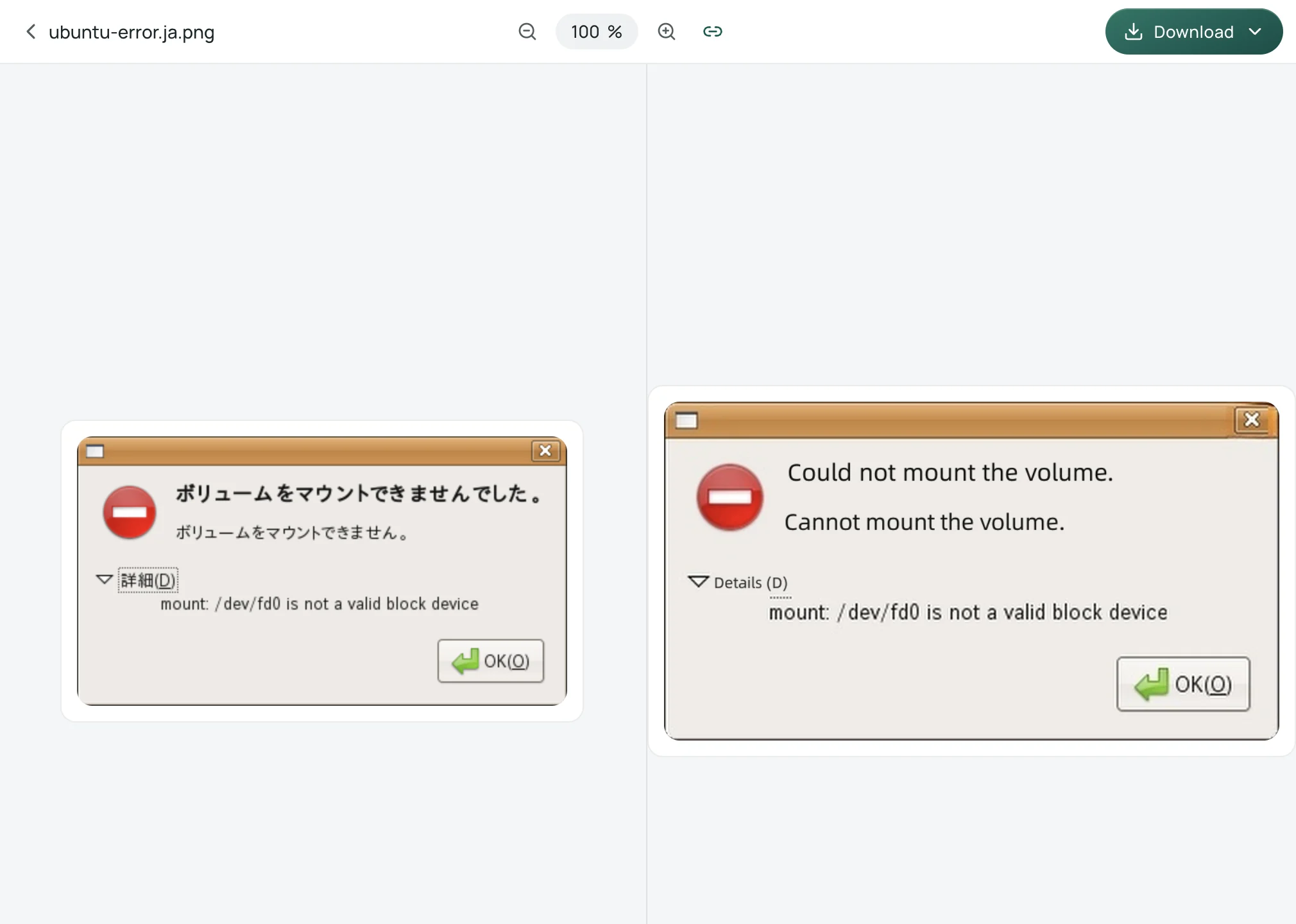
A few practical boundaries to keep in mind: translated text length often differs from the source, so font size and line wraps adjust to fit the original space. Heavily stylized fonts, handwritten text, or low-contrast backgrounds can lead to misrecognized characters or residual untranslated text. Under Equalang's privacy policy, uploaded images and translation results are retained for 14 days and then permanently deleted; submitted content is not used to train AI models or sold to third parties.
Alternative: Google Translate Images Tab
Google Translate also provides an image translation interface at translate.google.com/?op=images.
- How to use: Navigate to the Images tab, choose your target language (or leave source on "Detect language"), and click "Paste from clipboard", "Drag and drop", or "Browse your files". Supported file formats are
.jpg,.jpeg,.png, and.webp. - Outputs: Once processed, you can toggle "Show original" to view the source and translation side-by-side, click "Copy text" to copy the extracted translation, or click "Download translation" to save the image.
- Trade-offs: Google notes that small, unclear, or stylized text results in lower accuracy. Note also that Google Translate's Document mode does not translate text inside images or scanned PDF pages; you must use the dedicated Images tab for graphic text.
Method 2: Windows 11 Snipping Tool (Extract Locally, Then Translate)
A common question among PC users is whether Microsoft Edge or Windows can automatically translate text inside images on a webpage. Microsoft Edge's built-in translation feature translates webpage HTML text, but Microsoft's documentation does not describe translating text inside images. Furthermore, the standalone Microsoft Translator desktop app for Windows was retired and removed from the Microsoft Store in April 2021.
However, Windows 11 includes a native OCR feature inside Snipping Tool called Text actions:
- Capture the screen: Press
Win + Shift + Sand select the region containing the foreign text. - Open Text actions: Click the desktop notification that appears in the lower-right corner to open Snipping Tool. In the top toolbar, click the Text actions button to activate optical character recognition.
- Copy the extracted text: Snipping Tool highlights all recognized text. Click and drag to select specific sentences, or click Copy all text in the toolbar. (You can also use "Quick redact" if the snip contains phone numbers or email addresses you want to black out).
- Translate the text: Paste the copied text into a translation service, such as Equalang Text Translation or another translation web page.
Trade-offs: Microsoft's documentation confirms that all text recognition processes in Snipping Tool are performed locally on your device, providing strong privacy for sensitive internal documents. The drawback is that Snipping Tool only extracts plain text; it does not replace the text in-place, meaning you lose the visual context of buttons, labels, and diagrams.
Method 3: macOS Live Text in Preview
On a Mac running modern macOS versions, Live Text OCR and translation are built directly into the operating system.
- Open the image: Capture your screenshot (
Shift + Command + 4) and double-click the file to open it in Preview (Live Text is also available in Photos and Safari). - Highlight the text: Hover your cursor over the text in the image. The cursor changes to a text selection bar. Drag over the text you wish to translate. If text selection does not activate, choose Tools > Text Selection from Preview's top menu.
- Trigger Translation: Control-click (or right-click) the highlighted text and choose Translate [text].
- View and copy: A system translation card opens, displaying the detected source language and the translated text. Click Copy Translation to paste the result into another document, or click the play button to hear it read aloud.
Trade-offs: macOS allows you to download offline language packs via System Settings > General > Language & Region > Translation Languages to run on-device translation. However, Apple explicitly notes that offline translations may be less accurate than translations processed using Apple servers. Additionally, Live Text is not supported in all languages or regions, and the translation appears in a floating window rather than replacing the text inside the image.
Which Method Fits Your Task?
- Use direct clipboard paste (/photo): Best when translating UI error prompts, infographics, diagrams, or social media posts where visual placement matters. You see the translated text exactly where the original button or label was, without cluttering your desktop with temporary files.
- Use Windows Snipping Tool (Text actions): Best when you only need to copy a foreign tracking code, error number, or paragraph into an email or document, and prefer local OCR processing.
- Use macOS Preview (Live Text): Best for quick lookups on Mac when reading foreign receipts, photos, or screenshots already stored on your drive.
- For multi-page illustrated documents: If your images are part of a larger manual, report, or slide deck, translating screenshot by screenshot is inefficient. In those cases, a dedicated file translator like Equalang Document Translation translates entire PDF, Word, and PowerPoint files while preserving layout, tables, and embedded graphics.
Sources
- Google Translate Help - Translate images: https://support.google.com/translate/answer/6142483?hl=en&co=GENIE.Platform%3DDesktop
- Google Translate Images tool: https://translate.google.com/?op=images
- Google Translate Help - Translate documents (image limitations): https://support.google.com/translate/answer/2534559?hl=en&co=GENIE.Platform%3DDesktop
- Apple Support - Translate text on Mac: https://support.apple.com/guide/mac-help/translate-text-on-mac-mchldd8b3c15/mac
- Apple Support - Interact with text in a photo in Preview on Mac: https://support.apple.com/guide/preview/interact-with-text-in-a-photo-prvw625a5b2c/mac
- Microsoft Support - Use Snipping Tool to capture screenshots (Text actions OCR): https://support.microsoft.com/en-us/windows/apps/use-snipping-tool-to-capture-screenshots
- Microsoft Support - Use Microsoft Translator in Microsoft Edge: https://support.microsoft.com/en-us/topic/use-microsoft-translator-in-microsoft-edge-browser-4ad1c6cb-01a4-4227-be9d-a81e127fcb0b
- Equalang Photo Translation: /photo
- Equalang Privacy Policy: /legal/privacy