How to Enable Dual Subtitles on Netflix: View Original and Chinese Subtitles on One Screen
 Equalang
In brief
Netflix’s official player can only display one subtitle track at a time. This article explains how to use a desktop browser extension to translate native foreign-language subtitles into Chinese side by side on the same screen, along with DRM limitations and alternative approaches.
Keywords: Netflix dual subtitles; Netflix subtitle translation; learn languages watching TV shows; browser subtitle extension; bilingual subtitles
When watching American, British, Spanish, Japanese, or Korean series on Netflix, the biggest frustration is that the official player only allows you to select one subtitle track at a time. If you only turn on Chinese subtitles, your ears hear the original dialogue while your eyes get stuck in pure Chinese speed-reading. When puns, slang, or nuanced modal particles come up, it is hard to tell which exact words the actors are saying. On the other hand, if you switch to original foreign-language subtitles, any rapid dialogue, connected speech, or unfamiliar expressions can cause you to stumble and lose track of the plot. Constantly hitting the spacebar to pause and rewinding the timeline quickly drains all the fun out of watching shows.
To understand the plot without losing the context of the original dialogue, the most direct approach is to keep Netflix's original-language subtitles while stacking Chinese translations right on the same screen for comparison. Below is a walkthrough using the Equalang browser extension.
1. Three Steps to Enable Dual Subtitles on Netflix
After installing the extension in your desktop browser (Chrome, Edge, and Firefox are supported; Mac users can also install it temporarily on Safari 18.4 or later), open your show and follow these steps:
1. Turn on Original-Language Subtitles in the Player
Open Netflix in your browser and start playing an episode. Click the "Audio & Subtitles" menu in the bottom-right corner of the player and select the title's built-in original-language subtitle track (for example, choose Spanish subtitles for a Spanish series, or English subtitles for an American show).
2. Enable Subtitle Translation and Bilingual Display
Once the video loads the original subtitles, the Equalang icon will appear in the player. Click the icon to open the control panel, turn on "Subtitle Translation," set the target language to Chinese, and choose "Bilingual" as the display mode (actual on-screen display may vary).
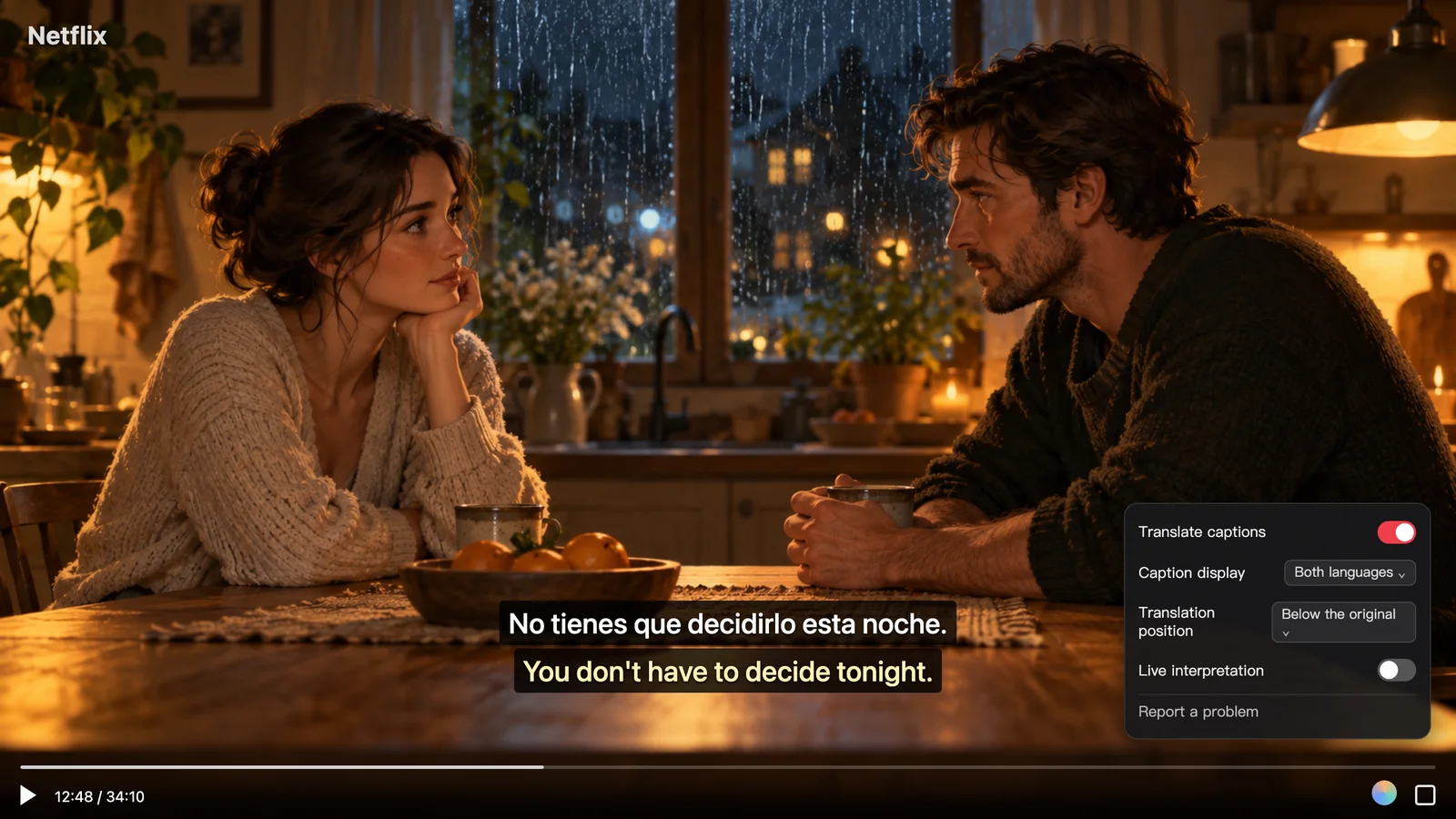
Once enabled, each line of original foreign subtitles will appear alongside its corresponding Chinese translation at the bottom of the screen. For example, when a character says "No tienes que decidirlo esta noche.", you will see the Chinese translation "你不必今晚就做决定。" on the same screen. You can keep your primary focus on the original dialogue to listen to pronunciation and phrasing; if you stumble across an unfamiliar word or idiom, a quick glance at the Chinese text lets you stay immersed in the story without constantly pausing.
3. Adjust Translation Placement and Display Modes
Different shows have different screen framing, and everyone has their own viewing habits. You can adjust two display settings in the extension panel:
- Translation Position: Choose to display the translation "Below original" or "Above original," keeping whichever line you want to focus on in the most comfortable viewing position.
- Bilingual / Translation Only Toggle: If you just want to relax and follow the plot during a specific scene, or if a video only has foreign-language subtitles without any official Chinese track, you can switch from "Bilingual" to "Translation Only" in the panel and use it as standard Chinese subtitles.
2. Two Prerequisites to Know Before Watching Netflix
Enabling dual subtitles on streaming platforms is subject to content protection mechanisms and subtitle sources. There are two essential prerequisites that determine whether and how this works:
- The video itself must include an original subtitle track (no real-time audio transcription on encrypted video): Full titles on Netflix are DRM-protected, and browsers do not permit extensions to capture audio directly from encrypted video streams for real-time speech recognition. Therefore, when watching on the official Netflix site, the extension relies on "subtitle translation" — you must first turn on an official subtitle track in the "Audio & Subtitles" menu before the extension can translate it into dual subtitles. If a title has no built-in subtitles whatsoever, captions cannot be generated from audio on encrypted pages. Real-time audio transcription without existing subtitles only works on unencrypted, publicly accessible videos, such as trailers and featurettes on YouTube.
- Subtitles for intro songs and dialogue-free scenes depend on the original source: Because translations are generated line by line from the platform's built-in subtitles, any background lyrics or ambient sound cues (such as
[sighs]or[phone rings]) included in the original subtitle track will also be translated. Conversely, on-screen text not transcribed in the original subtitles (such as street signs or text messages on a phone screen) will not appear in the subtitle stream.
3. Comparison of Common Subtitle Solutions
In addition to dedicated streaming subtitle translation extensions, there are two other common approaches you can choose from depending on your available video sources:
- Official Native Netflix Subtitles: Requires no extra tools, works right out of the box, and offers the most stable playback. The downside is that you can only activate one subtitle track at a time. It cannot display foreign languages and Chinese side by side, and if you run into niche shows or stand-up comedy specials that only have English subtitles without Chinese, there is no built-in automatic translation available.
- Tampermonkey Scripts and Open-Source Dual-Track Subtitle Extensions: As long as the title already provides both an "original foreign" and a "Chinese" official subtitle track, these free tools can merge the two existing official tracks onto a single screen without consuming translation quotas. However, if a title does not offer an official Chinese subtitle track in your region, a dual-track merger cannot generate one. Furthermore, whenever a streaming platform updates its web player architecture, some scripts may temporarily break until the developer releases an update.
- Equalang Subtitle Translation: As long as the source video has at least one original-language subtitle track, it can translate it into your target language in real time and display both on screen, allowing you to watch even when no official Chinese subtitles are available. Additionally, the same extension works across other platforms, providing dual subtitles on YouTube, TikTok, Bilibili, Viki, Crunchyroll, and more. The limitations, as mentioned earlier, are that encrypted platforms like Netflix still require the video to include at least one native subtitle track, and it requires a desktop browser extension.
If you want to train your listening skills and pick up authentic expressions without constantly compromising between "reading Chinese subtitles and ignoring the audio" or "reading foreign subtitles and losing the plot," try opening the original subtitles with a line of Chinese translation underneath them next time you stream in your browser. It makes for a much smoother and more enjoyable viewing experience.
Sources
- Netflix Help Center: How to use subtitles, closed captions, and alternate audio: https://help.netflix.com/zh-cn/node/372
- Equalang Browser Extension Overview: https://equalang.com/extension