Google Docs Translate Document: How-To, Limits and Fixes
 Equalang
In brief
How to translate a document in Google Docs, why the translate tool is missing, official formatting limits, and how to handle Sheets and Slides.
Keywords: google docs translate document; google docs translate document missing; google docs translate whole document; google sheets translate document; translate document
To translate a document in Google Docs, open it in your web browser on a computer, click Tools > Translate document, enter a name for the translated file, select your target language, and click Translate.
Google Docs creates a separate translated copy in Google Drive and opens it in a new browser window, leaving your original document untouched.
Why Is "Translate document" Missing in Google Docs?
If you open the Tools menu and do not see "Translate document," the cause is almost always one of two documented environment restrictions:
- You are in Microsoft Office editing mode: Google Docs Help explicitly states that if "Translate document" isn't visible, you are likely in Office editing mode editing a
.docxfile directly. To fix this, click File > Save as Google Docs. Once the file is converted into native Google Docs format, the translation tool appears under Tools. - You are using a mobile device: The "Translate document" feature is strictly computer-only. Google Docs Help for Android and iOS specifies: "To translate a document, open it in Google Docs on a computer." The feature is not built into the mobile apps.
- Workspace administrator settings: Google Workspace administrators can turn Google Translate on or off as an "Additional Google service" in the Google Admin console (under Apps > Additional Google services). Google documents that turning it off disables access to the Google Translate website and affects saved mobile translations. However, Google publishes no official statement confirming whether toggling this setting also removes "Translate document" inside Google Docs.
What Google Docs Translation Can and Cannot Do (Official Limits)
Google's official documentation outlines clear operational boundaries for its native document translation tool:
- Languages supported: Google Docs Help states only that "You can translate documents into many languages with Google Docs." Google does not publish a current list or official count on that help page. (While the feature launched in August 2009 with 42 languages, that number is historic and no longer maintained as the current figure).
- Length limits: Google publishes no official translate-specific character or page limit for the "Translate document" tool. The only documented technical ceiling is the general storage limit of Google Docs itself: up to 1.02 million characters, or up to 50 MB if converting a text document to Google Docs format.
- Formatting, tables, and images: Google's help documentation does not state what happens to fonts, styles, tables, headers, footers, or comments during translation. For graphics, Google Docs provides no official statement on whether text inside images is translated. However, Google Translate's Documents tab officially states: "You can find text in images and scanned .pdf pages in the output document but they aren't translated."
How to Translate Google Sheets and Google Slides
Many users search for "google sheets translate document" expecting the same menu item across Google Workspace apps. However, "Translate document" is documented exclusively for Google Docs.
- Google Sheets: Sheets does not offer a whole-spreadsheet translation menu. Instead, Google provides a cell formula:
=GOOGLETRANSLATE(text, [source_language, target_language]). The source language is optional and defaults to"auto". This formula translates cell by cell rather than creating a full translated workbook. - Google Slides: Google provides no official page or feature for whole-presentation translation. A practical workaround using official Google tools is downloading your presentation as a
.pptxfile (File > Download > Microsoft PowerPoint (.pptx)) and uploading it to Google Translate's Documents tab (translate.google.com/?op=docs), which officially accepts.pptx,.docx,.pdf, and.xlsxfiles up to 10 MB. - PDF documents: Opening a PDF directly in Google Docs converts it into an editable text document first. In practice, this conversion frequently reflows multi-column layouts, tables, and signatures before translation even begins.
Translating Complex Formats While Keeping Layout Intact
When working with presentation decks, complex spreadsheets, or formatted PDF contracts, relying on text-only conversion often requires hours of manual reformatting. For these workflows, specialized document translation services provide layout-aware alternatives.
Below, we demonstrate this using Equalang at Equalang Documents.
Equalang provides whole-file translation for PDF, DOCX, PPTX, and XLSX files while preserving layout where supported. For PDF documents, it maintains multi-column structures, footnotes, and headers, and reconstructs merged table cells. For PowerPoint presentations, translated text automatically scales down inside text boxes to prevent text from overflowing or covering graphics.
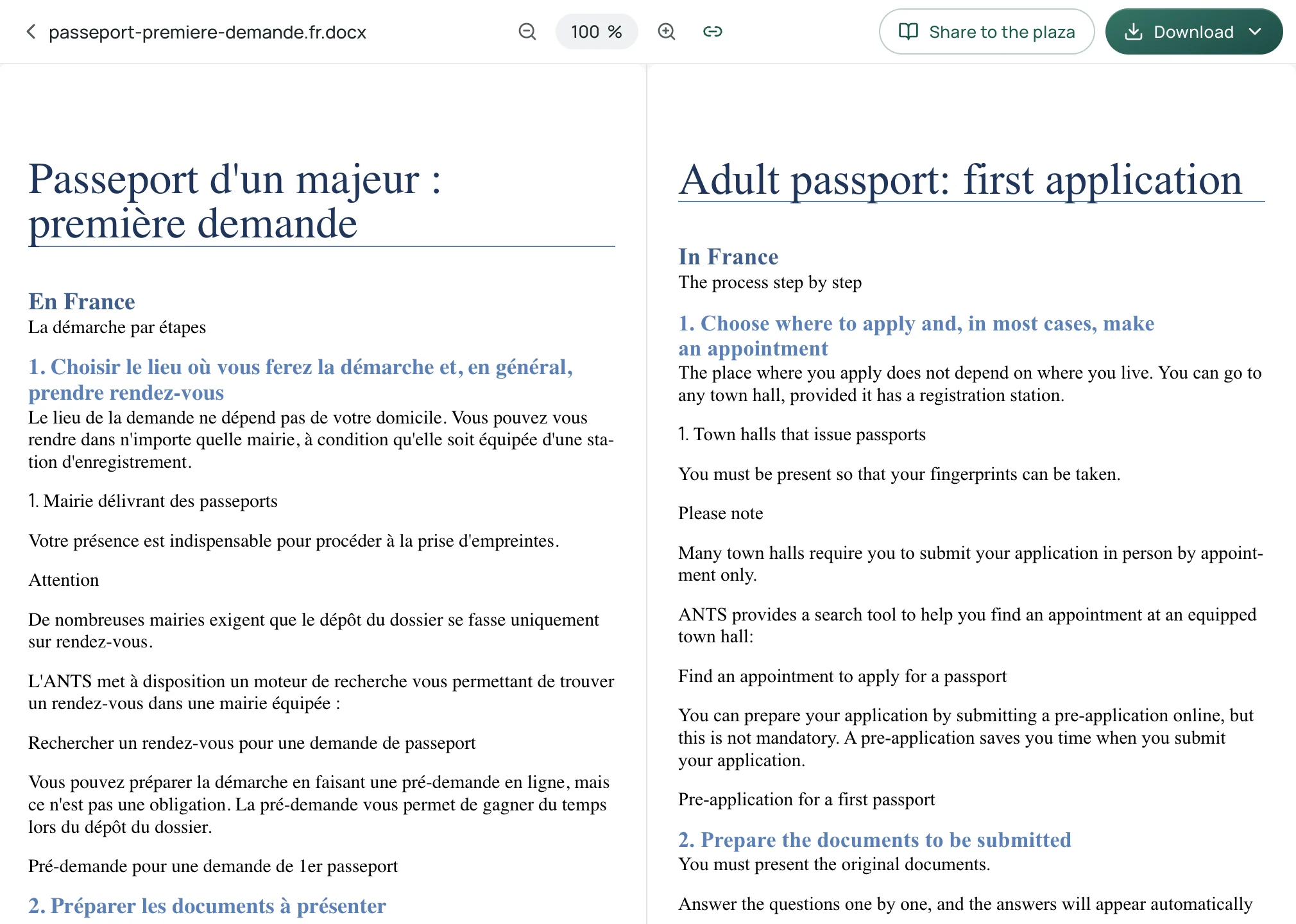
In the Equalang translation workspace, the original document is displayed on the left and the translation on the right, with synchronized scrolling for line-by-line verification. When exporting, you can download a translation-only document or a dual-language file where original and translated pages alternate.
Each approach serves distinct needs: Google Docs native translation is instant and free within Google Drive for straightforward text documents, while Equalang is suited for multi-format files (PDF, PPTX, XLSX) where preserving visual structure and enabling side-by-side verification are required.
Sources
- Google Docs Editors Help, "Translate documents or write in a different language" (Computer): https://support.google.com/docs/answer/187189?hl=en&co=GENIE.Platform%3DDesktop
- Google Docs Editors Help, "Translate documents or write in a different language" (Android & iOS): https://support.google.com/docs/answer/187189?hl=en&co=GENIE.Platform%3DAndroid
- Google Docs Editors Help, "GOOGLETRANSLATE": https://support.google.com/docs/answer/3093331?hl=en
- Google Drive Help, "Files you can store in Google Drive": https://support.google.com/drive/answer/37603?hl=en
- Google Translate Help, "Translate documents & webpages": https://support.google.com/translate/answer/2534559?hl=en&co=GENIE.Platform%3DDesktop
- Google Workspace Admin Help, "Turn Google Translate on or off for users": https://knowledge.workspace.google.com/admin/users/access/turn-google-translate-on-or-off-for-users
- Equalang Documents