Chrome Translate Not Working? 5 Fixes and Why It Fails
 Equalang
In brief
Fix Chrome translate not working or missing: verify language settings, remove 'Never translate' blocks, check admin policies, and handle PDFs and image text.
Keywords: chrome translate not working; google chrome page translation; chrome translate icon missing; chrome not translating page; translate web page
If Google Chrome's built-in page translation is not working or the prompt does not appear, the fastest official fix is to refresh the page, or right-click anywhere on the page and select Translate to [Language].
If that does not resolve the issue, Chrome translation is usually blocked by one of five causes:
- The feature is disabled: "Use Google Translate" is toggled off in Chrome settings.
- The language is excluded: The language of the page was added to your "Never offer to translate" list.
- An enterprise policy is active: An administrator set the
TranslateEnabledpolicy toFalse. - The website opted out: The site uses the HTML
translate="no"attribute or Google'snotranslatemarkers. - The content is an unsupported format: Chrome's page translation does not translate PDFs opened in Chrome's viewer, nor does it translate text inside images.
Here is how to diagnose each cause step by step, along with official fallbacks when in-place translation remains unavailable.
1. Quick Official Fixes: Refresh, Right-Click, and Address Bar
Google's primary troubleshooting instruction on its official desktop Help page (answer 173424) consists of a single direct action: "If Translate doesn't work, refresh the page."
Before changing configuration settings, verify the three built-in trigger points:
- Address bar icon: Look at the right side of the Chrome address bar (Omnibox). If Chrome detects a foreign language, a Google Translate icon appears there. Click it to open the translation pop-up.
- Right-click menu: Right-click any empty space on the webpage and select Translate to [Language]. This manual trigger works even if the automatic address bar prompt failed to show.
- Partial selection: If a full page translation fails or hangs on dynamic scripts, highlight a single paragraph, right-click the highlighted text, and select Translate selection to [Language].
- On mobile devices:
- Android: Tap More (three dots) to the right of the address bar and select Translate. Google's official Android documentation notes: "Not working? Try refreshing the page. If you still can't tap Translate, the language might not be available for translation."
- iPhone / iPad: Tap More (three dots) at the bottom or top right, then select Translate. If no prompt appeared automatically, requesting it from the menu forces Chrome to evaluate the page.
Note on audio: If you are attempting to translate spoken audio playing within a webpage rather than text, Google documents that web page translation does not process audio streams; you must use Chrome's Live Translate feature instead.
2. Check Chrome Settings: "Use Google Translate" and Language Lists
If the right-click option is missing or greyed out, the translation engine may be turned off in your browser profile, or the language you are browsing may be on your exclusion list.
Turning the feature on
- Open Chrome, click the three-dot menu in the upper-right corner, and select Settings.
- In the left sidebar, click Languages.
- Under the Google Translate section, ensure the toggle switch for Use Google Translate is turned on.
(Note: In current Chrome versions, this setting is labeled "Use Google Translate". Older third-party tutorials still cite the legacy label "Offer to translate pages that aren't in a language you read", which is no longer used by Google Chrome, though Microsoft Edge uses a similar phrasing).
Reviewing the "Never offer to translate" list
If Chrome translates Spanish or German without issue but refuses to translate Japanese or French, that specific language is likely saved in your exclusion list:
- In Settings > Languages, look under Google Translate.
- Check the section titled Never offer to translate these languages. If the language of your current page appears there, click the remove button next to it.
- To set your target translation language, verify the setting under Translate into this language.
- If you want Chrome to translate a specific foreign language automatically without asking, click Add languages next to Automatically translate these languages.
On mobile, the paths are slightly different:
- Android: Go to More > Settings > Languages. Under Translation settings, verify Offer to send pages in other languages to Google Translate is enabled. Tap Languages > Advanced, and check Don't offer to translate these languages. To re-enable an excluded language, tap it and select Offer to translate.
- iOS: Go to More > Settings > Languages, and check that Translate Pages is enabled. If you previously tapped "Never translate [Language]" while on a page, it will be listed here.
(Caveat: While third-party articles frequently reference a per-site "Never translate this site" management list on desktop, Google's current official documentation does not list a dedicated per-site exclusion manager in desktop settings).
3. System and Site Barriers: Enterprise Policies and "notranslate" Code
If the settings toggle is disabled or greyed out, or if translation fails on one particular website, the block may originate outside user-facing settings.
Enterprise and managed devices (TranslateEnabled)
If you are using a work computer, school laptop, or a Google Workspace-managed profile, administrators can disable translation globally:
- Open a new tab, navigate to
chrome://policy, and press Enter. - Search for the policy named
TranslateEnabled. - Google's Enterprise policy specification states: Setting
TranslateEnabledtoTrueprovides integrated translation on the toolbar and context menu; setting it toFalseshuts off all built-in translate features, and users cannot change or override it. If the status readsFalse, you must contact your system administrator.
Website opt-out attributes (translate="no" and notranslate)
Web developers can intentionally block translation engines to avoid breaking formatting, proprietary code, or legal text:
- The HTML Standard: Section 3.2.6.3 of the WHATWG HTML Living Standard defines the global
translateattribute. An element withtranslate="no"sets a "no-translate" mode on that container and its text nodes (supported in Chrome since version 19). - Google's metadata markers: Google introduced
class="notranslate"for specific page elements and<meta name="google" content="notranslate" />for entire pages. Google Cloud Translation also honors both markers when processing HTML. - If a website embeds these markers in its header or surrounding containers, Chrome's translation engine will skip translating those blocks or the entire page.
Language detection discrepancies
Google Chrome's official Help pages do not state the exact mathematical rule used to decide whether to trigger automatic translation. However, enterprise documentation from Microsoft Edge (which shares the Chromium foundation) notes that the browser only triggers translation when it detects a page language that is not already present in your list of preferred languages, and when it can establish a network connection to the vendor's translation servers. If Chrome detects that a foreign page matches a secondary language already listed in your preferred reading list, it will assume you understand the text and will omit the prompt.
4. Unsupported Formats: PDFs and Images
Many users encounter "Chrome translate not working" when viewing non-standard web assets. Chrome's built-in page translation is strictly engineered for HTML DOM elements.
PDFs in the Chrome PDF viewer
Google Chrome Help answer 173424 does not mention PDF files, and Google has published no official statement confirming that Chrome's built-in page translator supports translating documents inside its PDF viewer. While tech press reports in September 2026 noted an experimental Canary flag (enable-translate-pdf), this has not been launched as an official, stable feature. Opening an online PDF in Chrome will generally display the document without an address-bar translation option.
Text inside images
Chrome's page translator cannot read or translate pixels embedded in image files (<img> tags, banners, diagrams, or scanned infographics). For image text, Google points users to Google Lens:
- Right-click the image on your desktop browser and select Search with Google Lens (or click More > Search this tab with Google Lens).
- Note that this feature requires setting Google as your default search engine, and Google's documentation explicitly notes that a screenshot of the page and page data will be transmitted to Google.
- For uploaded documents, Google Translate's official document Help page confirms: "You can find text in images and scanned .pdf pages in the output document but they aren't translated."
5. Reliable Alternatives When Chrome Translation Fails
When a webpage's scripts crash in-place translation, or when you need bilingual reference rather than full DOM replacement, you can turn to dedicated fallback workflows.
Method A: Google's official Web translation portal
Google documents an alternate official path directly on its web portal:
- Navigate to translate.google.com.
- At the top of the interface, click the Websites tab.
- Paste the full URL of the webpage you wish to translate, select your target language, and press Enter. Google will render the page through an isolated translation proxy.
Method B: Dedicated bilingual extensions
A common drawback of Chrome's built-in translation is that it replaces the original text entirely. On technical documentation, complex forms, or interactive web apps, replacing the DOM can break layout containers, obscure original code snippets, or create activity cliffs when matching source terminology.
Below we demonstrate using Equalang, a dedicated translation extension available for desktop Chrome, Edge, and Firefox.
Instead of overwriting the source DOM, Equalang inserts the translated text directly beneath each original paragraph as you scroll down the page, leaving original links, scripts, and layouts intact.
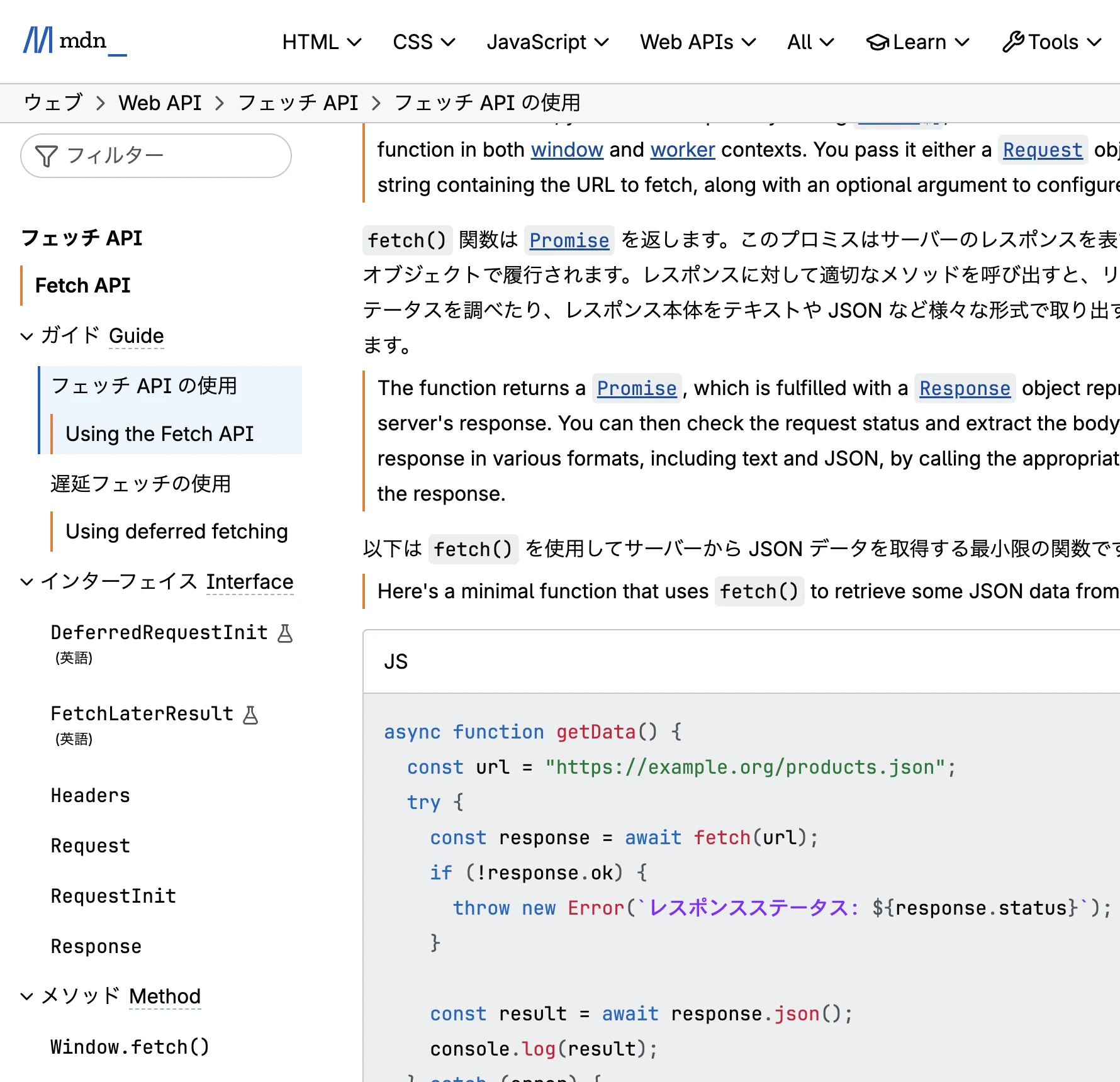
If you need to verify a single technical phrase without translating the entire page, turn on Selection translation in the extension panel, select the text, and click the translation icon next to it to open an inline floating card with contextual definitions. Clicking the extension icon once returns the webpage to its untranslated state.
Method C: Whole-document translation for PDFs
Because Chrome cannot translate PDF documents inside the browser viewer, foreign PDF manuals, academic papers, or engineering specifications require a document workflow. In Equalang (/documents), users can upload PDF, DOCX, PPTX, or XLSX files. The document translation engine reconstructs multi-column layouts, tables, and formula blocks rather than stripping them into raw unformatted text.
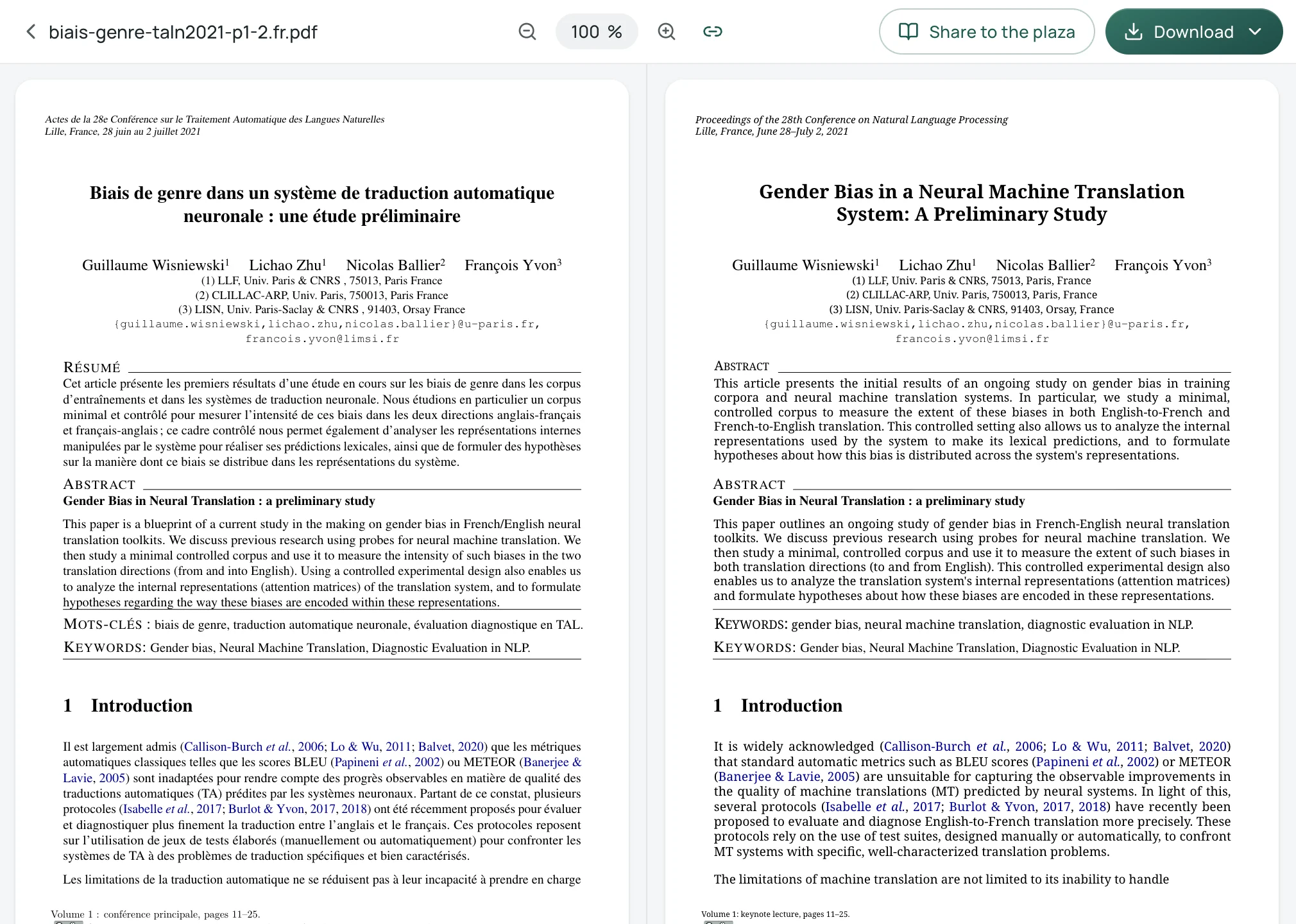
Once processed, the translation opens in a side-by-side workspace where the original and translated pages scroll together, allowing you to cross-check figures, terms, and tables without switching tabs.
Sources
- "Translate pages and change Chrome languages" (Desktop), Google Chrome Help (answer 173424): https://support.google.com/chrome/answer/173424?hl=en&co=GENIE.Platform%3DDesktop
- "Translate pages and change Chrome languages" (Android & iOS), Google Chrome Help: https://support.google.com/chrome/answer/173424?hl=en&co=GENIE.Platform%3DAndroid
- "TranslateEnabled Policy Definition", Chrome Enterprise: https://chromeenterprise.google/policies/translate-enabled/
- "The translate attribute", WHATWG HTML Living Standard §3.2.6.3: https://html.spec.whatwg.org/multipage/dom.html#the-translate-attribute
- "Meta tags and attributes that Google supports", Google Search Central: https://developers.google.com/search/docs/crawling-indexing/special-tags
- "Translate text in images with Google Lens", Google Chrome Help (answer 15086890): https://support.google.com/chrome/answer/15086890?hl=en&co=GENIE.Platform%3DDesktop
- "Microsoft Edge doesn't offer or complete webpage translation", Microsoft Learn: https://learn.microsoft.com/en-us/troubleshoot/microsoft-edge/experience/edge-translate-not-working
- Equalang Browser Extension: /extension
- Equalang Document Translation: /documents