Struggling with MIT Lectures? How to Watch with Real-Time Bilingual Subtitles
 Equalang
In brief
Tired of pausing online lectures to look up technical terms while losing track of blackboard derivations? Here is how to display synchronized bilingual subtitles in video players to balance domain comprehension with language immersion.
Keywords: bilingual subtitles for online courses, MIT OpenCourseWare subtitles, video player translation extension, academic English listening

Watching university lectures and technical talks on MIT OpenCourseWare, Coursera, edX, or YouTube is an indispensable way for developers, researchers, and lifelong learners to expand their knowledge. Yet diving into dense, fast-paced academic lectures in a second language often creates a frustrating dilemma: leave subtitles off, and a professor’s rapid delivery and unfamiliar technical terms can quickly derail your grasp of complex derivations; turn subtitles on, and your eyes remain glued to a single stream of English captions at the bottom of the screen, leaving no time to follow the formulas on the blackboard or diagrams on the slides.
Constantly pausing to look up obscure terminology breaks your train of thought, easily turning a 50-minute lecture into an agonizing two-to-three-hour chore of scrubbing back and forth. How can you smoothly display synchronized dual-language subtitles directly inside your web video player—grasping core disciplinary concepts without missing a beat while absorbing authentic academic phrasing?
1. Common Pitfalls of Conventional Video Translation Methods
When looking for tools to assist with online lectures, conventional video subtitle solutions often run into distinct limitations:
- Single-language replacement sacrifices language immersion: Built-in auto-translation features (such as YouTube's native auto-translate) typically replace the original English captions entirely with machine-translated text. In technical fields like computer science, mathematics, or molecular biology, rigid machine translations often strip away critical context—such as rendering concurrency's
thread poolinto everyday vernacular. Without the original English terms for immediate verification, this easily breeds conceptual confusion. - Tedious workflows for third-party SRT files: Some learners resort to downloading videos and subtitle files via scripts, running them through external translation services to produce translated
.srtfiles, and loading them into a desktop media player. While manageable for a standalone one-off video, this approach becomes prohibitively time-consuming across structured multi-week courses with dozens of bite-sized modules, completely defeating on-demand learning. - Rigid subtitle formatting that obstructs essential content: Many lightweight subtitle extensions lack flexible controls for font sizing or the relative positioning of dual-language lines. Stacking two lines of bulky text across the bottom of the player obscures crucial code snippets, derivation steps, or chart legends on lecture slides, while failing to provide a clear visual hierarchy between the source and translated text.
2. Setting Up Streamlined In-Browser Bilingual Subtitles
To balance viewing fluidity with precise technical verification, the ideal approach is capturing source subtitles and rendering bilingual layouts directly within the native web player. Below, we demonstrate how to establish a synchronized dual-language viewing window using the Equalang browser extension developed by our team.
Step 1: Activate Bilingual Subtitles in the Video Player
After installing the extension, open any lecture or technical presentation that includes an English subtitle track (taking an MIT computer science lecture as an example):
- Verify that closed captions (CC) are enabled in the video player's native control bar (with the source language set to
Englishor similar). - Click the Equalang icon on the browser toolbar, and under "Translation Settings" in the control panel, set the target language to "Simplified Chinese" (skip if already set to Simplified Chinese).
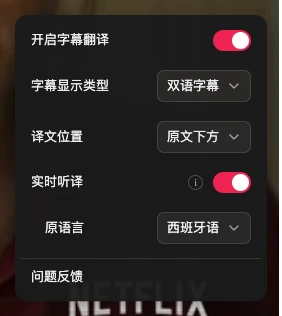
- Click the Equalang icon in the player control bar, ensure "Enable Subtitle Translation" is turned on, select "Bilingual Subtitles" for "Subtitle Display Type", and set "Translation Position" to "Below Original". The player will now render two synchronized lines at the bottom of the video frame: the spoken English audio track on top, with the translated line underneath.
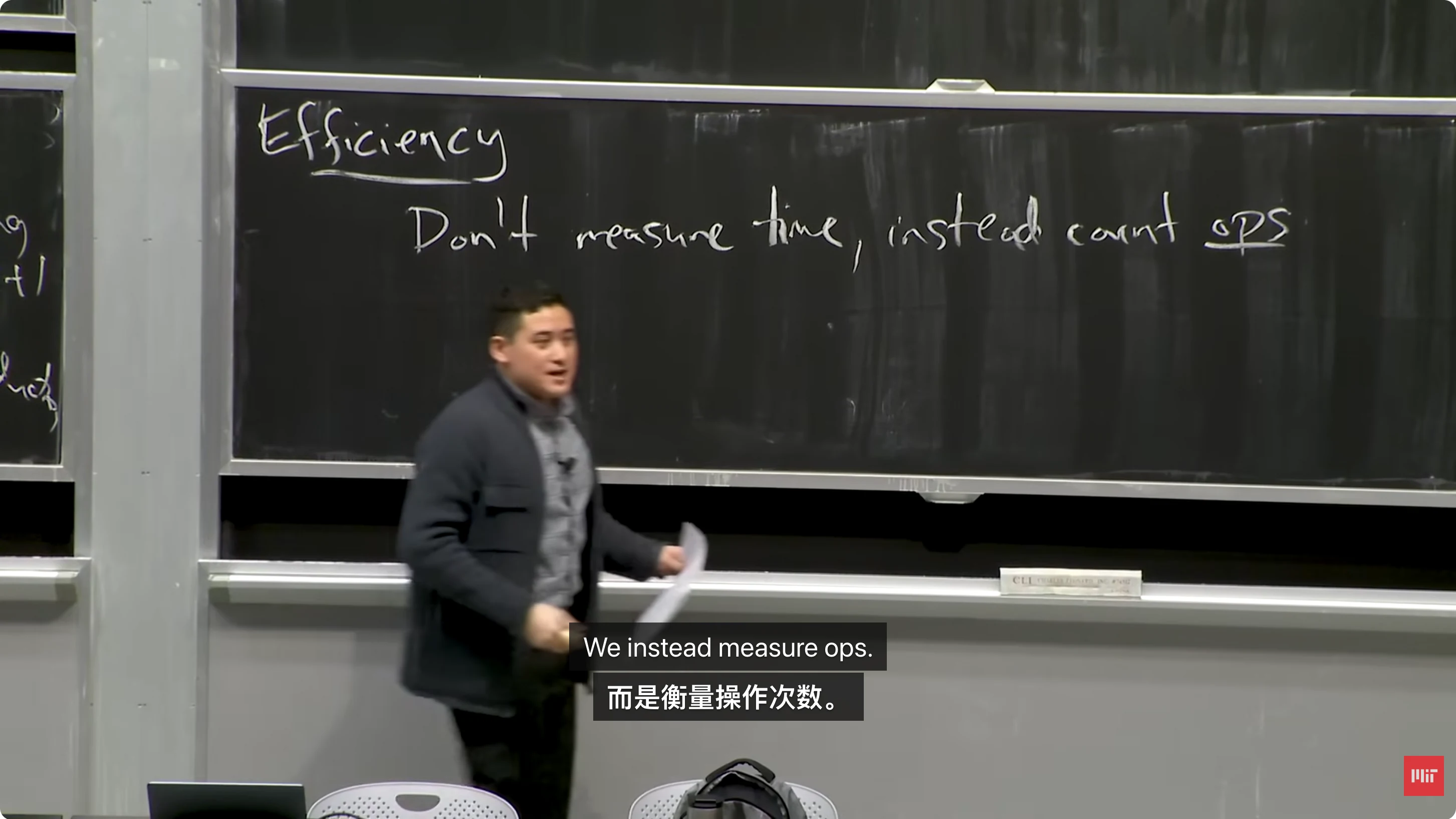
As shown above, the blackboard reads "Don't measure time, instead count ops", and the original subtitle "We instead measure ops." and the translated line "而是衡量操作次数。" appear in real-time alignment. For familiar phrases, you can stay immersed in the original English delivery; when an unfamiliar technical term flashes across the screen, a quick glance at the line below clarifies the concept instantly without breaking your viewing momentum.
Step 2: Fine-Tune Subtitle Typography and Visual Hierarchy
Viewing habits and hardware setups vary widely—from taking split-screen notes on a 13-inch laptop to following long mathematical derivations fullscreen on a 27-inch external monitor. Opening the floating subtitle control panel allows you to tailor the display to the lecture's visual layout:
- Swapping primary and secondary positions: When encountering an entirely new academic topic, you can place the translated line on top to quickly absorb the material; when reviewing or actively training your academic listening comprehension, swap the layout so the original English sits on top.
Step 3: Handling Unsubtitled Videos with Live Audio Translation
Older university archival recordings and live seminar streams often lack official closed-caption tracks. In these scenarios, the extension's built-in live translation engine can capture the active tab's audio stream in real time, performing speech recognition to generate synchronized bilingual subtitles on the fly. Note that when audio streams feature loud background music, heavy ambient noise, or poor microphone proximity, recognition accuracy may experience minor variance, so cross-referencing blackboard notes and presentation slides remains advisable.
3. Four Habits for Effective Learning with Bilingual Online Lectures
While the right tools significantly lower cognitive friction, truly absorbing complex academic material requires disciplined study habits:
- Focus on the structural core of complex sentences: When working through derivations at the blackboard, professors often speak with informal inversions or occasional verbal slips. When encountering sprawling compound sentences, rely on the bilingual layout to quickly anchor the subject-verb-object core and causal transitions (such as
provided thatorin contrast to). - Cross-check domain-specific acronyms with course materials: Every academic discipline relies heavily on shorthand designations (e.g.,
SVDandSGDin machine learning, or gene and protein nomenclature in biomedicine). Keeping the original captions visible guarantees that acronyms remain intact, making it straightforward to cross-reference them against textbook glossaries afterward. - Progressively reduce translation assistance on subsequent passes: Use bilingual captions during your initial viewing to map out conceptual structures and take comprehensive notes. When revisiting challenging modules for review, you can turn off "Enable Subtitle Translation" in the player's Equalang menu to watch only the original English subtitles and train your intuitive comprehension of spoken academic English.
- Bridge lectures and readings with in-page lookups: When shifting from video lectures to accompanying PDF lecture notes or assigned reading lists, leverage the extension’s paragraph or selection translation features to create a seamless feedback loop from listening to lecture videos to reading course literature.