How to Safely Translate Export Excel Quotations: Preserving Formulas and Spreadsheet Layouts
 Equalang
In brief
Learn how to translate export quotation sheets and packing lists without breaking formulas. A practical guide to XLSX translation, native SUM formula preservation, and deduplicated billing.
Keywords: export Excel quotation translation; preserve Excel formulas; packing list translation; XLSX spreadsheet translation tool; Excel translation deduplication

In global trade, import/export operations, and cross-border e-commerce, Proforma Invoices (PI), Quotation Sheets, and Packing Lists are the primary commercial documents exchanged with overseas buyers every single day. A standard export quotation contains far more than product names, material specifications, and packaging dimensions; it incorporates essential dynamic calculation logic: row subtotals multiplying unit price by quantity, cumulative gross and net weights, bottom =SUM(...) formulas for total amounts, and floating exchange rate conversions.
When sales and export specialists need to translate a quotation into English or other target languages, many simply copy-paste content into web translation boxes or use generic translation utilities to overwrite the entire file. The result is often disastrous: functional =SUM(E5:E8) formulas get wiped out and replaced with static numbers, or translated into invalid text syntax. If a foreign client requests an adjusted order quantity or revised freight surcharges, the spreadsheet fails to recalculate automatically. Sending out quotations with broken calculation formulas can easily lead to underbilling, calculation errors, or serious commercial disputes.
The baseline requirement for translating export spreadsheets is clear: never break calculation formulas, preserve original cell styling in place, and avoid paying repeatedly for duplicate product terms.
This guide breaks down the underlying structural risks of translating Excel files in international trade and demonstrates a reliable workflow to translate spreadsheets while keeping formulas and layouts fully intact.
1. Why Do Standard Translation Tools Break Excel Formulas?
Under the hood, an Excel spreadsheet (.xlsx) is a compressed archive containing multiple structured XML documents. Each cell stores not only human-readable text, but also data types, numeric precision, cell borders, and formula expression trees.
Generic machine translation tools or AI scripts lacking awareness of spreadsheet structures typically cause serious errors in three distinct areas:
- Treating formula expressions as ordinary text: Many generic tools cannot distinguish between user-facing text labels and underlying calculation instructions. They clumsily translate
=SUM(...)into non-standard localized text, causing Excel to throw#NAME?or#VALUE!syntax errors upon opening. - Flattening formulas into static numbers, destroying dynamic recalculation: To simplify processing, some tools read only the currently displayed screen value and write it back as a static number, discarding the underlying formula. If the buyer adjusts an order quantity, line subtotals and totals remain frozen, stripping the spreadsheet of its primary accounting utility.
- Billing repeatedly for recurring product terms: Packing lists and multi-category quotations often span dozens or hundreds of rows with repeating phrases (such as "pcs/carton", "304 stainless steel", "FOB Shenzhen", or "color box packaging"). Translation tools without deduplication mechanisms charge repeatedly for every duplicate occurrence, needlessly wasting translation budgets.
A dependable tool for export spreadsheets must be designed to strictly isolate native calculation formulas and numeric scalars, preserve rich-text cell formatting, and automatically deduplicate repeated content.
2. Comparing Common Approaches to Spreadsheet Translation
Export teams typically handle multi-language quotations and packing lists through three common methods:
For export teams, the most practical approach that balances speed, safety, and cost is a dedicated document translation service that isolates and protects formula logic. Below is a test walkthrough using Equalang.
3. Hands-On Walkthrough: Translating an Excel Quotation with 4 Kitchenware Items
To illustrate, consider a typical export quotation for kitchenware. The original spreadsheet lists four line items (insulated tumbler, silicone spatula, ceramic mug, and stainless steel fork) along with item codes (KW-1001/1005/1009/1012), specifications, unit prices (FOB Shenzhen USD), order quantities, multiplication formulas for line subtotals, and a sum formula for the total order amount:
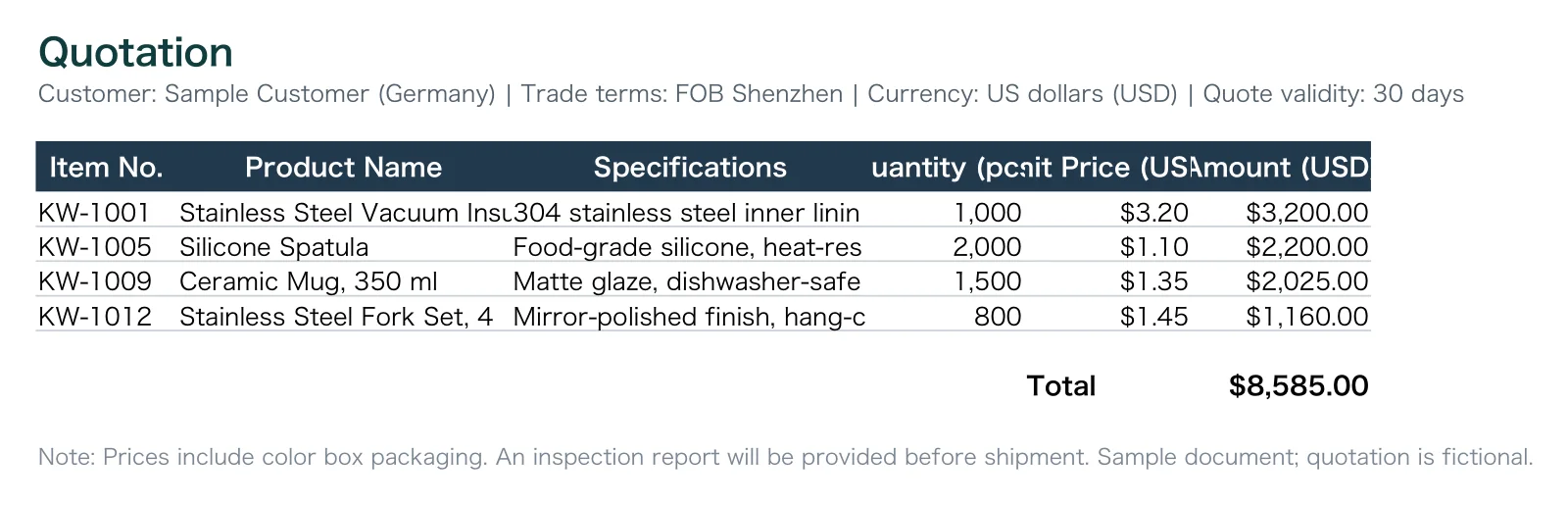
Here is the secure workflow for translating this type of spreadsheet:
Step 1: Uploading the File and Deduplicated Billing
Upload the .xlsx file through the Equalang Documents translation portal and select "English" as the target language:
- Automatic isolation of numbers and formulas: Unit prices (
3.20,1.10,1.35,1.45) and formulas (=D5*E5,=SUM(F5:F8)) are identified and shielded by the system. They are never sent to the natural language translation queue, ensuring they are written back untouched. - Deduplication billing: Repeating terms such as "pcs/carton" or "304 stainless steel" are deduplicated during preprocessing. The system counts and bills them only once, significantly reducing translation overhead.
Step 2: Verifying the English File and Formula Dynamism
Once translation completes, download the generated English .xlsx quotation and open it in LibreOffice:
Inspecting the translated quotation reveals several key technical details:
- Native calculation formulas preserved: The spreadsheet still retains the native
=SUM(F5:F8)formula, without any shift in referenced cell coordinates. - Dynamic recalculation remains operational: Changing the quantity of KW-1001 to 1001 immediately recalculates the line subtotal on the right and refreshes the overall total, retaining the spreadsheet's dynamic characteristics.
- Cell styling maintained: The header's dark background shading, bold fonts, currency symbol
$, and two-decimal precision are all maintained as in the original, with neat and clear border lines; however, product names and headers are truncated, requiring columns to be widened.
4. Checklist: Avoiding Common Pitfalls in Export Spreadsheet Translation
Before sending multilingual Excel quotations and shipping documents to overseas clients, run through these final sanity checks:
- AutoFit Column Widths for expanded text: English and European languages generally occupy more horizontal space than compact Asian characters. If text overflows or numbers display as
###, select all cells and double-click the column dividers to auto-fit column widths. - Verify text-dependent conditional formulas: If your spreadsheet relies on formulas that evaluate specific text strings (e.g.,
=IF(A2="已发货", ...)), verify whether the condition string needs to be manually updated to match the translated term (such as"Shipped"). - Maintain a cross-verification routine for critical figures: While automated tools protect mathematical formulas, double-checking final totals, payment terms, and beneficiary banking details before issuing legally binding Proforma Invoices remains an indispensable professional standard.
Sources & Attribution
- Equalang Document Translation
- Microsoft Excel Formulas and Functions Documentation
- ISO/IEC 29500 Information technology — Document description and processing languages — Office Open XML File Formats
- International Chamber of Commerce (ICC) Incoterms 2020 Official Rules