Phone Interpreter Apps for Students: Modes and Campus Limits
 Equalang
In brief
Can phone translation apps handle a lecture or the visa desk? We compare Google, Apple, Microsoft, and Papago based on official docs and app features.
Keywords: mobile interpreter apps, student translation, lecture translation, offline translation
It is the second week of the semester, and you are standing at the counter of the international student services office. Behind a glass partition, the advisor is rattling off instructions about enrollment verification, travel signatures, and insurance waivers at high speed. Other students shuffle behind you in line, and muffled footsteps echo down the corridor. You grip your phone with a thumb hovering over the microphone icon, hoping an app will turn the rapid English into something you can comfortably understand.
Or maybe you are sitting in the twelfth row of a 150-seat lecture hall. The economics professor paces ten meters away from the podium mic. By the time their voice bounces off the high ceiling, acoustic tiles, and the clatter of seventy laptop keyboards, what reaches your ears sounds like muffled static.
Scroll through student forums or social media, and translation apps are routinely hyped as pocket-sized simultaneous interpreters: just tap the screen, and lectures will turn into neat subtitles while administrative appointments transform into effortless bilingual conversations.
If you have actually tried using them in real life, you already know where that marketing promise collapses: sluggish recognition delays, dropped Wi-Fi connections, bizarre academic transcriptions, and the inescapable physics of distant room echo. Worse, college coursework rarely lives in spoken soundbites alone. It lives in 50-slide PowerPoint decks, dense research PDFs, and portal announcements.
We are the Equalang team. We build language software, which means we spend our working hours looking at where speech recognition shines and where physical acoustics get brutal. In this guide—verified against official technical documentation and platform updates as of October 2026—we tour four popular mobile apps: Google Translate, Apple Translate, Microsoft Translator, and NAVER Papago. At the end, we examine how Equalang tackles continuous lectures, desk interactions, formatted course documents, and bilingual reading, so you can pick the right tool for each campus job.
1. The Three Real Campus Scenarios
Before comparing apps, it helps to distinguish the three completely different language environments students navigate:
- One-on-One Administrative Desks: Encounters at the registrar, international office, campus housing, student health center, or a local bank. Two speakers stand within arm's reach taking turns speaking against moderate background chatter. Precision is everything: deadlines, document requirements, and dollar amounts cannot be misheard.
- Classroom Lectures and Seminars: Continuous, one-directional academic speech lasting 50 to 90 minutes. Key obstacles include physical distance, reverberation, specialized jargon, and continuous speaking without pauses.
- Course Materials and Reading: Slide decks (PPTX), academic journal articles (PDF), learning management systems (like Canvas or Blackboard), and recorded video lectures. These tasks do not need a microphone; they require document layout preservation, formula protection, and bilingual web or video subtitle reading.
2. What 4 Popular Mobile Interpreter Apps Offer (and Their Limits)
1. Google Translate (Mobile App)
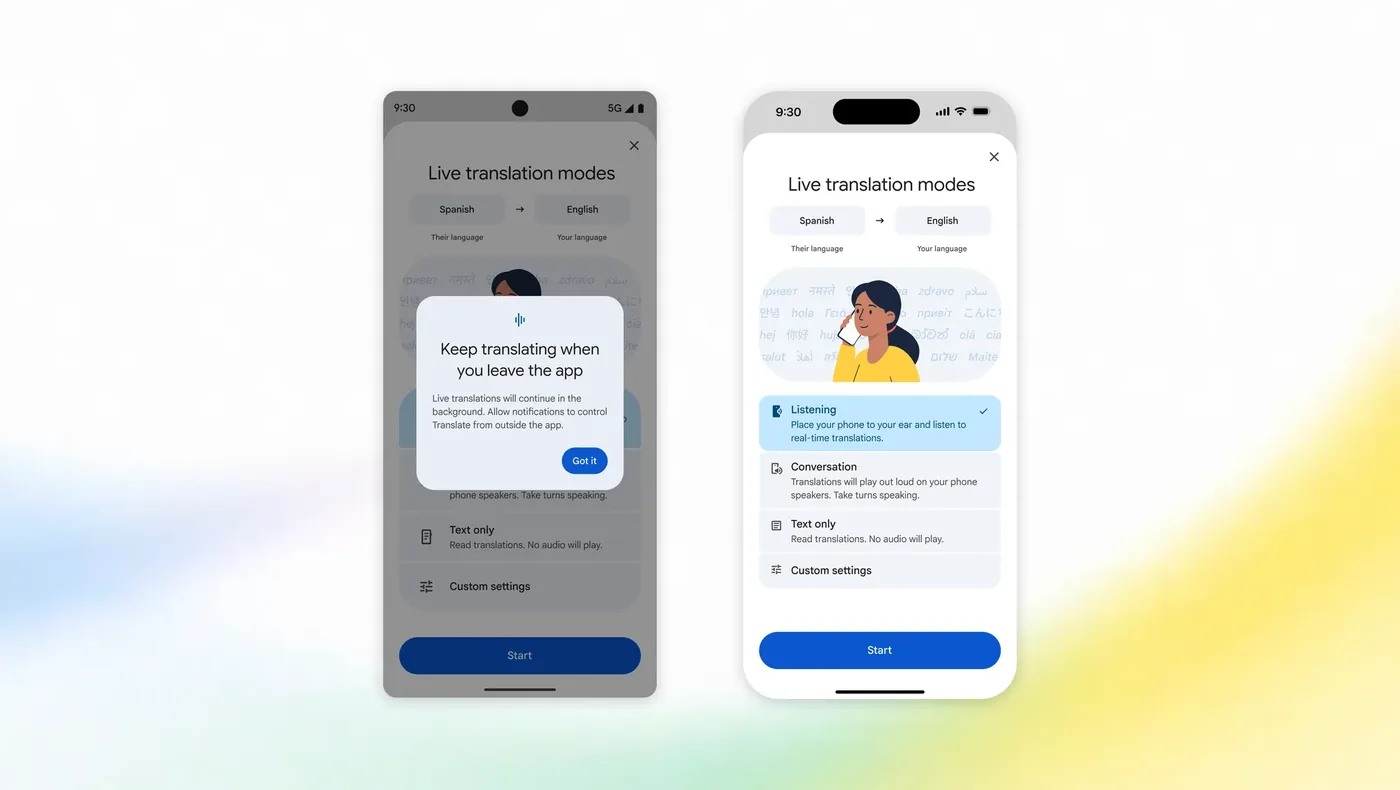
In the Google Translate mobile app, speech translation features include several distinct modes according to official documentation:
- Transcribe Mode: Google's official help documentation states that Transcribe can be used to translate a classroom lecture or speech ("translate a classroom lecture or speech"). It provides continuous, near real-time translation and transcription of extended monologues in a single view, with options to adjust text size and save transcripts.
- Conversation Mode: Designed for alternating two-way dialogue. Google's help pages describe a split-screen view that divides the display so two people across a desk can read translations in their respective languages upright.
- Live Translate Modes: Upgraded in Google's September 2026 update, these include Listening mode (to listen to real-time translations via headphones or by holding the phone to your ear, with Android supporting continuous translation after leaving the app) and Conversation mode on phone speakers.
- Text Only and Custom Settings: Helpful fallbacks when a noisy lobby makes voice recognition difficult.
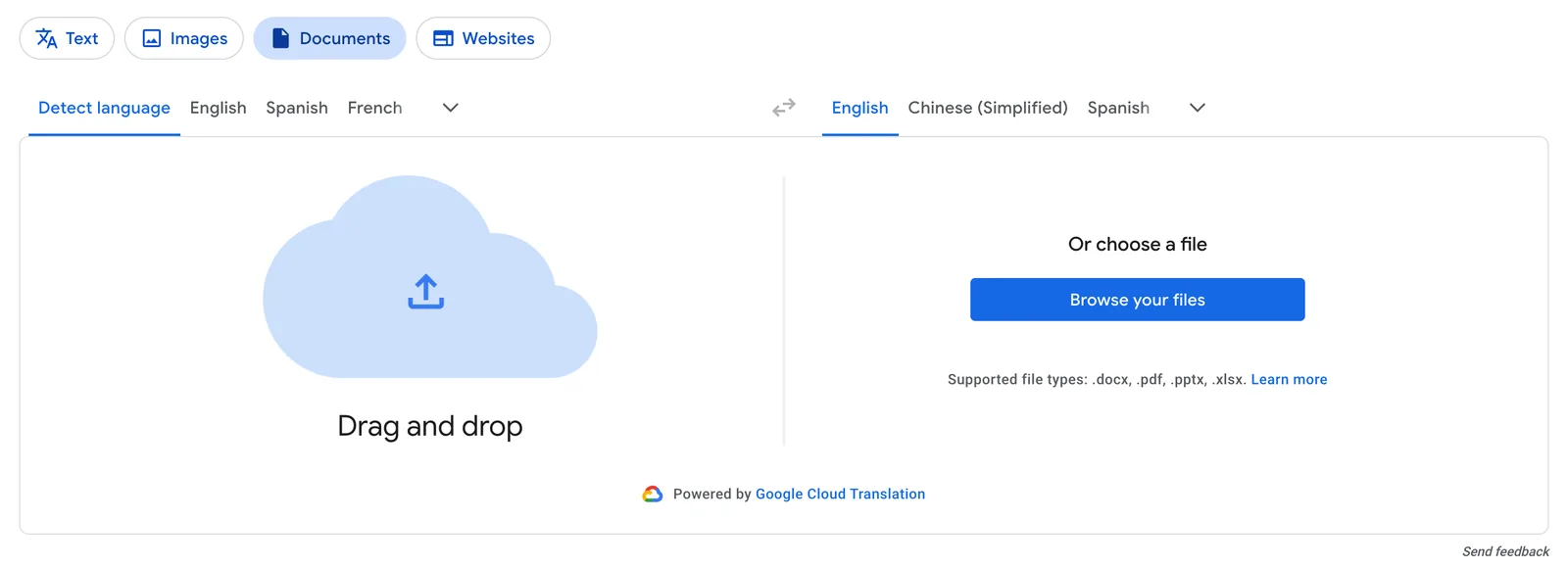
- Official Capabilities and Strengths: Broad language support, camera OCR for cafeteria menus and bulletin boards, and a continuous Transcribe mode explicitly documented for lectures and speeches.
- Official Limits and Boundaries:
- High Offline Voice Barrier: Downloadable language packs allow offline text lookups and camera translations, but official Offline Live Translate for speech is restricted to select Google Pixel devices (Pixel 9, 10, 11) and limited language pairs. On iPhones or standard Android phones, voice translation requires an active data connection.
- Course Files Locked to Desktop: The mobile app does not support document uploads. Document translation is restricted to desktop browsers, capped at 10 MB and 300 pages for PDFs, with official documentation noting that scanned images inside PDFs remain untranslated.
- Acoustic Realities: While Transcribe is built for speeches and lectures, smartphone microphones in large halls still face the physical limits of distance and room reverberation (discussed in Section 4).
- Best Campus Use Case: Counter inquiries, reading campus signage via camera, and listening to speech or lectures when connectivity allows.
2. Apple Translate (iOS / iPadOS Built-in)
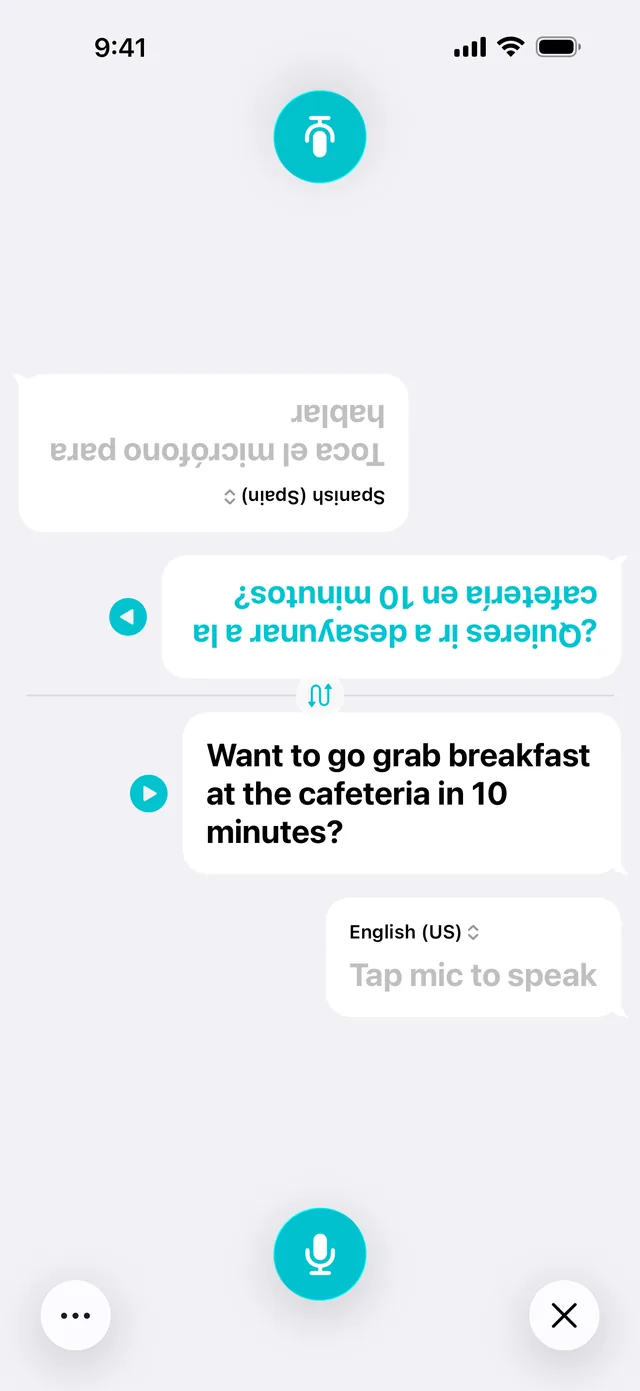
Built directly into iOS and iPadOS, Apple Translate is fast, clean, and requires no third-party installation:
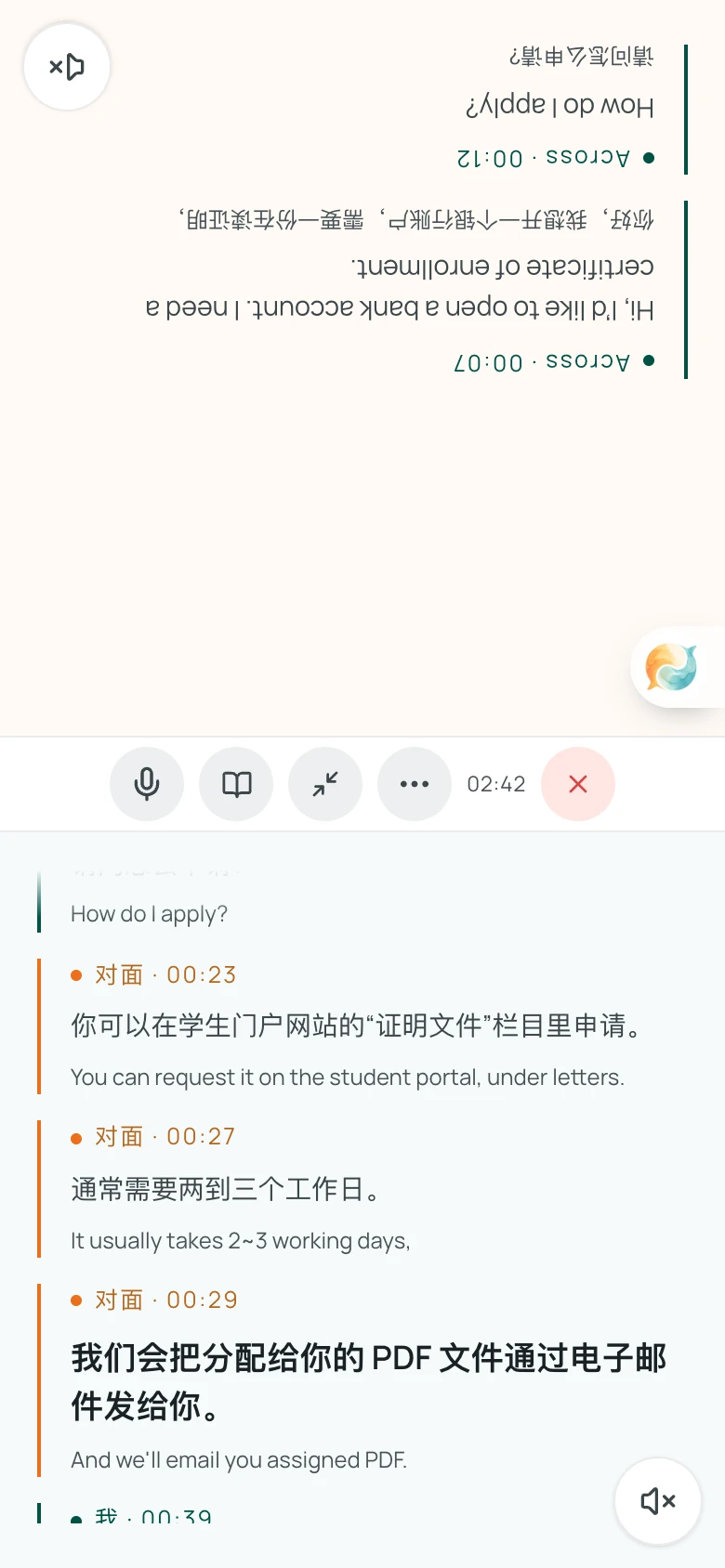
- Face to Face Split View: As shown above, the screen splits horizontally with the upper half inverted 180 degrees. Rest your iPhone flat on an advisor's desk: the person across from you reads upright text from their perspective, while you read upright text from yours.
- Automatic Pause Detection (Auto Translate): Apple's user guide notes that the system automatically detects when you start speaking and when you stop, removing the need to tap mic buttons back and forth during conversation.
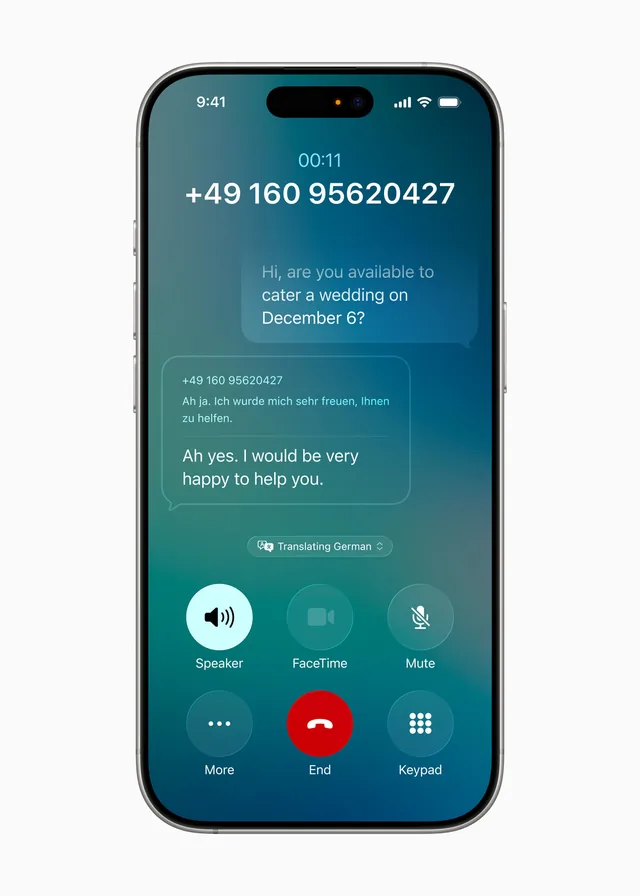
- System-Level Call Translation: During standard phone calls, it provides live spoken translation and bilingual transcripts; during FaceTime video chats, it displays live translated captions. Official documentation specifies that this requires hardware supporting Apple Intelligence (such as iPhone 15 Pro or later; initially announced languages included English, French, German, Portuguese, and Spanish, so students should check specific language availability).
- Official Capabilities and Strengths: On-device offline operation. Once language packs are downloaded, conversation and text translation run entirely on the local device. It remains functional in campus basements, dorm elevators, or during your first days abroad before securing a local SIM card.
- Official Limits and Boundaries:
- No Dedicated Lecture or Transcript Export Mode: The app is primarily designed for conversational turn-taking. While the Live tab can translate incoming speech using supported AirPods on Apple Intelligence devices, it does not offer a dedicated mode for recording, archiving, or exporting extended classroom lectures.
- No Document Support: There is no standalone tool for translating course PDFs, Word documents, or lecture slides.
- Best Campus Use Case: Face-to-face advising appointments in areas with poor cellular reception, and phone inquiries on supported hardware.
3. Microsoft Translator (Mobile App)
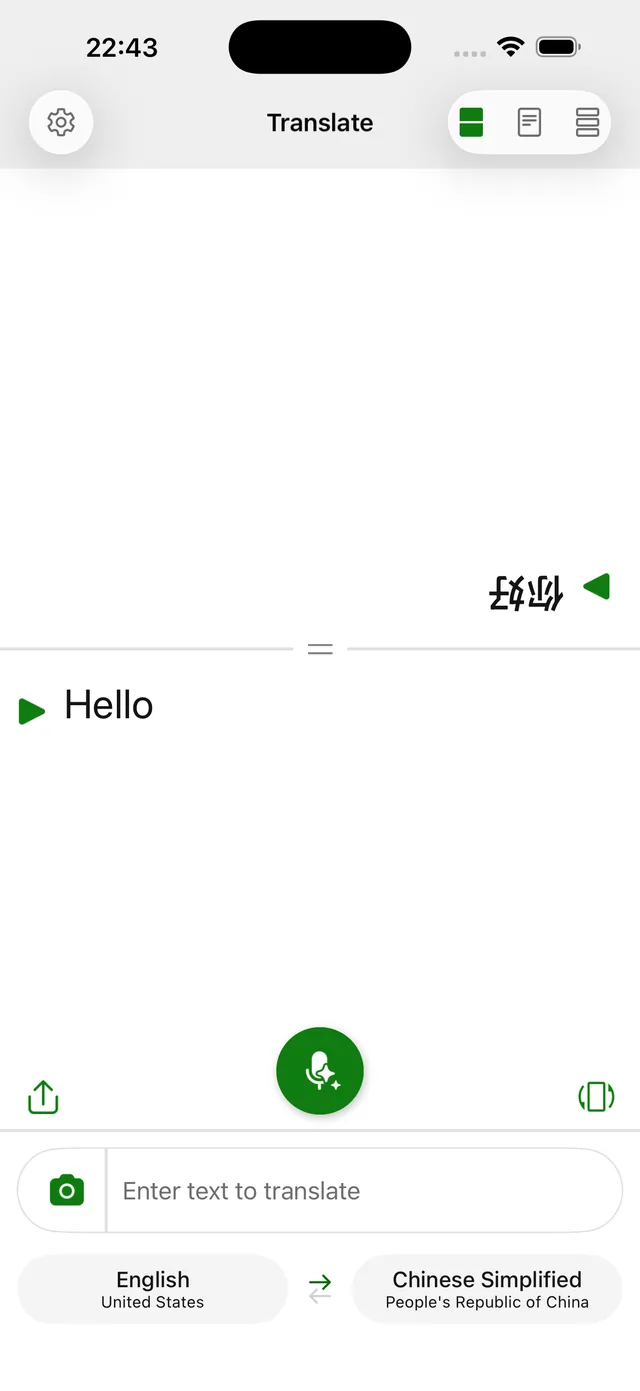
Microsoft Translator was historically recommended for multi-device group conversations and structured presentations. If you are reading older guides, however, take note of major recent changes.
- Major Fact Correction (Updated 2026):
Microsoft has officially retired its multi-device conversation feature. The iOS App Store release notes for version 26.7.1 (2026-06-30) explicitly state: "Note: The multi-device conversation feature has been retired." Web addresses like
translate.itandtranslate.it/joinnow redirect to the main Translator homepage, and Microsoft's Speech SDK 1.51 release notes confirm the removal ofConversationTranslator. This means room codes, QR-code joining, browser-based room access, and Presenter mode are gone. You can no longer stream a lecturer's speech to student phones via a room code. - What Remains on the App: The single-device split-screen conversation view (shown above, with an inverted top panel for the other speaker), single-user speech/text translation, in-app history and saved phrases, and camera translation. The central mic button supports tapping or setting to "always on" to automatically detect languages. The current app store listing no longer mentions offline language packs or the phrasebook; check within the app if you need offline text.
- Official Capabilities and Strengths: Retains the single-device split-screen conversation layout, and in-app history and saved items make it easy to review saved phrases.
- Official Limits and Boundaries: Without room codes or Presenter mode, Microsoft Translator cannot stream classroom lectures or connect multi-device study groups; the consumer mobile app also offers no document upload translation for PDFs or slides.
- Best Campus Use Case: Single-device face-to-face counter conversations and quick vocabulary lookups.
4. NAVER Papago
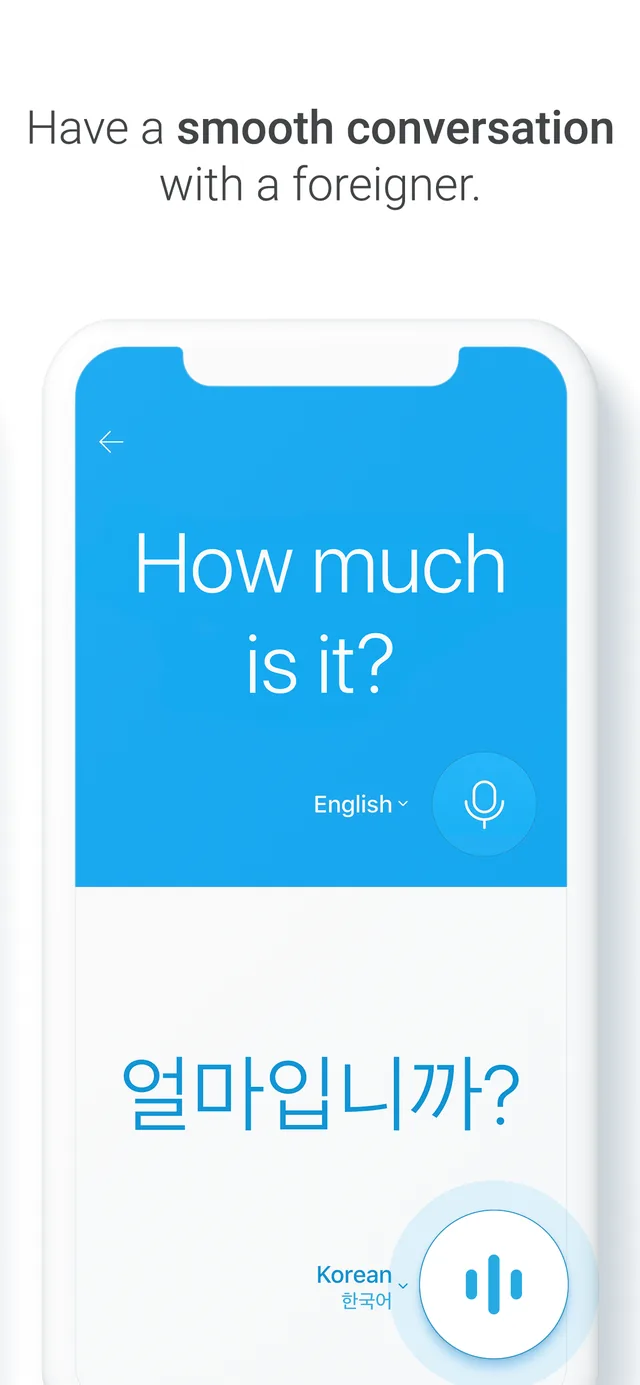
Developed by South Korea's NAVER, Papago focuses on Korean, Japanese, Simplified Chinese, and English translation, offering features tailored to East Asian linguistic context:
- Push-to-Talk Conversation: The conversation screen features clear vertical separation with dedicated buttons for each language, supporting both tapping and press-and-hold (push-to-talk). In noisy hallways or cafeterias, holding down the button helps prevent ambient chatter from prematurely cutting off speech.
- Edu Study Mode: Students can photograph textbook or handout pages to extract vocabulary, open dictionary definition cards, and save terms into a custom "My Note" study deck. Official guides note that Edu mode supports Korean, English, Japanese, and Chinese mutual translation and requires an account login.
- Mobile Document Translation: Papago's iOS App Store listing highlights Document Translation, allowing users to upload documents directly inside the mobile app and receive translations that preserve original formatting.
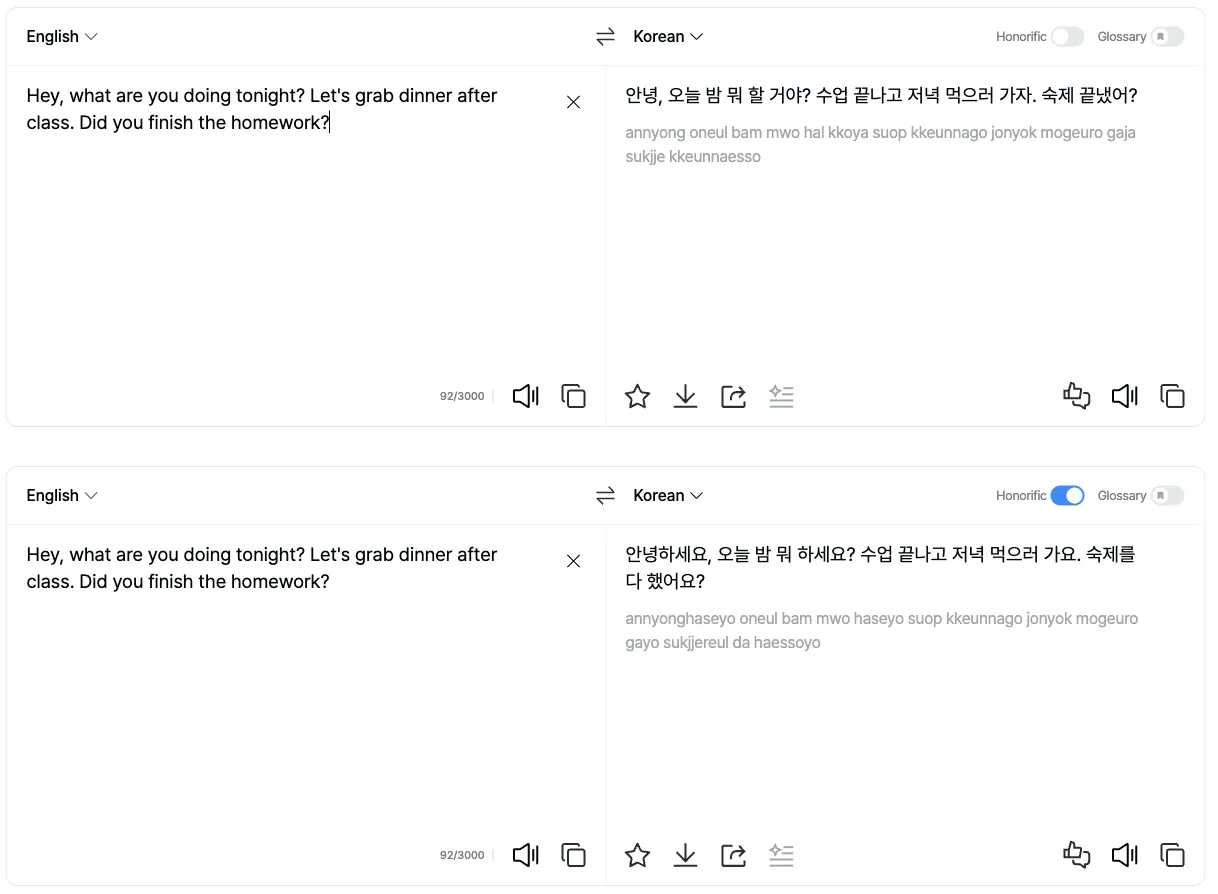
- Honorifics Toggle: Tailored for students communicating in Korean. Papago allows switching translations between casual speech (such as "뭐 할 거야?") and polite formal honorifics (such as "뭐 하세요?"), assisting students in maintaining proper etiquette when writing to professors or speaking with advisors.
- Official Capabilities and Strengths: Specialized grammatical and vocabulary support for East Asian language pairs; press-and-hold microphone control in noisy environments; integrated vocabulary study cards and mobile document translation.
- Official Limits and Boundaries:
- Strict Offline Limits: Official NAVER documentation specifies that offline mode is limited to basic text and one-way voice lookups. Offline, conversation mode, camera OCR, audio playback, and honorific switching are disabled; Edu mode requires logging in. On Android, offline voice requires Android 14+ and at least 4 GB of RAM.
- No Lecture Archiving: It does not offer a dedicated continuous lecture recording, subtitle streaming, or transcript export mode.
- Best Campus Use Case: East Asian language study, checking email etiquette and honorifics, capturing textbook vocabulary, and translating documents on mobile.
3. Campus Feature Comparison Matrix
Updated against verified platform capabilities as of October 2026:
4. The Acoustic and Workflow Realities on Campus
Why do mobile translation apps routinely struggle in lecture halls? It is not bad software engineering; it is physics and academic realities:
1. Far-Field Acoustics vs. Close-Talking Microphones
Smartphone microphones are physically engineered for close-talking situations where the speaker is close to the device. In a large university lecture hall:
- The professor stands several meters or dozens of feet away from student seating.
- Sound waves bounce repeatedly off high ceilings, non-absorbent walls, and desks, creating acoustic reverberation.
- Ambient noise (ventilation, laptop keyboard typing, rustling papers) competes with the speaker's voice.
Under the acoustic inverse-square law, direct sound energy drops significantly over distance. When reverberation and distance degrade the signal-to-noise ratio, any speech recognition engine will struggle with clipped phrasing, lost words, or misheard technical terms.
2. Academic Coursework Is Multi-Modal
Spoken exchanges represent only one part of student coursework. Succeeding academically also requires:
- Reviewing 50-slide PowerPoint presentations before class.
- Digesting academic journal PDFs featuring dual-column layouts, tables, and mathematical formulas.
- Reading assignment guidelines and feedback on Canvas or Blackboard portals.
- Watching recorded video seminars with bilingual subtitles.
Most voice-focused mobile translation apps are primarily designed for conversational exchanges. Even when an app offers document translation, handling multi-column academic papers with complex tables, LaTeX equations, and lecture videos typically calls for specialized desktop or reading workflows.
5. Where Equalang Fits
For international students who need to bridge spoken lectures, counter visits, and formatted coursework in one unified environment, Equalang provides a browser-based workflow.
Spoken Communication Without App Downloads
Equalang runs directly inside standard web browsers on laptops, tablets, and smartphones, requiring no app store downloads:
- Live Listening: Engineered for lectures, seminars, and guest presentations. It captures continuous speech and streams real-time bilingual subtitles with Standard and Low-Latency options. After class, export full bilingual transcripts to serve as study notes.
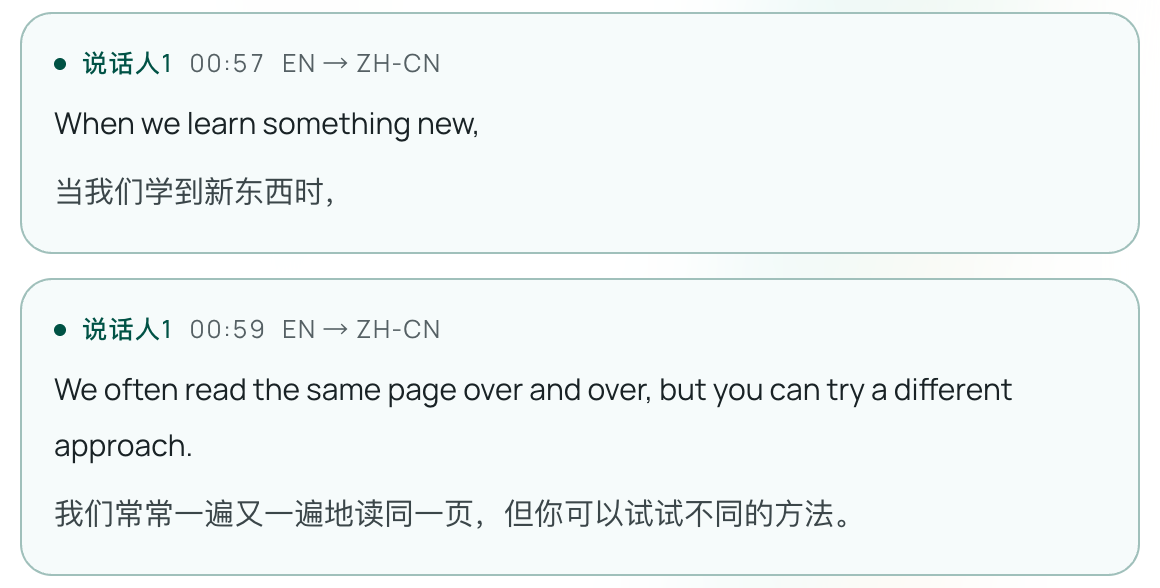
- Face-to-Face: Designed for administrative counters. Place a single phone or tablet flat on the desk in Facing mode (with the upper half inverted for the person across) or Side-by-Side mode for two people sitting together, supporting two-way conversational transcription.
- Translated Call: For remote advising or group projects. The host generates an invitation link. The other person clicks to join in their browser without registering or installing software. Both speak their native language, hear translations, view translations in their own language on screen, and can export a full bilingual transcript after the call.
Full Academic Document and Reading Workflows
Beyond voice, academic study requires structured file handling:
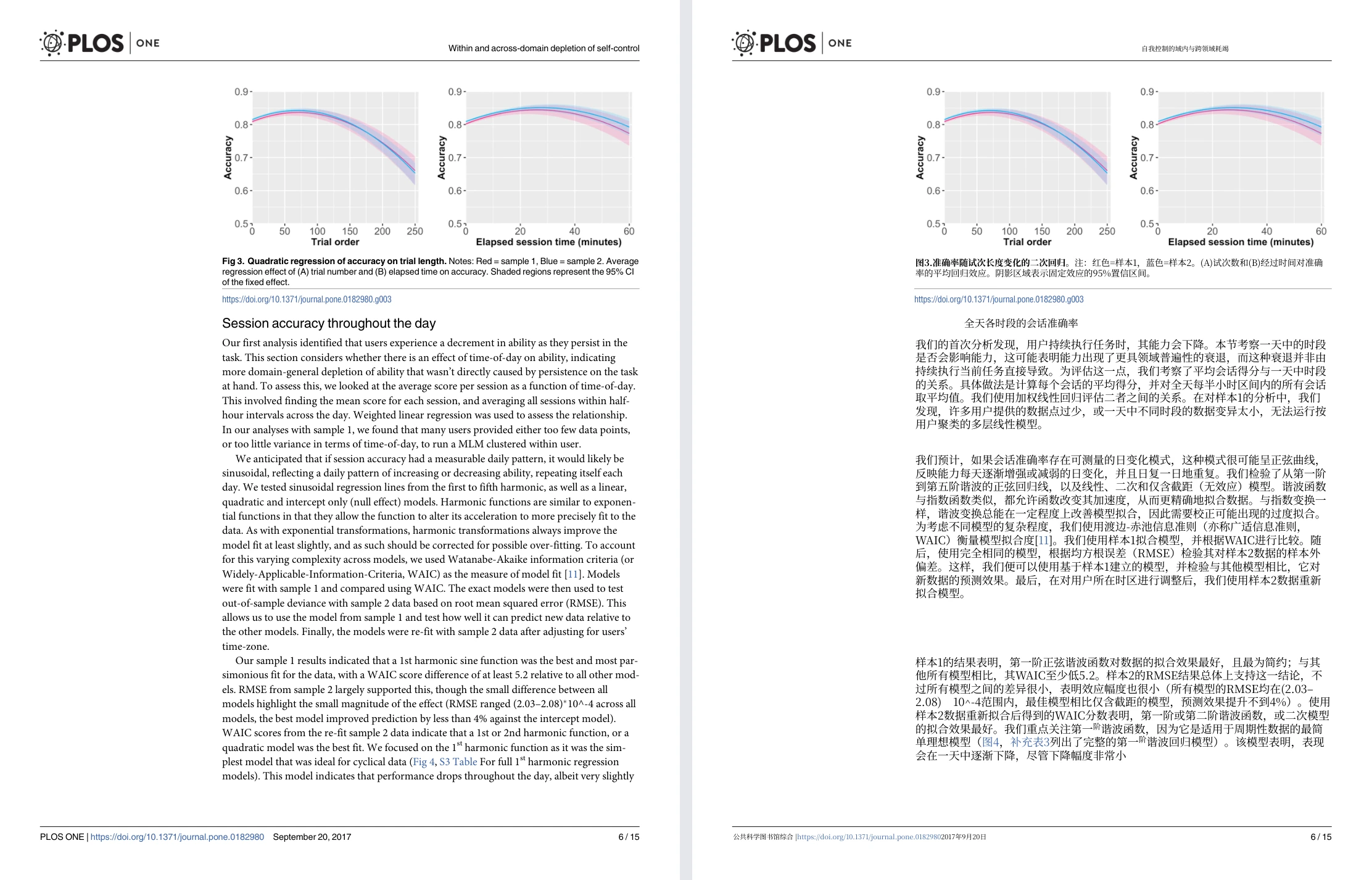
- Layout-Preserving Document Translation: When translating academic research PDFs, layout elements such as columns, figure placements, captions, and paragraph hierarchy are preserved, and mathematical formulas do not turn into corrupted text (font sizes and line breaks adapt to translated text length). In slide presentations (PPTX), translated text resizes dynamically to prevent text-box overflow, while spreadsheets (XLSX) preserve formulas (complex text-conditional formulas should be checked to verify calculation logic). Word (DOCX) and EPUB files are also supported.
- Bilingual Web Reading & Video Subtitles: With the Equalang browser extension, web articles display bilingual text directly beneath each original paragraph. On platforms like YouTube, the extension translates existing captions or provides live captioning where supported by the browser and video source.
- Photo & Quick Text Translation: Accessible on the web via Photo Translation to parse printed handouts and library notices.
Practical Boundaries and a Real Misrecognition Case Study
Like any automated language tool, Equalang has defined operational boundaries:
- Requires an Internet Connection: Live Listening, Face-to-Face, and Translated Call operate entirely in the browser and require active Wi-Fi or cellular data; offline execution is not supported.
- Acoustic Physics Apply: Placing a laptop or phone at the back of a large lecture hall will degrade transcription quality due to reverberation. Moving closer to the instructor or using an external microphone typically helps capture clearer audio (note that we have not verified far-field performance in actual lecture halls).
- Not a Substitute for Certified Human Interpreters: Speech tools are study aids. For formal legal hearings, visa immigration reviews, or official medical consultations, you must rely on certified human interpreters.
- A Real Misrecognition Case Study:
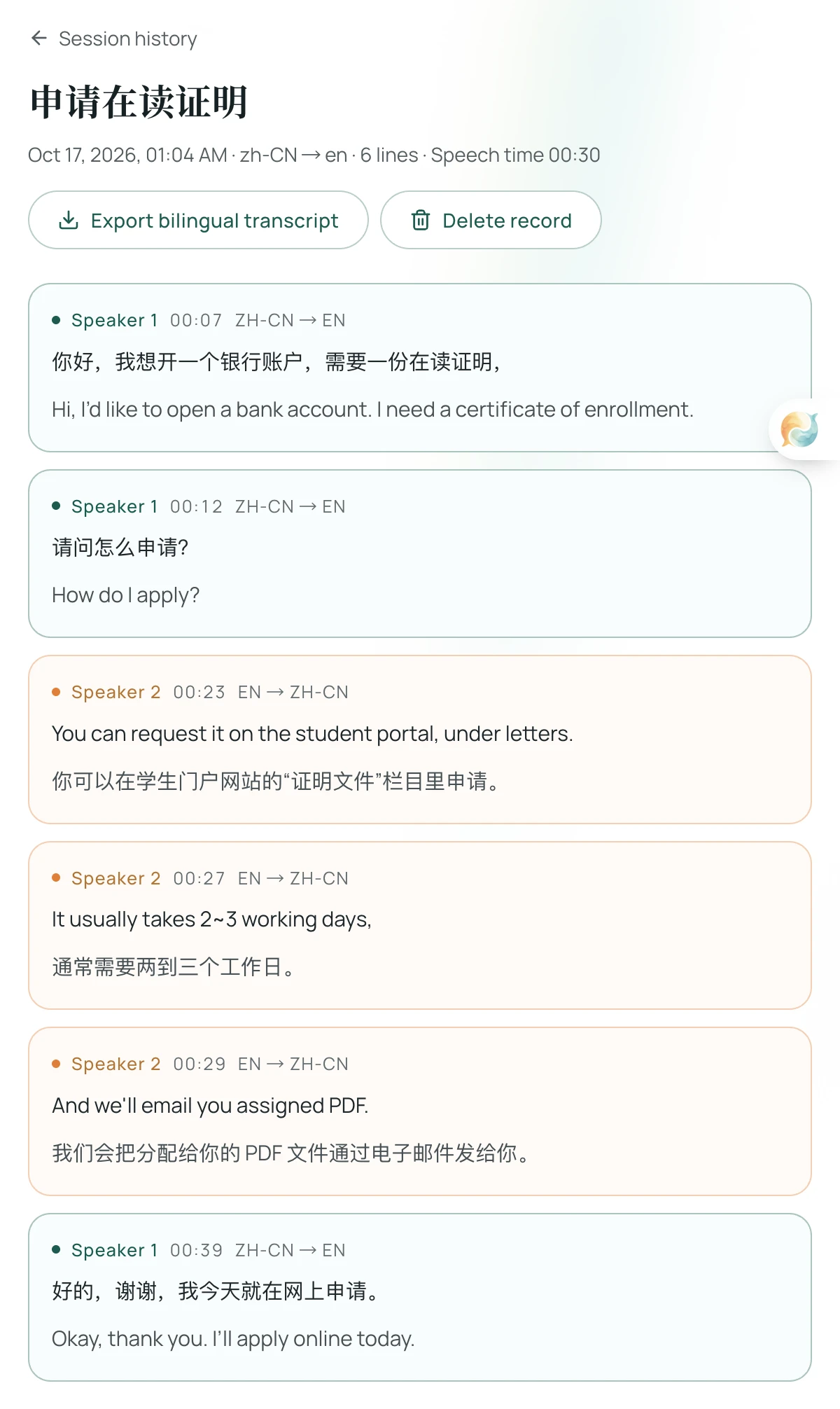
Take a close look at turn 5 in the Face-to-Face transcript above, generated during our team's simulated campus office session (using synthetic voice input):
The staff member stated: "And we'll email you a signed PDF."
Because of phonetic similarity, the speech engine captured it as: "And we'll email you assigned PDF." Consequently, the translation read: "我们会把分配给你的 PDF 文件通过电子邮件发给你。" (We will email you the PDF assigned to you) instead of a signed PDF.
In daily conversation, mishearing "signed" as "assigned" might seem minor. But when submitting paperwork to immigration authorities or opening a bank account, whether a document is officially signed makes all the difference. We keep this unedited screenshot in our documentation for a reason: at an administrative counter, always verbally verify or point to critical details—such as signatures, submission deadlines, and dollar amounts—before leaving the desk.
6. Campus Tool Selection Guide
Matching the tool to the specific task makes all the difference:
- Brief counter visits, offline emergencies, or reading signs: Use the built-in Apple Translate (on iOS) or Google Translate on your phone. They open quickly, take minimal setup, and Apple's downloaded offline packs keep you covered in campus basements.
- Studying in Japan or Korea, drafting emails with honorifics, or vocabulary drills: Rely on NAVER Papago. Its polite speech toggle and Edu study cards are uniquely suited for East Asian language nuances.
- Classroom lectures, formatted research PDFs, slide decks, and web reading: Open Equalang on your laptop or tablet browser to capture bilingual lecture transcripts and parse heavy academic reading without losing document formatting.
Sources
- Google Translate Help: Translate speech
- Google Translate Help: Transcribe in Google Translate
- Google Translate Help: Translate documents & websites on computer
- Google Official Blog: Upgrades to Google Translate on iOS and Android (2026-09-04)
- Google Translate on the App Store
- Google Translate Web Documents Tool
- Apple Support: Translate speech and text on iPhone
- Apple Support: Translate face to face on iPhone
- Apple Support: Apple Intelligence Live Translation requirements
- Apple Newsroom: Apple Intelligence Capabilities (2025-06-09)
- Apple Translate on the App Store
- Microsoft Translator on the App Store (v26.7.1 Retirement Notice)
- Microsoft Speech SDK 1.51 Release Notes (July 2026)
- NAVER Papago on the App Store
- NAVER Help Center: Mobile Conversation Translation Guide
- NAVER Help Center: Edu Study Camera Guide
- NAVER Help Center: Offline Translation Features and RAM Requirements
- NAVER Papago Official Website
- Equalang Official Documentation: Product Overview and Simultaneous Interpretation