Struggling to Follow Fast-Paced Academic Talks? Use Live Translation and Export Full Transcripts
 Equalang
In brief
Overwhelmed by rapid-fire presentations at international academic conferences? Here is how to use your laptop or phone for real-time live translation, bilingual captions, and one-click transcript exports.
Keywords: academic conference live translation; bilingual presentation subtitles; real-time conference transcription; academic speech interpretation; conference transcript export
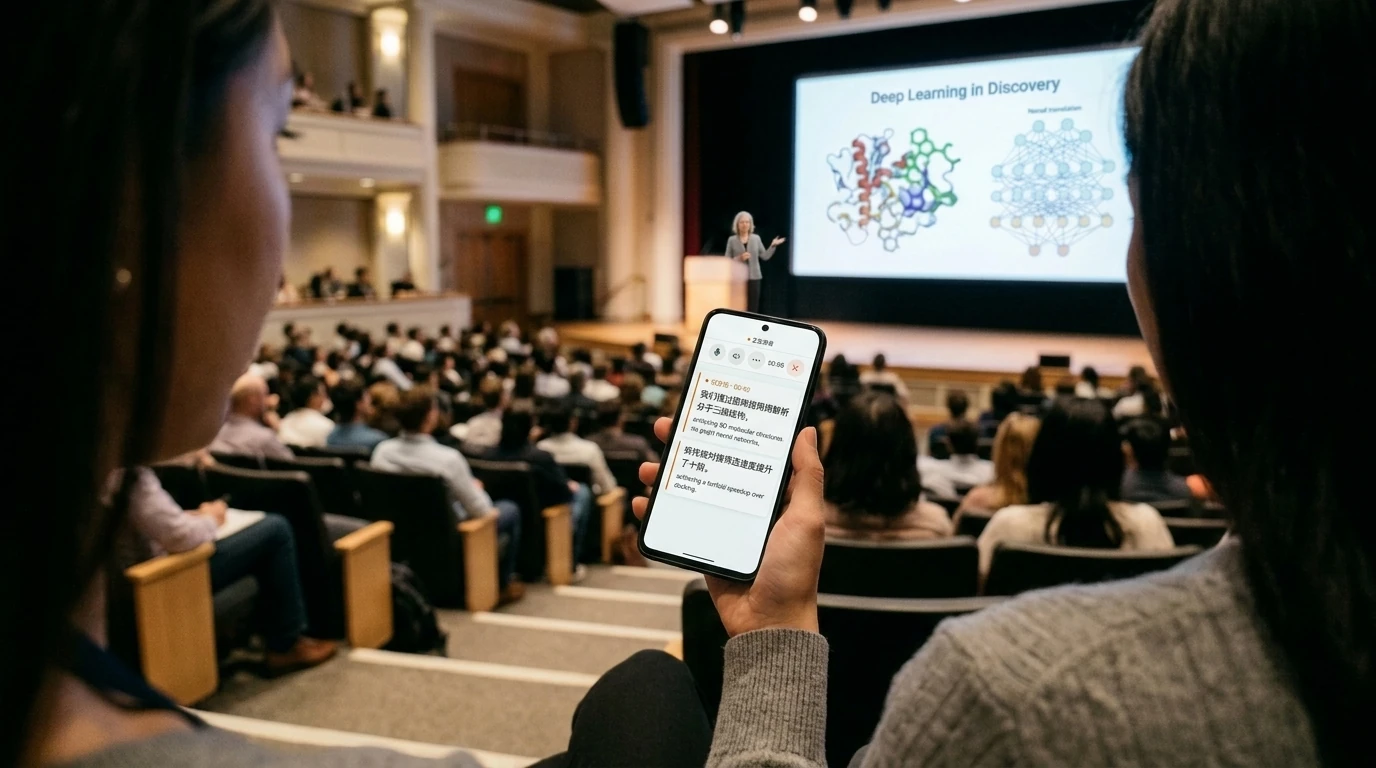
Every year, flagship in-person academic conferences—such as CVPR in computer vision, NeurIPS in machine learning, or AACR in oncology—bring together leading scholars, groundbreaking methodologies, and cutting-edge research. Attending these gatherings in person to watch oral presentations, participate in specialized workshops, and exchange ideas face-to-face with peers is an invaluable milestone for any researcher.
Yet following these presentations from the audience often imposes an intense cognitive load. In cavernous lecture halls with pronounced reverberation, speakers often deliver unscripted presentations at a breakneck pace, advancing slides far faster than attendees can digest complex formulas and derivations. Compounding this challenge are diverse regional accents, rapid-fire technical acronyms, and novel experimental setups; missing just a minute or two can make it nearly impossible to reconnect an ablation study with its underlying algorithmic assumptions. Because specialized workshop tracks rarely offer dedicated human interpreters, keeping up with dense, fast-moving technical talks from the middle or back rows requires a practical strategy.
1. The Practical Limitations of Conventional Conference Note-Taking
To capture technical details and retain insights from high-density sessions, researchers frequently turn to standard recording methods, only to run into clear physical and cognitive constraints:
- Re-listening to voice recordings takes too long: Capturing eight hours of back-to-back presentations on a voice recorder or smartphone app creates a massive audio backlog that few researchers ever have time to review from start to finish. Crucially, without real-time visual assistance during the presentation, you cannot easily formulate precise questions to ask during the live Q&A session.
- Raw English transcription lacks native cognitive scaffolding: Standard speech-to-text tools output unedited English text streams. However, during a rapid-fire presentation, scanning dense walls of unformatted text consumes significant cognitive bandwidth. For researchers who need to grasp intricate mathematical premises or system architectures in seconds, instant side-by-side translation into their native language serves as essential cognitive scaffolding.
- Bulky desktop clients and fragile venue networks: Many enterprise conference tools require heavy desktop installations or dedicated hardware receivers. Academic conference centers, however, frequently suffer from congested public Wi-Fi networks. Under these strained conditions, complex client software is prone to connection drops, lag spikes, or firewall issues.
2. Browser-Based Live Translation and Transcription in Practice
For zero-install, friction-free assistance in conference rooms, opening a web browser on your laptop, tablet, or smartphone to capture live audio is a much lighter approach. Below, we demonstrate the live bilingual translation and transcript archiving workflow using Equalang Live Listening, developed by our team.
Step 1: Zero Installation—Configure in Your Browser in Seconds
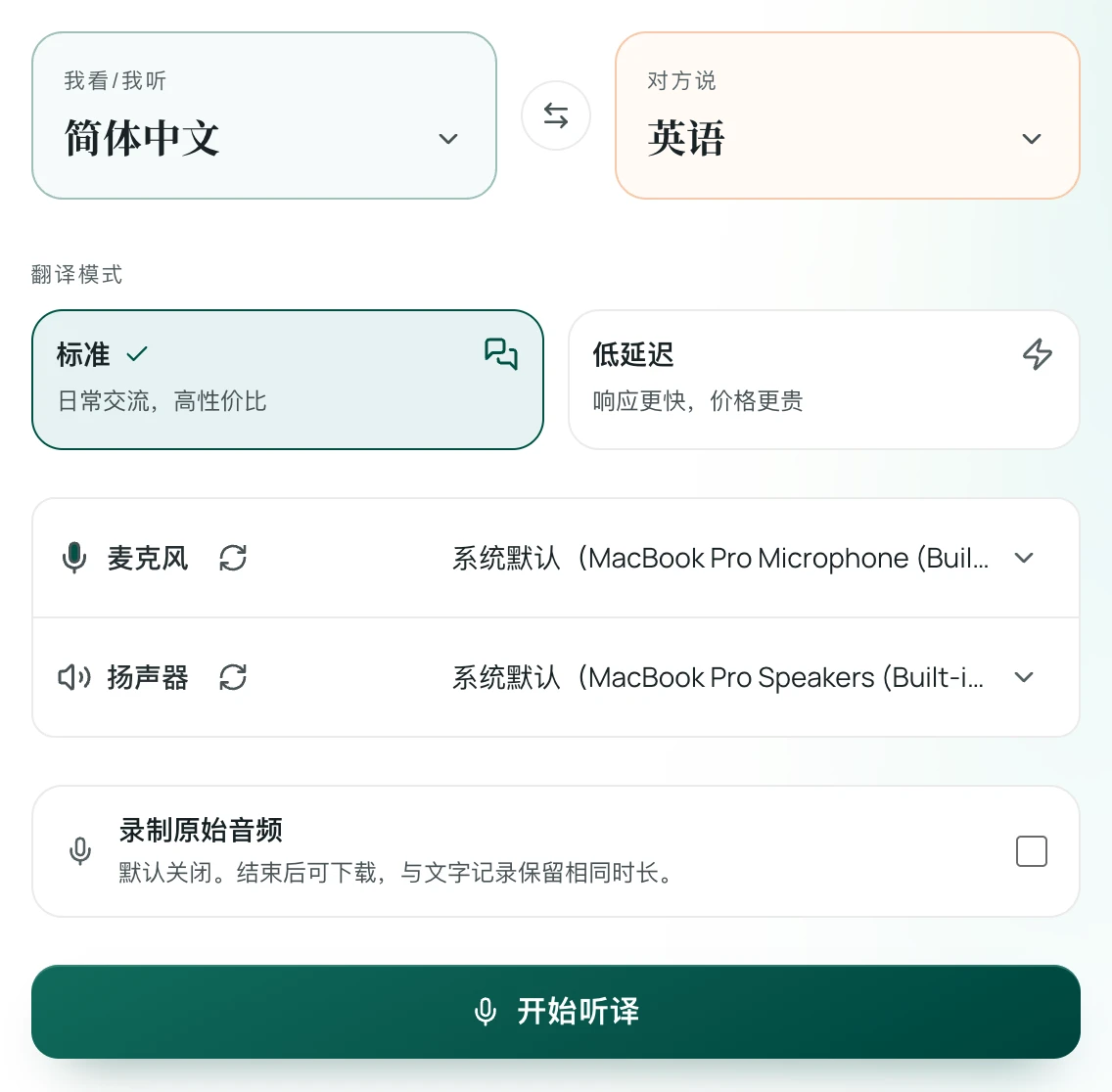
After finding your seat in the session room, there is no need to download an application or install browser plugins. Simply open the Live Listening interface in your browser:
- Select your language pair: In the settings panel, set "I Read / I Listen" to your native language (e.g.,
Simplified Chinese,Spanish,French), and set "Speaker Language" to the presenter's language (such asEnglish,Japanese, orGerman). - Choose your processing mode: For routine keynote presentations and technical talks, select "Standard Mode" for balanced processing. During fast-paced Q&A exchanges or lively panel debates, switch to "Low-Latency Mode" for faster responsiveness.
- Confirm your audio input: Verify your active microphone device under the microphone settings. Your laptop's built-in microphone is selected by default; in larger auditoriums, you can also plug in an external directional microphone or a wireless lapel mic.
Step 2: Arrange Bilingual Subtitles and Layout
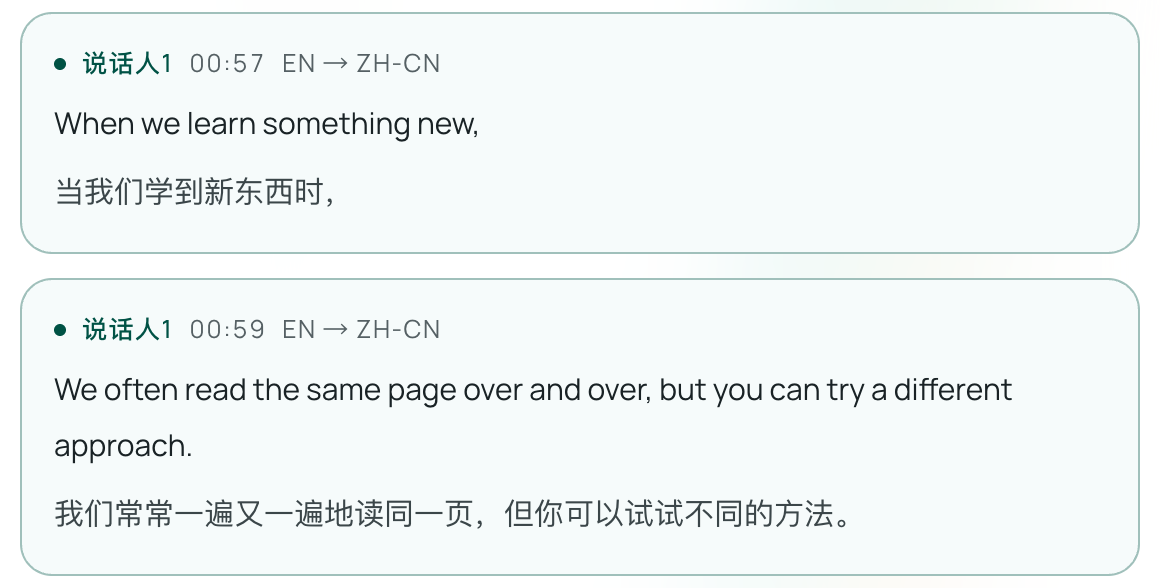
Click "Start Listening". The system captures audio from the venue's PA speakers or presenter and streams sentence-by-sentence bilingual caption cards in real time:
- "Bilingual · Quick Glance" during presentations: Renders translated text in large font with the original spoken language in smaller font beneath. This layout is tailored for large lecture halls: a quick glance at the prominent translated text lets you instantly grasp the theoretical intuition or technical bottleneck being explained, while the smaller original text lets you cross-check model parameters, function names, and library references.
- "Bilingual · Immersion" for technical discussions: Displays the original spoken language in large font with the translation underneath. If your primary goal is to follow the presenter's exact technical phrasing and presentation style while maintaining a quick reference for unfamiliar terms, this layout provides a more immersive original-language experience.
In terms of credit consumption, the system only bills for audio segments actually sent for speech recognition. When a presenter pauses between slides, switches speakers, or waits for applause, the system automatically enters standby without using credits.
Step 3: Export Timestamped Transcripts for Literature Notes
When an individual talk concludes or the day's workshop wraps up, click "Stop". The complete spoken transcript remains accessible on screen. Clicking "Export" downloads a local text file containing exact timestamps, the speaker's original sentences, and the corresponding translations.
This exported transcript can be imported directly into Obsidian, Notion, or your personal reference manager, where you can cross-reference it with the speaker's slide deck and arXiv preprint to form a durable, reusable research note.
3. Four Practical Audio Tips for Large Conference Venues
The acoustic properties of physical meeting rooms significantly impact speech recognition clarity. When attending sessions in person, keeping these four practical tips in mind can help you achieve cleaner capture:
- Sit close to the venue's PA speakers: Large lecture halls frequently suffer from wall reverberation and acoustic flutter. Choosing a seat in the front rows or directly adjacent to wall-mounted speakers allows your device's microphone to pick up direct vocal sound, substantially reducing room echo.
- Cross-check novel abbreviations and surnames against slides: At frontier conferences, researchers frequently coin new model acronyms or cite contemporary co-authors. When an unfamiliar technical term or name appears in the transcript, glancing at the projected slide title provides quick, accurate verification.
- Bring a compact directional or lapel microphone: Where convenient, connecting a small external USB electret or directional microphone to your laptop helps isolate the speaker's voice from nearby keyboard clicks, notebook shuffling, and whispered conversations.
- Pause during coffee breaks: During coffee breaks or poster sessions, click "Pause" to put the tool on standby. This conserves processing credits and keeps your presentation transcript clean and focused on actual technical talks.