Microsoft Translator Features: Group Chat and Live Speech
 Equalang
In brief
Explore Microsoft Translator features including multi-device conversation, presenter mode, and offline travel tools, and see how it compares with Equalang.
Keywords: Microsoft Translator, multi-device conversation, presenter mode, offline translation, Equalang
In multilingual settings, language barriers frequently arise outside simple text boxes—such as during interactive presentations, cross-border seminars, or on-the-go travel conversations. In these shared environments, static dictionary lookups or isolated text fields often fall short of supporting dynamic group interaction.
Microsoft Translator addresses these needs by combining multi-device group connectivity, on-site presentation features, and offline travel utilities within its consumer application. This feature guide, compiled by the Equalang team, reviews the public capabilities, interaction models, and operational boundaries of Microsoft Translator, while outlining how it compares with and complements Equalang across different workflows.
1. Multi-Device Conversations and Presenter Mode
Unlike conventional translation tools centered on single-device, one-way input, Microsoft Translator's standout capability is its room-based multi-device interaction model designed for group communication.
Multi-Device Real-Time Conversation
Microsoft Translator enables multiple participants to connect across different personal devices:
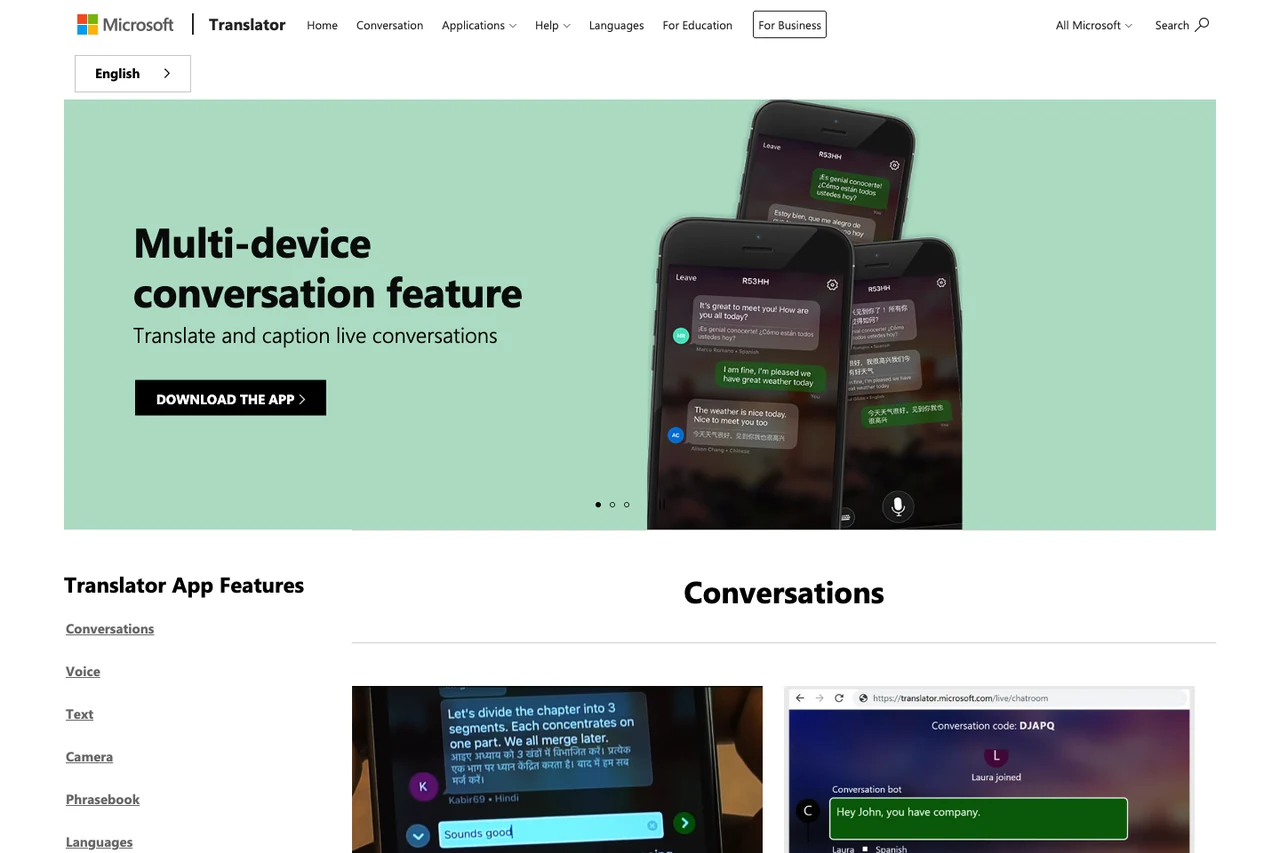
- Cross-Platform Hosting and Joining: A host creates a live conversation room using the mobile application, generating a join code or QR code. Participants can join using their own mobile app or directly via a desktop or mobile web browser at translate.it without needing to install the software beforehand.
- Localized Transcripts for Every Participant: Once inside the session, each user selects their preferred input and display language. As participants speak or type, the system transcribes and translates the speech in real time, delivering localized captions directly to each individual's screen. This makes it practical for multilingual workshops, classroom interactions, and international guided tours.
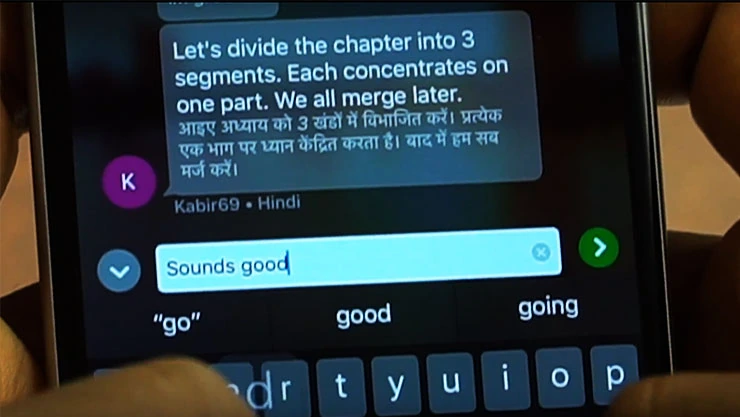 Source: Microsoft Translator App Features (Official feature demo graphic showing multi-device Hindi and English real-time dialogue; earlier version example)
Presenter Mode
In structured lectures or guided presentations where open microphones could introduce unwanted background noise or speech overlaps, the app provides a dedicated Presenter mode:
- Continuous Microphone Capture: Enabling Presenter mode in the session settings keeps the host's microphone active throughout the presentation, removing the need to tap the mic button after every sentence.
- Automated Participant Muting: When the conversation host activates Presenter mode, all other participants are automatically muted, preventing interruptions and allowing listeners to focus on the live stream of translated captions on their screens.
- Hardware and Connectivity Prerequisites: Official help documentation notes that voice translation requires an active internet connection. To ensure reliable recognition, presenters are advised to use a close-talking headset, lapel microphone, or Bluetooth microphone, and to speak in complete sentences.
2. Travel Utilities, Split-Screen Dialogue, and Offline Access
Alongside group conversation rooms, the mobile application provides practical tools for one-on-one travel interactions and limited-connectivity environments.
Split-Screen Translation on a Single Device
When two individuals need to converse face-to-face with only one phone available:
- The screen divides into two mirrored halves, each oriented toward one speaker.
- Both parties share the device's microphone, speaking alternately while viewing live transcriptions and translations in their respective languages—useful for counter inquiries, transit directions, or hotel check-ins.
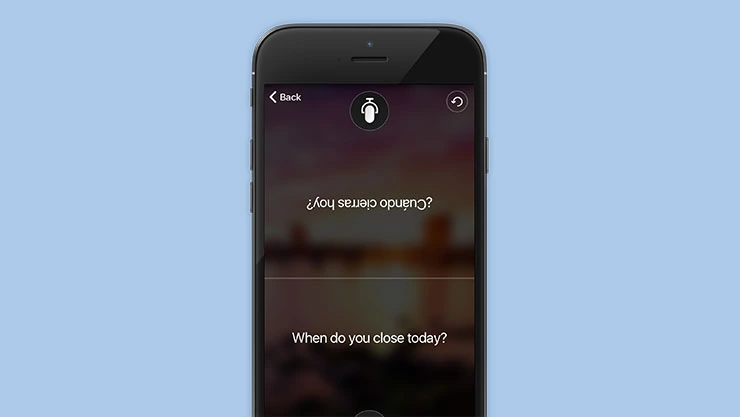 Source: Microsoft Translator App Features (Official feature demo graphic showing inverted two-way Spanish and English dialogue; earlier version example)
Offline Language Packs and Camera Translation
When traveling abroad without reliable mobile data or active roaming:
- Offline Text Translation: Downloading target language packs in advance allows users to translate typed text entirely offline.
- Offline Camera OCR: Users can capture images through the built-in camera viewer or import saved photos to translate street signs, notices, and printed menus without an internet connection.
- Verified Phrasebook: The app includes a curated phrasebook covering common travel categories like lodging, dining, navigation, and health. It features audio pronunciation at three playback speeds, pronunciation guides, and a favorites list—all fully accessible offline.
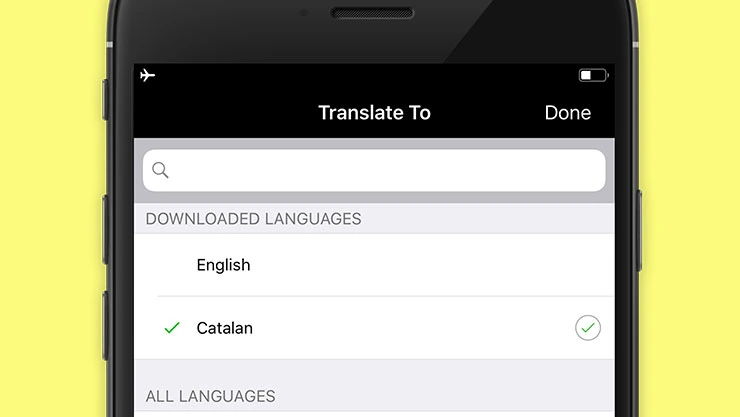 Source: Microsoft Translator App Features (Official feature demo graphic showing offline language pack management; earlier version example)
3. Product Boundaries and Practical Considerations
Understanding the scope of Microsoft Translator helps clarify where it fits best and where other tools may be required:
- Consumer App vs. Azure Cloud and Office: The consumer application reviewed here focuses on personal dialogue, travel, and group rooms. It is distinct from enterprise-grade Azure AI Translator services (such as Document Translation APIs) and desktop Office translation features. The consumer app does not function as a document processing workbench for multi-page formatted publications.
- External Multimedia Limitations: Official documentation explicitly clarifies that the Microsoft Translator app does not support translating audio from external media sources, movies, or video files.
- Connectivity Requirements for Voice: While offline packages support text and photo lookups, voice recognition, single-mic spoken translation, and multi-device rooms require an active internet connection.
4. Comparing and Complementing with Equalang
In practice, Microsoft Translator and Equalang are tailored to different primary workflows. While they share common ground in basic text lookups, photo OCR, and spoken communication, their features diverge significantly across web reading, video subtitles, structured document processing, and remote calling.
In-Page Bilingual Reading vs. Spoken Rooms
For written web content and streaming video:
- Microsoft Translator is oriented toward mobile dialogue and short phrase queries, without a desktop browser extension for paragraph-by-paragraph side-by-side reading, and its app does not support external video translation.
- Equalang focuses on side-by-side bilingual comprehension: using the browser extension, translated text appears directly underneath each original paragraph on web pages, allowing users to cross-reference source material seamlessly. On platforms like YouTube, Netflix, and TikTok, the extension converts existing subtitles into dual-language captions. For uncaptioned public videos or live broadcasts, it offers live listening on compatible browsers and open streams (subject to browser capture limitations; encrypted streams are not supported).
Preserving Layout in Structured Documents
When handling formal business and academic documents:
- Microsoft Translator's mobile app does not provide full-document layout parsing or reconstruction.
- Equalang specializes in whole-file translation with structural preservation: for digital PDFs, it maintains multi-column formats, headers, footers, and captions, stitches together sentences split across page breaks before translating, and protects mathematical equations, with bilingual output options available when supported by the task; in PPTX presentations, text scales dynamically within bounding boxes to prevent overflow; in XLSX spreadsheets, numerical values and formulas remain intact. Equalang also supports EPUB e-books, SRT/VTT subtitles, and audio/video transcription.
On-Site Group Sessions vs. Remote Web Calling
In spoken communication formats:
- Microsoft Translator offers a mature on-site room structure with presenter muting, making it well suited for physical gatherings, guided tours, and classroom demonstrations.
- Equalang facilitates remote cross-language collaboration via Translated Call: the host logs in, configures languages, and generates an invite link; the guest joins directly in a browser without registration upon entering their name, and once approved by the host, both participants speak their native language, hear spoken translations, and review live bilingual transcripts. Equalang also provides browser-based Live Listening, Face-to-Face, and Photo Translation without requiring local software installation.
Summary Recommendation
If your primary need is hosting on-site multilingual presentations, providing live captions to audience members on their own devices, or navigating overseas trips with offline text packages, camera OCR, and a curated phrasebook, Microsoft Translator offers a capable and accessible set of mobile tools.
If your daily work revolves around in-depth reading of foreign web articles, watching streaming videos with bilingual subtitles, translating complex PDF, PPTX, or Excel documents while keeping their layout and formulas intact, or conducting remote voice calls with international partners via browser links, Equalang provides a specialized side-by-side workflow designed for comprehensive understanding.