Immersive Translate Feature Overview and Workflow Choices
 Equalang
In brief
An overview of Immersive Translate's web, PDF, and video features, alongside how Equalang supports Office documents and standalone spoken workflows.
Keywords: Immersive Translate, bilingual web translation, video subtitles, PDF translation, Equalang
When studying academic papers, following international news, or watching online lectures, readers often balance the convenience of automated translation against the need to verify original phrasing. Traditional full-page machine translation replaces the entire source text, which can obscure specialized terminology; looking up words individually, on the other hand, repeatedly interrupts reading momentum.
Immersive Translate is designed around side-by-side bilingual reading, embedding translation interactions directly into browser extensions and standalone apps. As the team building Equalang, we closely observe different interface patterns across language software. This guide outlines the current features and interfaces of Immersive Translate while clarifying how its focus compares with Equalang across distinct operational tasks.
Web Browsing and Quick Inputs: In-Page Bilingual Reading
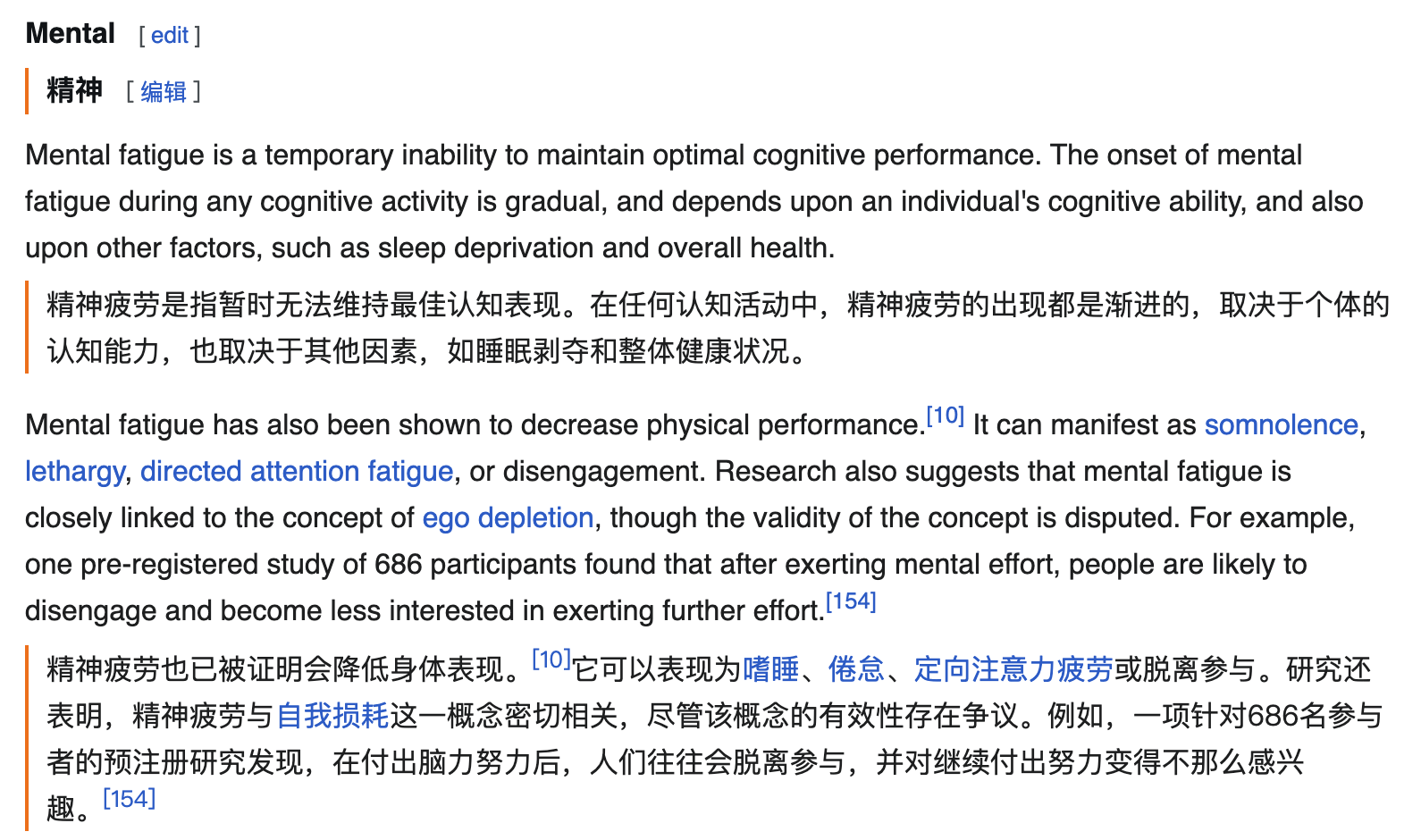
The primary design element of Immersive Translate is its vertical side-by-side display. Instead of replacing the original webpage content, it inserts the target language translation beneath each source paragraph, preserving webpage layout while enabling readers to glance back and forth between original and translated sentences.
According to its official user guide, the extension provides several core interaction methods:
- Full-Page and Regional Bilingual Reading: Users can trigger page translation through the extension toolbar button, right-click context menu, or keyboard shortcuts (such as the default
Alt + A). - Hover and Selection Lookup: A mouse-hover mode displays a paragraph's translation only when the cursor pauses over it while holding a designated key. Selecting text opens a standard definition and pronunciation window.
- Input Field Translation: In any browser input field, pressing the spacebar three times translates drafted text into the chosen target language, assisting with foreign-language search, social comments, or online forms.
- Image and Comic Translation: Includes specialized options for web images and comics, combining OCR text detection with image editing to replace text directly within graphics.
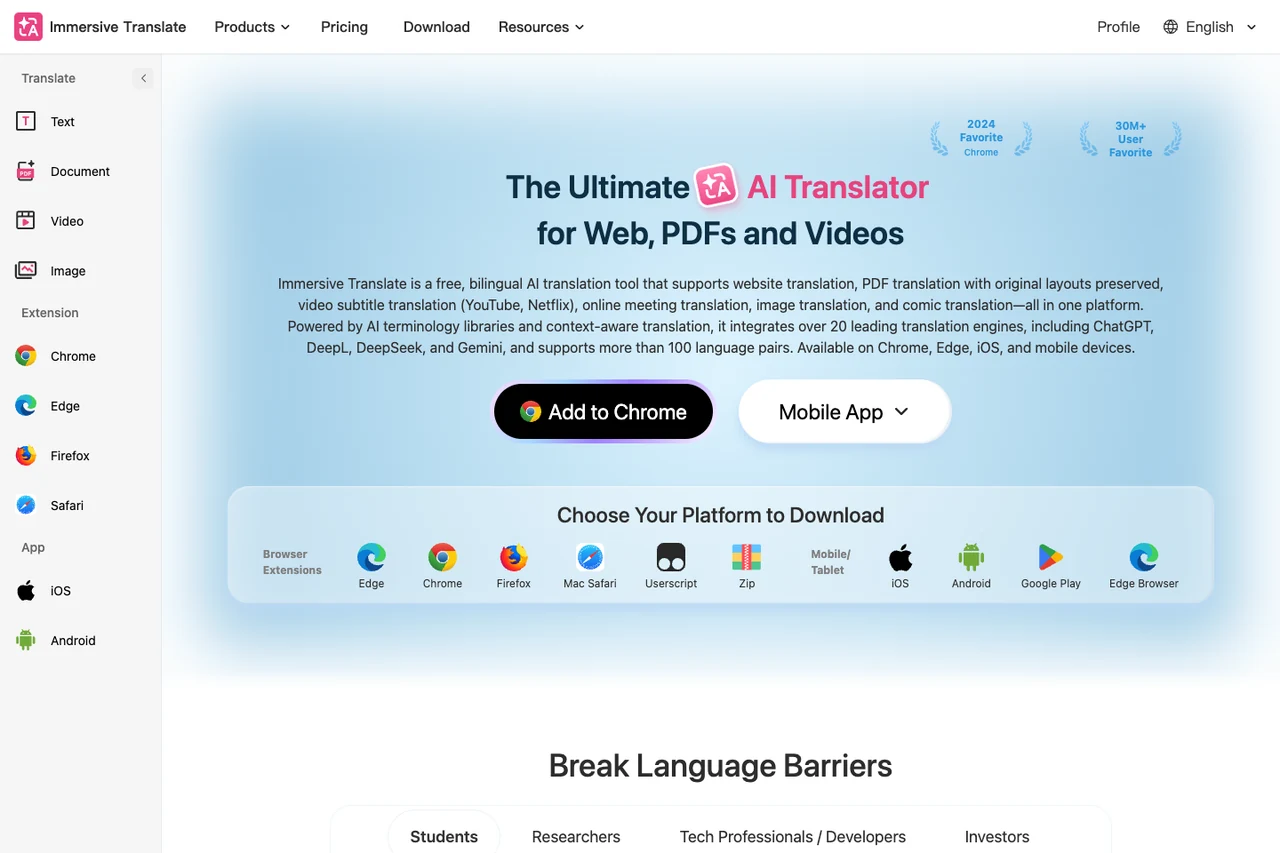
Source: Immersive Translate Official Homepage
Document and E-Book Support: Distinct Handling Modes
Beyond active webpages, Immersive Translate also provides translation workflows for offline documents and e-books:
- Standard PDF Translation: Processes conventional text-based PDFs into bilingual views.
- PDF Pro Translation: Designed for documents requiring formula recognition or scanned page handling, automatically reformatting multi-column structures into a single column in translation.
- BabelDOC PDF Translation: A layout-oriented document tool designed to retain original document structures, supporting multi-column layouts, tables, and inline or standalone formulas.
- E-Book Reading and Export: Reads both EPUB and MOBI files in the browser and supports generating and exporting bilingual EPUB e-books for external reading devices.
- Subtitles and Research Tools: Supports uploading
.srtand.assfiles to export dual-language subtitle files, alongside translation integrations for Zotero and Google Docs.
Because document complexity varies widely across academic and technical materials, checking terminology and formula positioning against original source files remains a practical step.
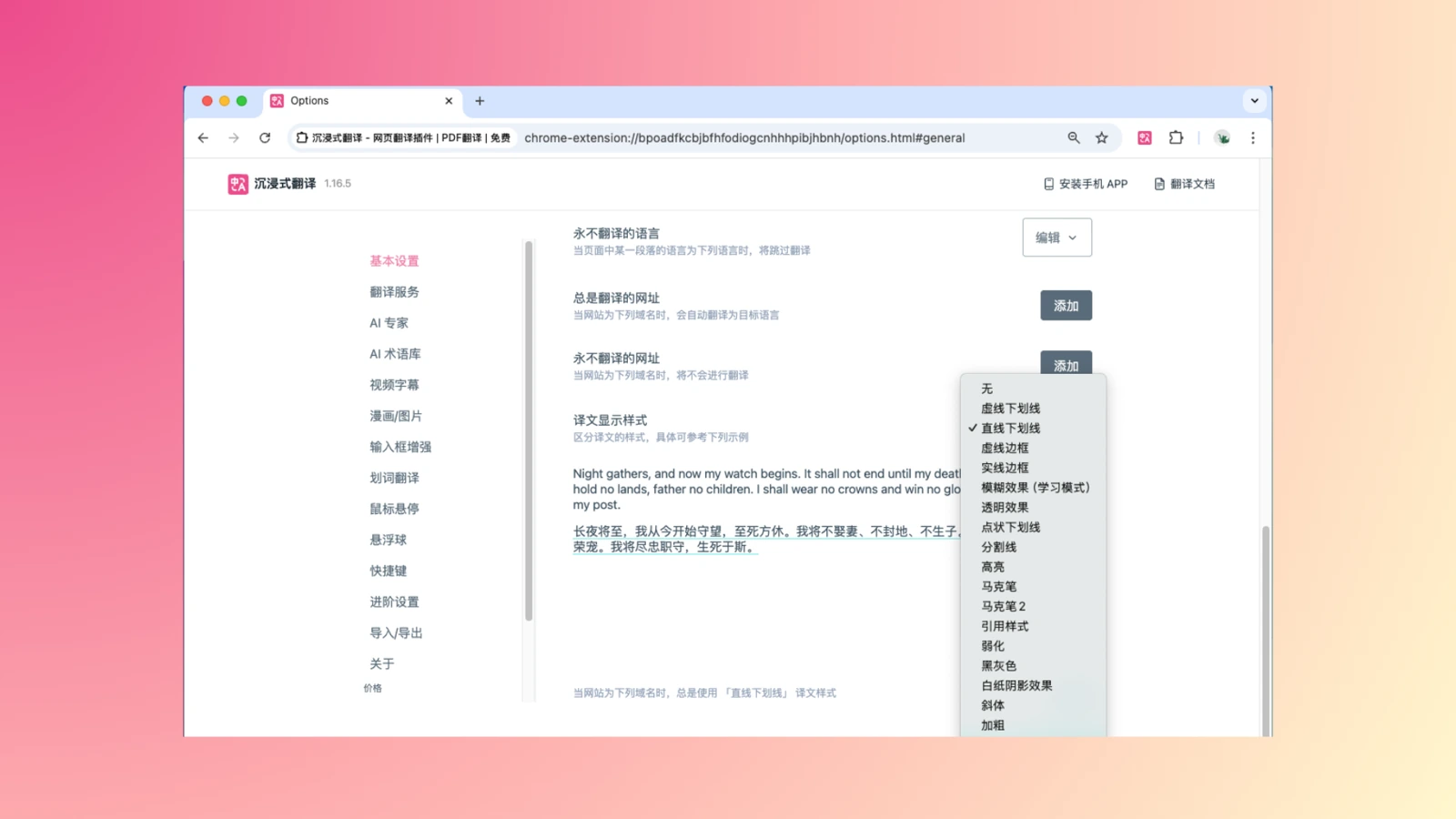
Source: Immersive Translate User Guide
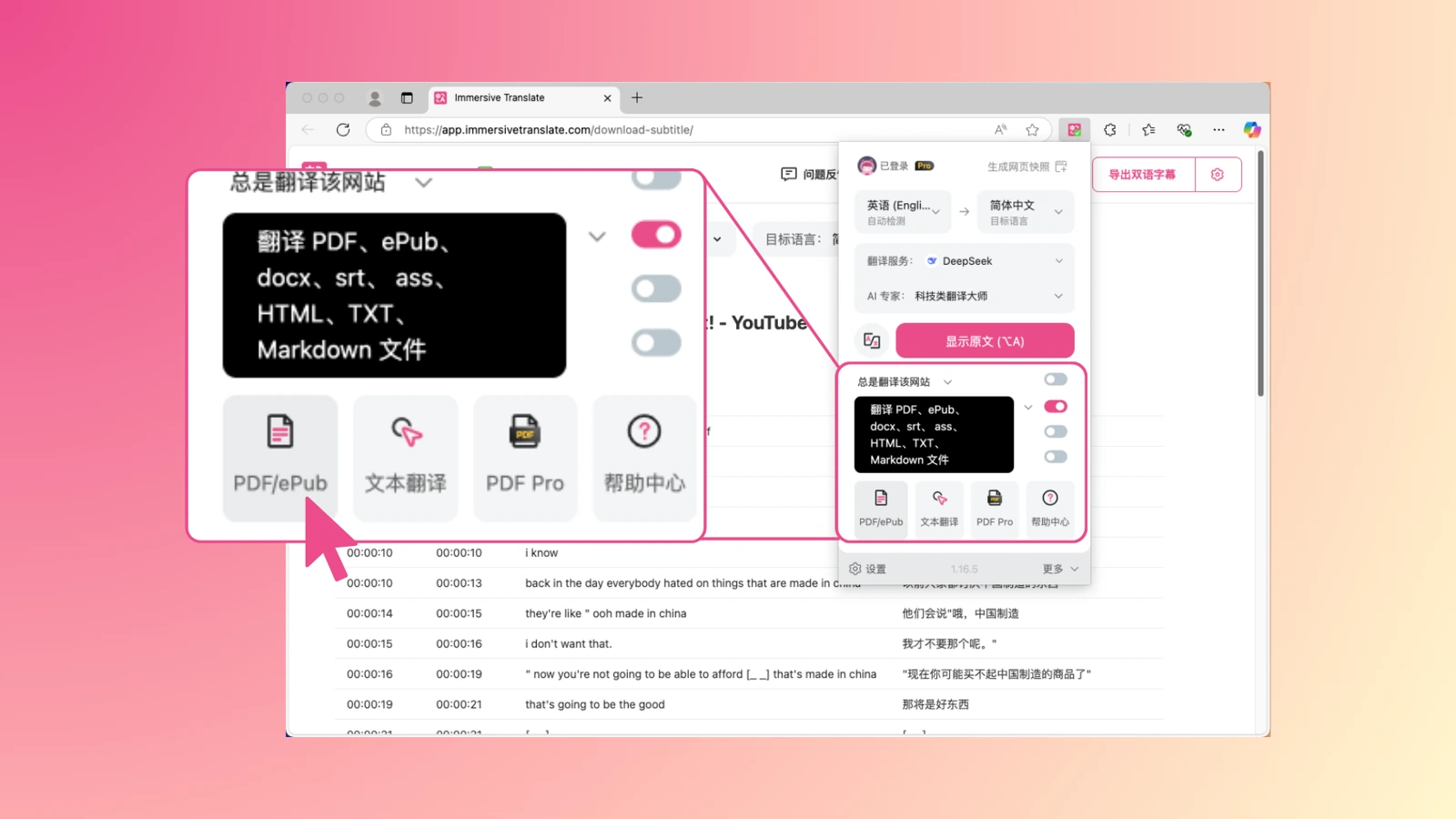
Source: Immersive Translate User Guide
Video Subtitles and Streaming: Existing Tracks and Audio Transcription
Video is an essential medium for online courses and international communication. Immersive Translate approaches video translation through multiple functional paths:
- Bilingual Display for Existing Captions: On streaming platforms like YouTube and Netflix, the extension reads available caption tracks and displays bilingual subtitles on the video player.
- Speech Recognition for Captionless Videos: According to its AI video translator product page, when a video lacks native captions, the system can transcribe audio into timed subtitle segments and translate them into a bilingual view. Actual support varies depending on platform player structures and media access conditions.
- Live Streams and Meetings: The product maintains a YouTube Live translation page. For virtual meetings, it overlays bilingual subtitles in browser-based sessions of Zoom, Google Meet, or Microsoft Teams when native meeting captions are enabled.

Source: Immersive Translate User Guide
Feature Comparison: Choosing Between Immersive Translate and Equalang
Immersive Translate and Equalang share several foundational capabilities. Both offer browser extensions that display parallel bilingual paragraphs on web pages, both provide dual-language subtitle displays on major video streaming sites, and both support translating and exporting PDF and EPUB files.
However, each tool emphasizes distinct practical workflows:
1. Immersive Translate: Focused on In-Browser Reading Habits
Immersive Translate is tailored for routine browsing and personal reading workflows:
- It integrates bilingual assistance into everyday browser actions, such as hover-to-reveal paragraphs, three-space input translation, on-page comic translation, and direct EPUB bilingual generation.
- For users whose primary activity is reading international websites, consulting documentation, or following subtitled online courses, this embedded setup fits naturally into standard browsing habits.
2. Equalang: Office Document Formats and Standalone Spoken Communication
Alongside browser extension and video subtitle support, Equalang extends its feature set to additional desktop Office formats and independent spoken interactions:
- Broad File Format Handling: Through document translation, Equalang handles PDFs (including automatic sentence reassembly across page breaks, and reconstruction of tables and formulas), EPUBs, presentation slides (PPTX), and spreadsheets (XLSX). In PPTX files, text box font sizes automatically adjust to fit translated text and maintain consistent title phrasing across slides. In XLSX sheets, numbers and calculation formulas are not translated and are written back directly.
- Standalone Zero-Install Spoken Tools: Rather than relying on meeting platform caption tracks, Equalang provides dedicated browser interfaces for live voice scenarios. These include Live Listening for lectures, Face-to-Face dual split-screen translation for shared-device conversations, and Translated Call—where the host signs in to generate an invite link, and the guest joins without an account by entering a display name and receiving host approval, allowing both participants to speak and listen in their native languages.
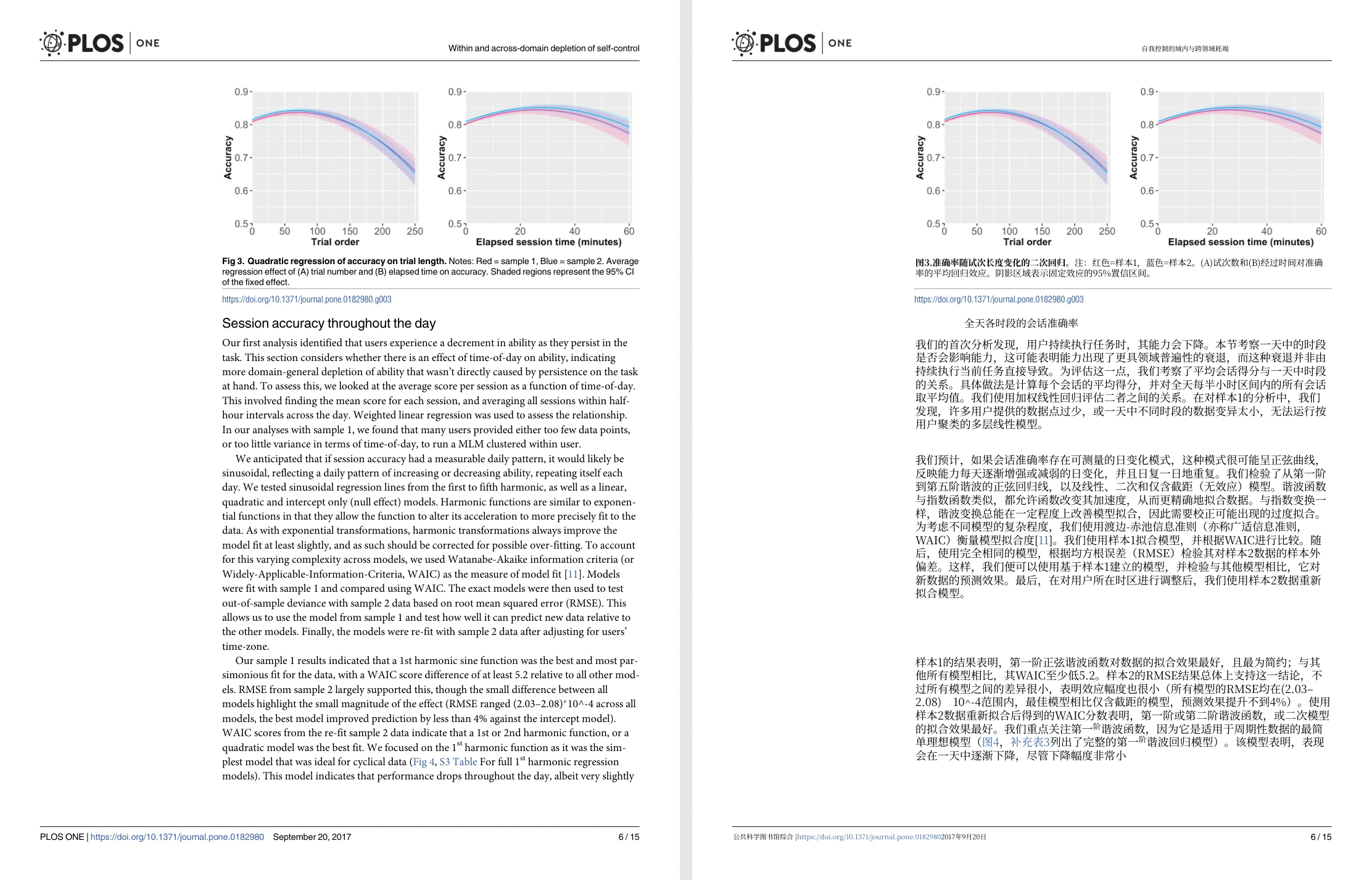
| Original English Presentation | Equalang Chinese Translation Result |
|---|---|
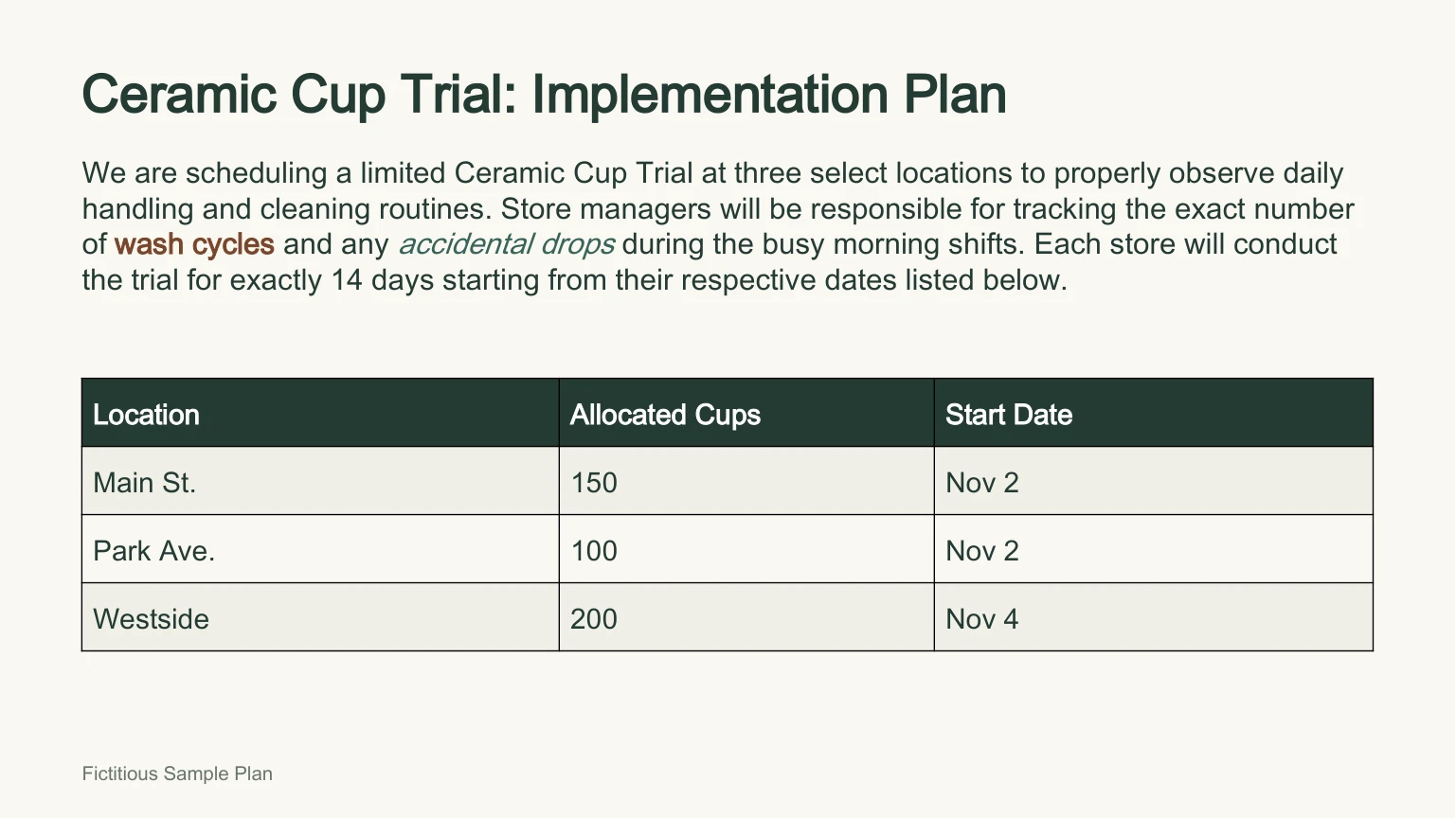 | 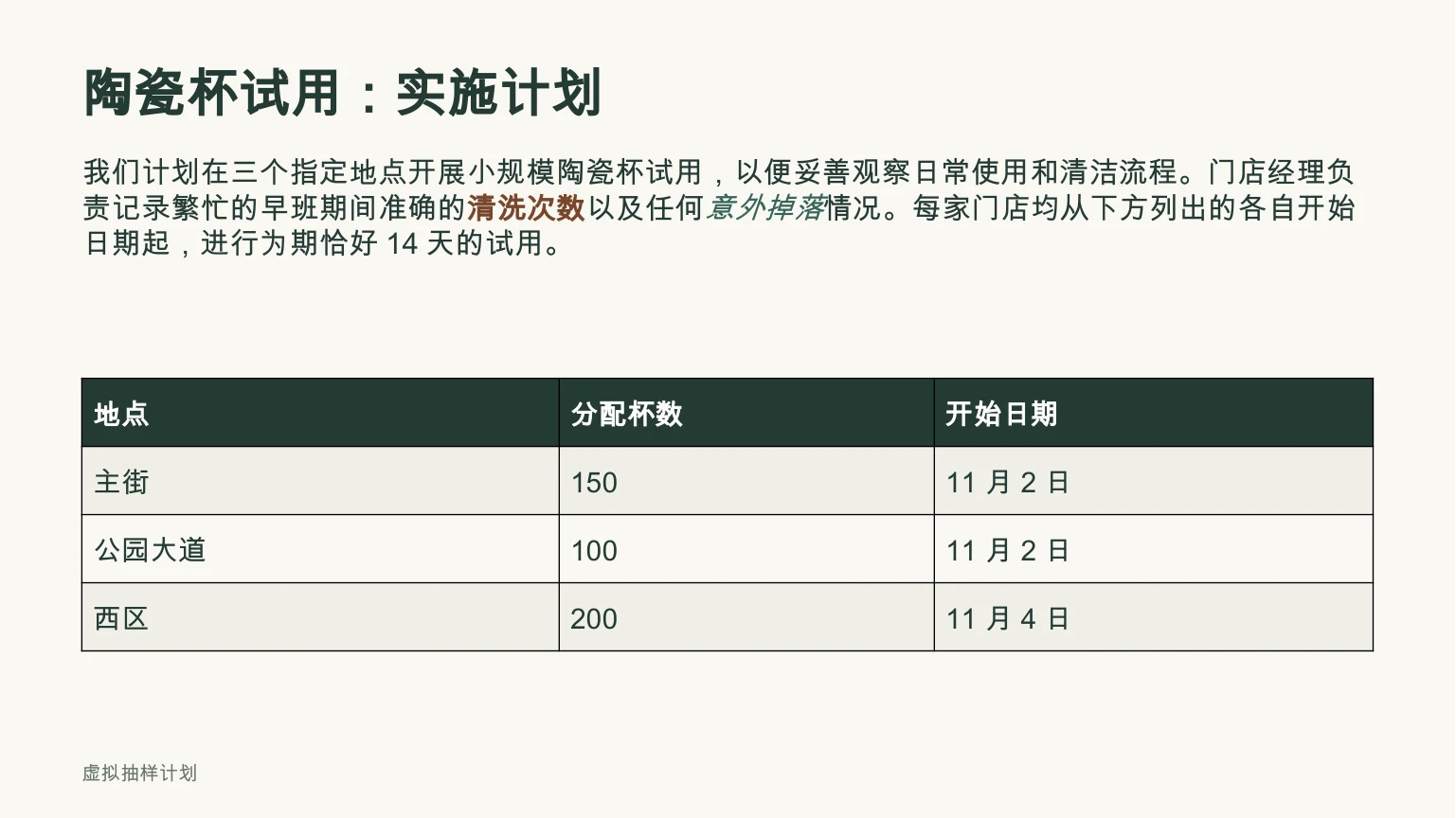 |
Choosing between the two depends on your primary task: for reading web articles, studying foreign content, or creating bilingual e-books within the browser, Immersive Translate provides an accessible in-page setup. For workflows centered on formatted slides, spreadsheets, complex PDFs with split sentences, or standalone spoken interactions, Equalang offers tailored capabilities built for those specific formats.
Sources
- Immersive Translate Official Homepage: https://immersivetranslate.com/zh-Hans/
- Immersive Translate User Guide: https://immersivetranslate.com/zh-Hans/docs/usage/
- Immersive Translate AI Video Translator: https://immersivetranslate.com/video/ai-video-translator/
- Immersive Translate YouTube Live Translation: https://livetranslate.immersivetranslate.com/zh-CN
- Equalang Official Homepage: https://equalang.com/
- Equalang Document Translation: https://equalang.com/documents
- Equalang Browser Extension: https://equalang.com/extension
- Equalang Translated Call: https://equalang.com/call