Google Translate Features: Mobile, Web, and Documents
 Equalang
In brief
An overview of Google Translate features across mobile, web, and desktop documents, its ideal workflows, and how it compares with Equalang.
Keywords: Google Translate, document translation, live translate, camera translation, web translation, Equalang
Deciphering a street sign or restaurant menu during travel, quickly looking up an unfamiliar phrase on a phone, or converting an office document into a readable language on a laptop—in these common daily scenarios, Google Translate is a familiar tool that many reach for.
Different cross-language tasks call for different interaction models, and a simple text input box is only one part of the picture. Understanding the capabilities and operating conditions of each tool helps you choose the right approach for your specific workflow. This overview is compiled by the Equalang team to outline Google Translate's public features, recommended use cases, and operating parameters, while clarifying how it intersects with and complements Equalang across various workflows.
1. Mobile Multi-Modal Input and Spoken Interaction
On mobile devices, Google Translate emphasizes portability and immediate access, making it convenient for travel, on-site interactions, and quick vocabulary checks.
Camera OCR and Image Translation
Through the mobile application, users can translate text directly using their device camera or import existing photos from their image gallery:
- Selective Text Translation: In captured or imported images, users can select specific text passages to translate, copy, hear read aloud, or transfer to the main translation screen for further inquiry.
- Offline Language Packs: By downloading target language packages in advance, users can access camera translation and basic text lookups without an internet connection, providing a helpful fallback when mobile roaming is unavailable.
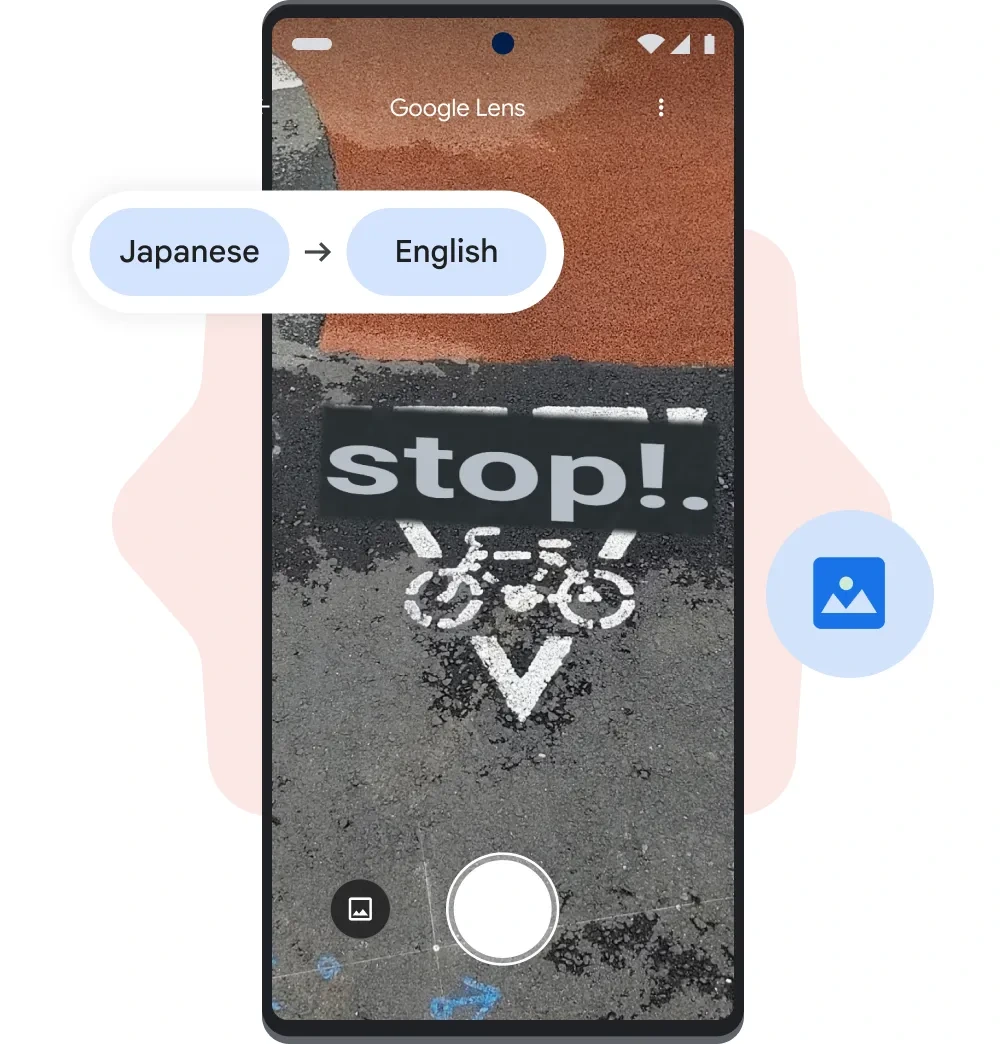 Source: Google Translate About page (Official demo reference graphic showing camera translation of a street sign from Japanese to English)
Real-Time Speech and Spoken Modes
Google Translate provides several voice interaction configurations:
- Speech Modes: The app supports Listening mode (for hearing real-time translation through headphones or holding the phone to your ear), Conversation mode (for alternating dialogue broadcast through speakers or headphones), and Text only mode. The microphone automatically detects speech turns between supported languages.
- Face-to-Face Split Screen: The screen splits into upper and lower sections, showing transcription and translation for each speaker simultaneously so two people standing across from one another can follow along.
- Hardware and Offline Conditions: Notably, offline live speech translation (Offline Live Translate) is currently restricted to specific Pixel devices (such as Pixel 9, 10, and 11) and selected language pairs; other devices and language pairs require an active internet connection.
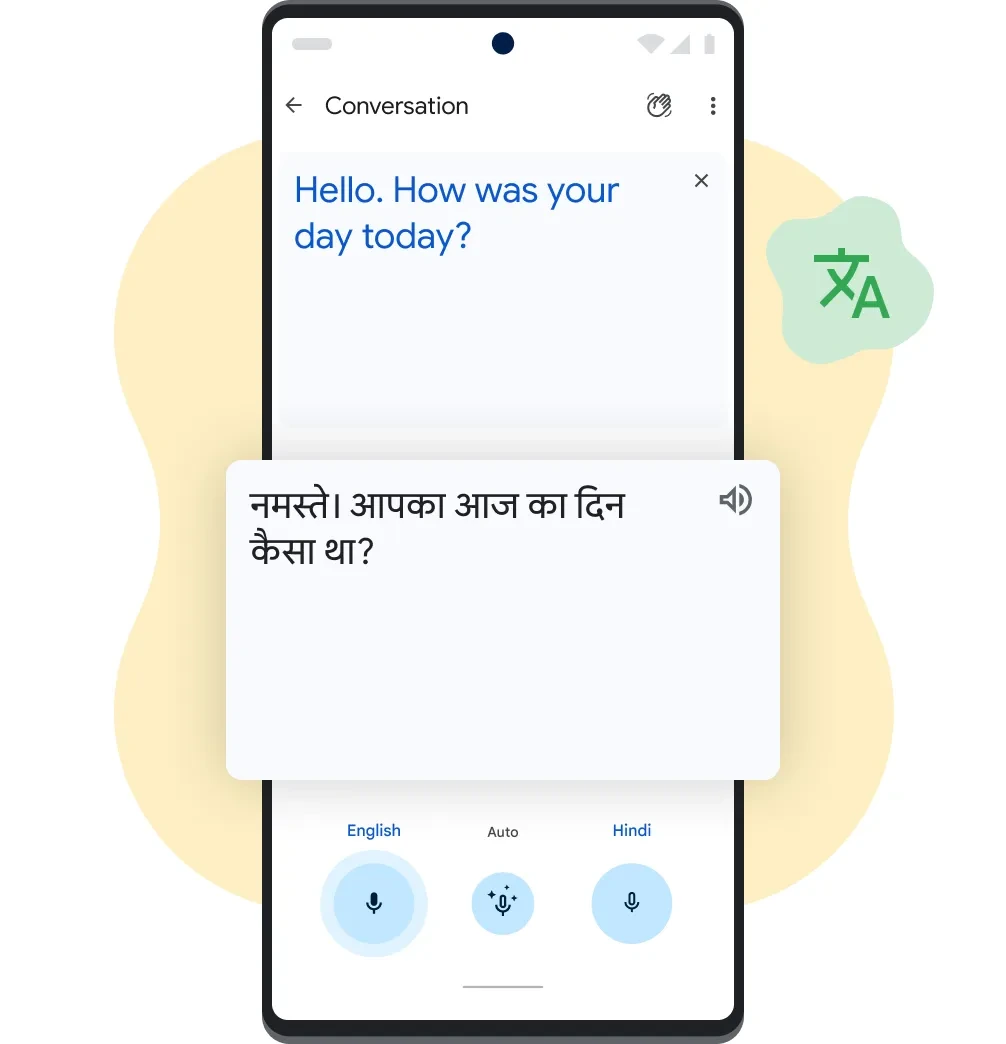 Source: Google Translate About page (Official demo reference graphic showing two-way English and Hindi conversation)
2. Desktop Document and Website Translation
Alongside mobile interactions, Google Translate offers dedicated desktop browser entries for handling complete files and web pages.
Desktop Document Translation
Visiting the desktop website provides a "Documents" tab where users can upload office documents and download translated versions:
- Supported Formats and Specifications: The portal accepts DOCX, PDF, PPTX, and XLSX formats up to 10 MB in file size, with PDF documents capped at 300 pages.
- Operating Scope and Conditions: Document translation is designed for desktop browsers and is not available on mobile web views. Official help documentation specifies that text inside images and scanned PDF pages are retained in the output file but are not extracted or translated.
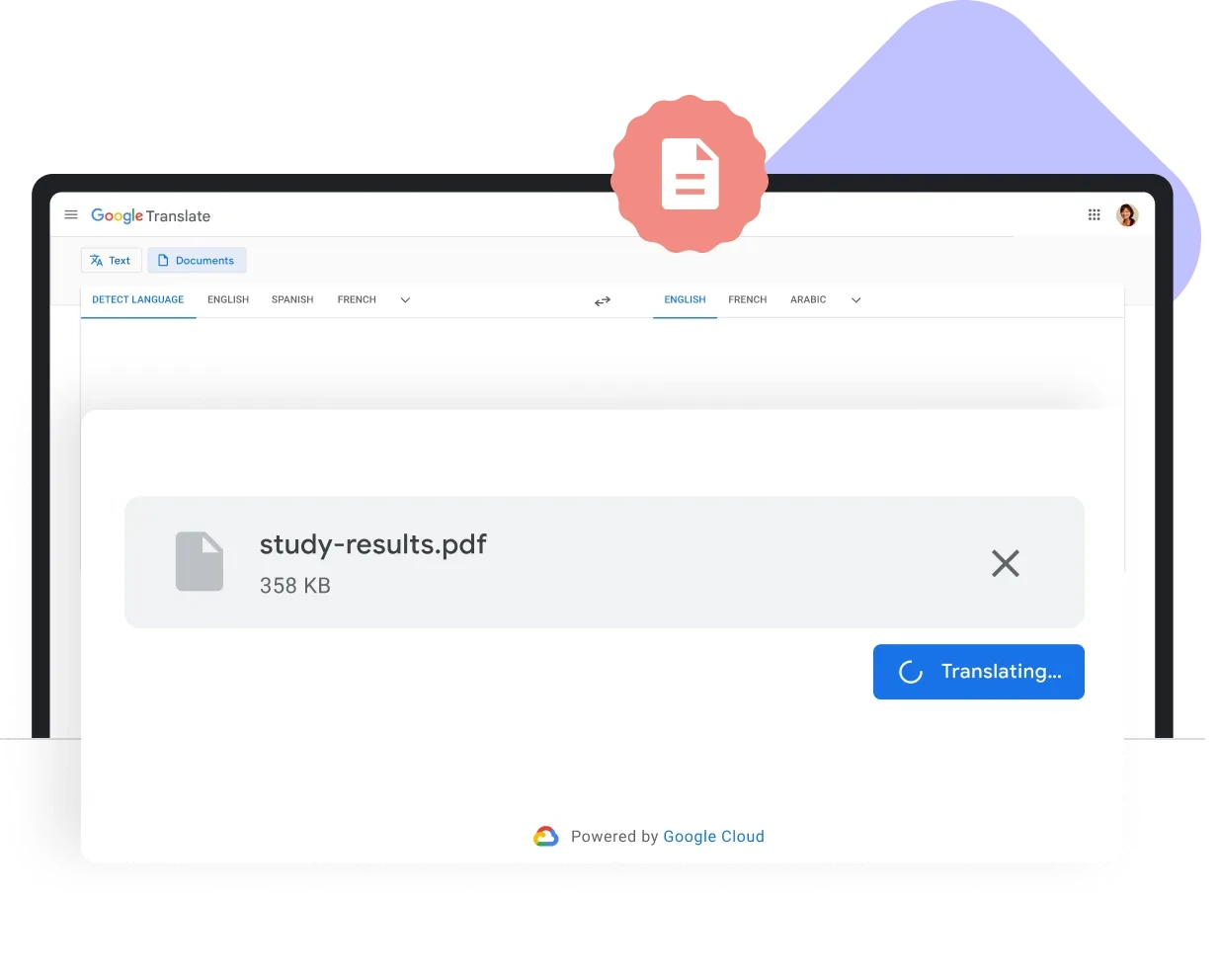 Source: Google Translate About page (Official demo reference graphic showing desktop PDF document upload)
Website Translation
Entering a URL in the "Websites" tab displays a translated version of a public web page. A top navigation bar lets readers switch between the original and translated views, facilitating quick reading of foreign articles and announcements. Eligible academic, nonprofit, and government sites can also register for a website translation widget.
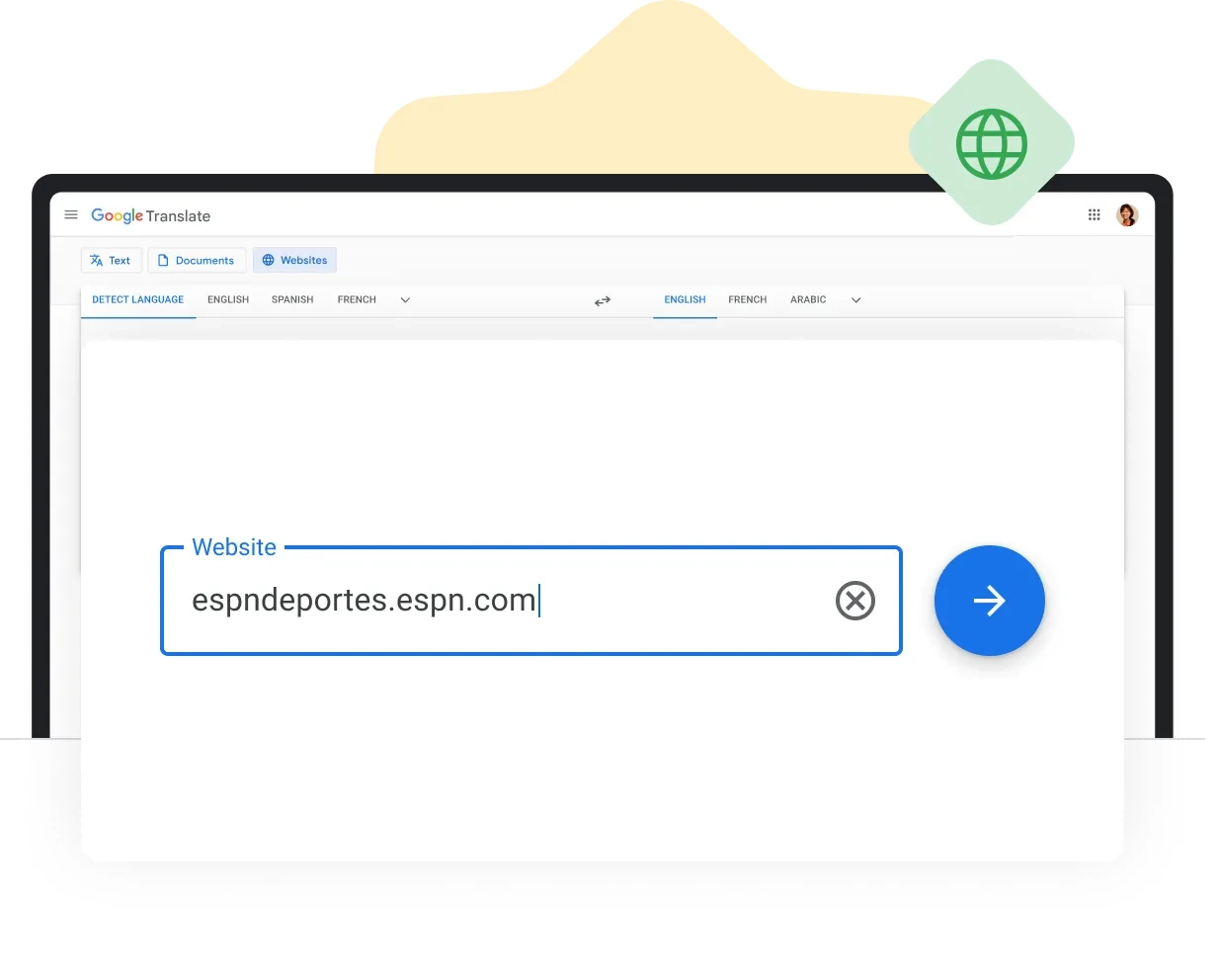 Source: Google Translate About page (Official demo reference graphic showing website URL input)
3. Recommended Scenarios and Practical Considerations
Based on its public features, Google Translate serves distinct everyday needs under specific conditions:
4. Comparing and Complementing with Equalang
Across various language workflows, Google Translate and Equalang cater to different user habits and depth of requirements. Both tools provide text translation, standard Office document handling (DOCX, PDF, PPTX, XLSX), and spoken dialogue, but they differ in layout presentation, document structure handling, and remote communication.
Bilingual Reading and Video Subtitles
For reading and audiovisual materials:
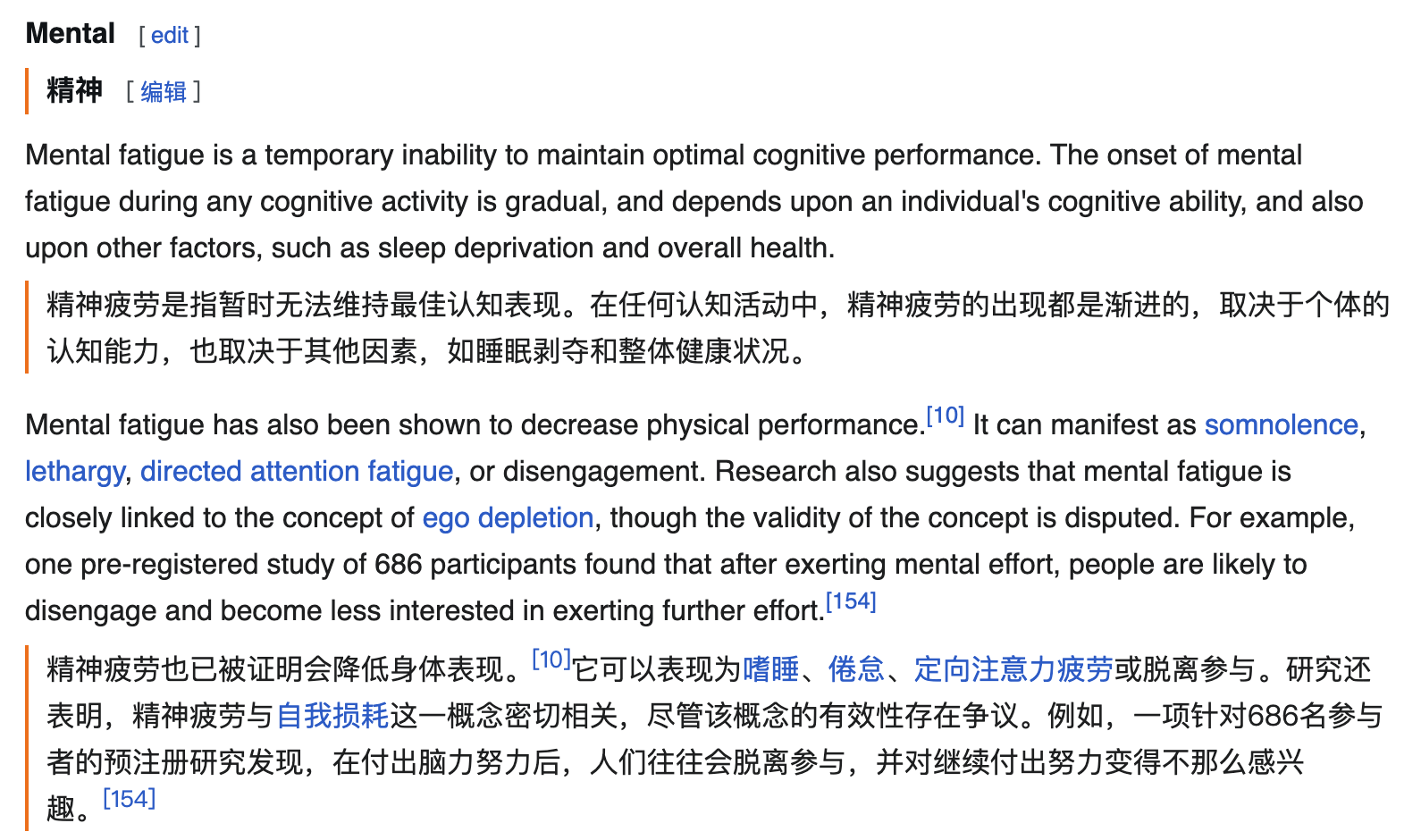
- Google Translate enables users to switch between the original and translated web page via a top bar, making it efficient for getting an overall gist of a site.
- Equalang emphasizes side-by-side reading: using the browser extension, translated text appears directly below each corresponding source paragraph, allowing readers to reference the source text alongside the translation as they scroll. On video platforms such as YouTube, Netflix, and TikTok, the extension translates existing subtitles into dual-language subtitles. For uncaptioned public videos or live streams, the extension supports live listening on compatible browsers and open media streams (subject to browser audio capture and platform constraints; encrypted media streams are not supported for live audio listening).
Structured Documents and File Formats
When translating work documents:
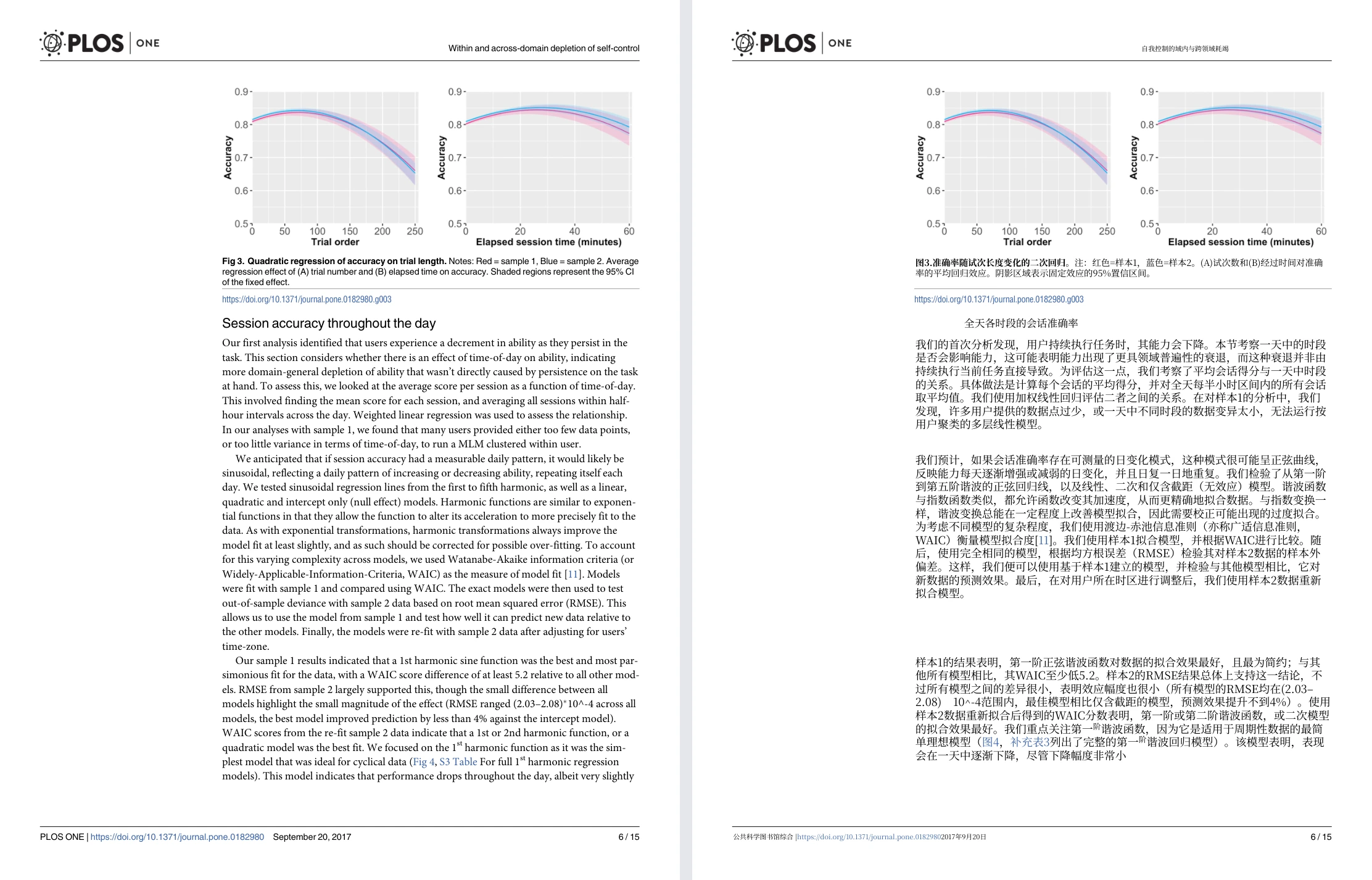
- Google Translate accepts desktop uploads of DOCX, PDF, PPTX, and XLSX files, delivering a translated document replacement suitable for fast reading.
- Equalang focuses on preserving layout elements in structured files: for digital PDFs, it maintains multi-column structures, headers, footers, and captions, rejoins sentences interrupted by page breaks, and protects mathematical formulas, with dual-language outputs available when supported by the task; in PPTX files, text automatically scales to prevent frame overflow; in XLSX spreadsheets, numerical values and calculation formulas remain intact. Beyond standard Office files, Equalang also supports EPUB e-books, SRT/VTT subtitle files, and audio/video transcription.
On-Site Interaction vs. Remote Calls
In spoken conversation contexts:
- Google Translate is well suited for single-device, in-person exchanges, earphone listening, and tight Android integration during overseas travel.
- Equalang addresses remote cross-language collaboration with Translated Call: the host logs in to configure language settings and create a call link; the recipient joins via a browser without registering by entering a name, and once approved by the host, both participants speak their native language, hear spoken translations, and view synchronized bilingual text logs. Equalang also provides browser-based Live Listening, Face-to-Face, and Photo Translation.
Summary Recommendation
If you need an everyday mobile companion for identifying street signs, snapping photos of menus, and conducting face-to-face inquiries, or a desktop tool to quickly convert standard office files into a readable translation, Google Translate provides a mature and capable set of multi-modal features.
If your work calls for paragraph-by-paragraph bilingual reading on web pages, dual-language subtitles on video streaming platforms, or processing documents with formulas and specific layouts where bilingual references are needed, Equalang provides a specialized side-by-side workflow tailored for in-depth comprehension.
Sources
- Google Translate Help: Translate documents & websites on computer
- Google Translate Help: Translate images on Android
- Google Translate Help: Hear live speech to speech translations with live translate
- Equalang Documentation: Equalang Product Overview
- Equalang Extension Guide: Equalang Browser Extension