Papago Feature Guide: Workflows and When to Use Equalang
 Equalang
In brief
Explore NAVER Papago's conversation, photo OCR, offline packs, and mobile web tools, plus how Equalang compares for web reading and formatted documents.
Keywords: Papago features, offline translation, Edu mode, Equalang, bilingual translation
Whether navigating international travel, reading foreign-language articles, or studying East Asian languages, having a practical translation tool close at hand makes everyday communication much easier. When dealing with Korean, Japanese, Chinese, and English, many users immediately turn to Papago, developed by South Korea's NAVER. Beyond a standard text entry box, Papago adapts to mobile contexts with face-to-face dialogue, camera text recognition, custom study notes, and downloadable offline language packages.
We are the Equalang team. In this guide, we examine Papago's official feature set, hardware requirements for offline mode, and verified platform capabilities based on official documentation. At the end, we look at how Equalang approaches side-by-side web reading, formatted document translation, and streaming video captions to help you determine which tool best fits your immediate task.
On-the-Go Travel: Spoken Dialogue and Photo OCR
When asking for directions, ordering at restaurants, or checking in at a foreign hotel, quick back-and-forth communication on a smartphone is essential. Papago addresses these situations through two primary mobile features:
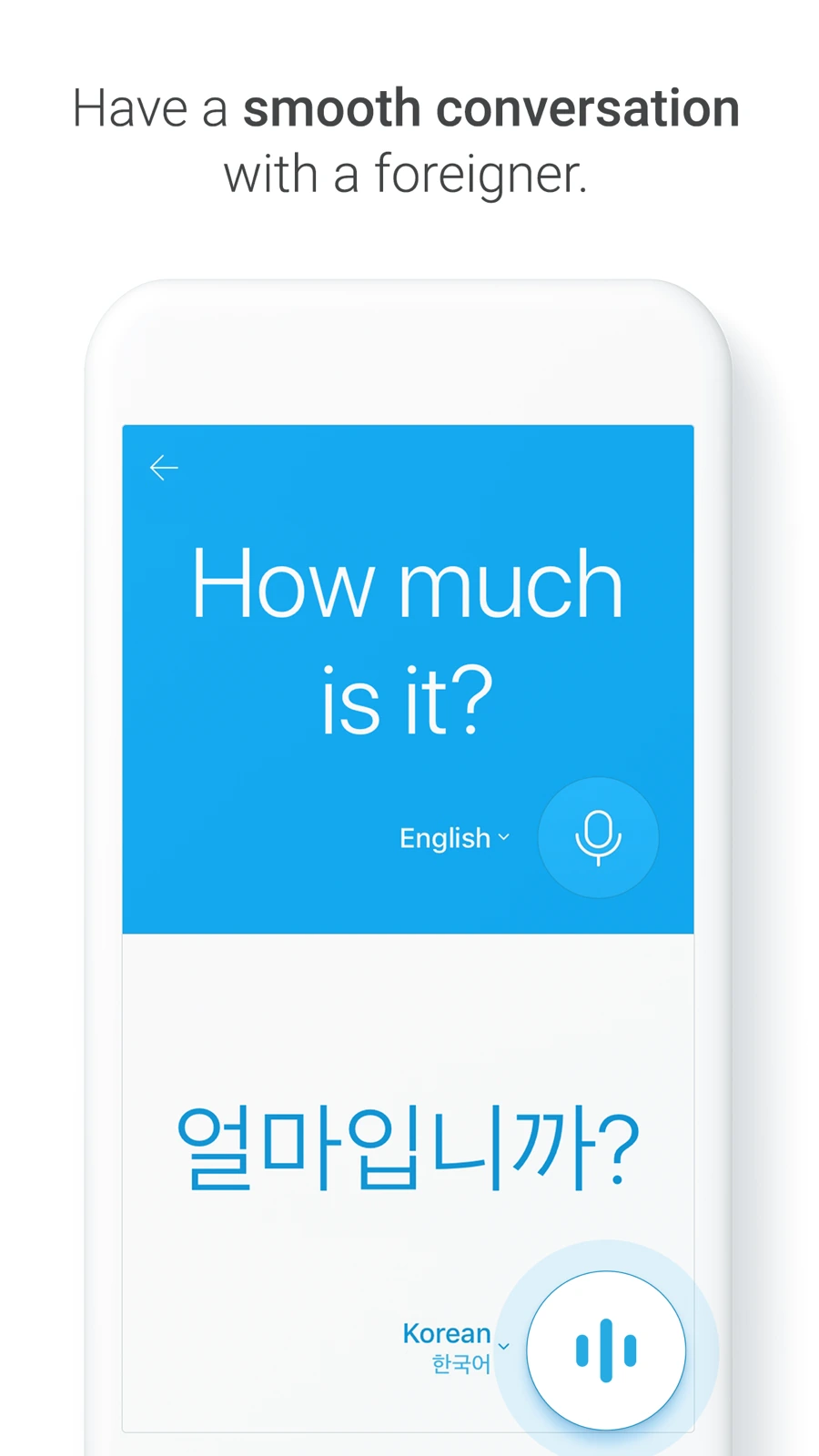
- Conversation Translation: Available in the mobile application, this mode is tailored for in-person exchanges. According to the official conversation guide, two speakers select their respective languages on a single phone. Tapping the corresponding microphone button records speech, presents a text translation, and plays synthesized audio. Users can also save frequent phrases to a favorites list for quick retrieval at ticket counters or transit stations.
 Source: NAVER Papago Official App Store Page (official demo image, not Equalang team test)
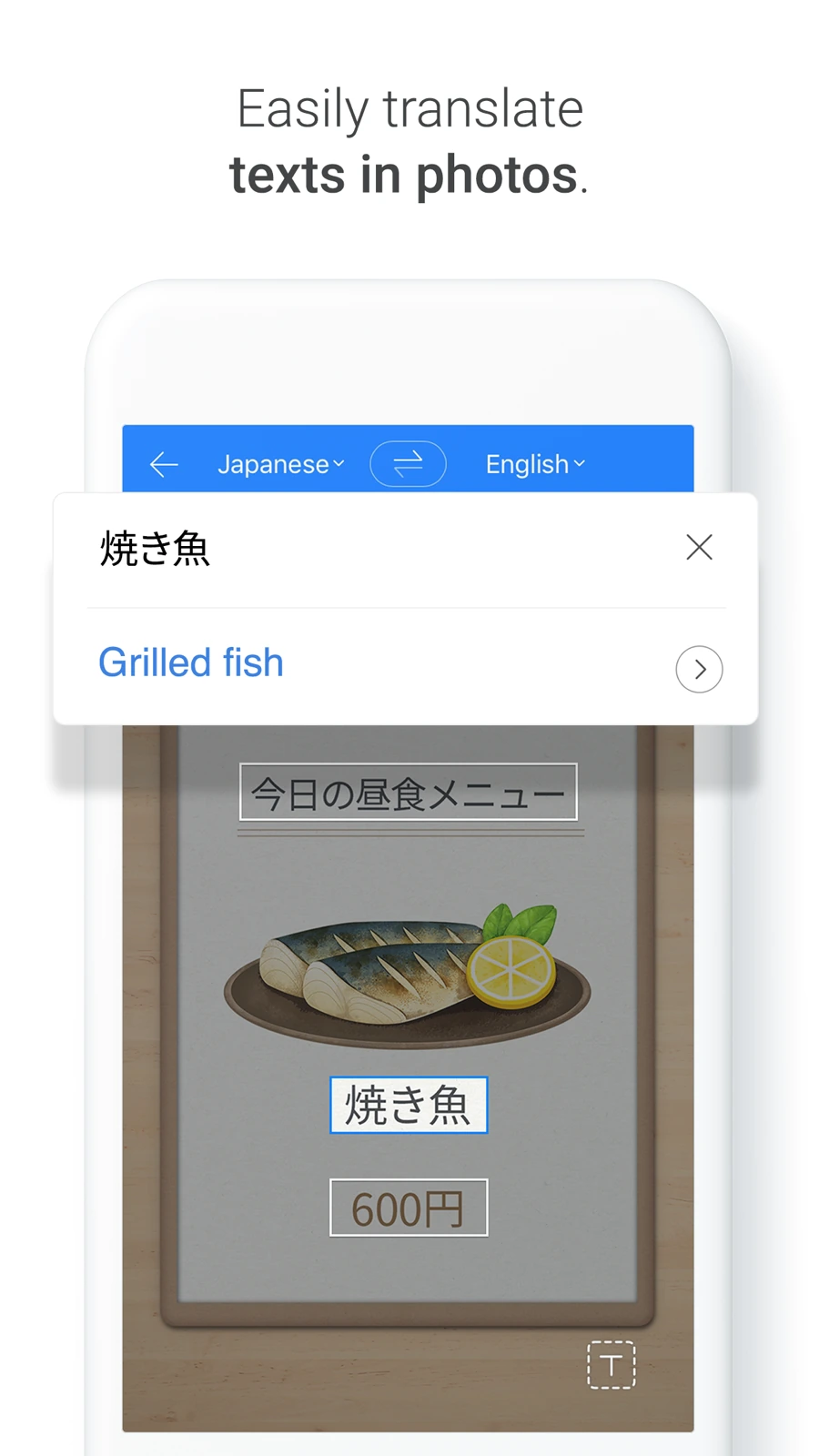
- Image Translation: For physical menus, street signs, transit timetables, and packaged goods, users can snap a photo with their camera or import an existing image from their photo library. The app detects text blocks and overlays translated text directly over the original image, making it easy to decipher context without manual typing.
 Source: NAVER Papago Official App Store Page (official demo image, not Equalang team test)
For travelers visiting South Korea, these features handle the common essentials of street navigation and counter conversations.
Language Learning and Daily Tools: Edu Mode, Dictionaries, and Mini
Beyond travel assistance, Papago incorporates features built for daily study and cross-app reading:
- Edu Study Mode: On mobile, users can take a photo of a textbook chapter, news article, or study passage. Papago extracts the text and creates a dedicated study card ("My Note"), helping learners isolate unfamiliar vocabulary and review sentence structures.
- Honorifics Toggle and Dictionary Insights: Korean syntax features distinct levels of politeness. Papago includes an honorifics toggle (높임말) within translation results, letting learners compare formal and informal phrasings side by side. Beneath the primary translation, the app also pulls in dictionary definitions to clarify secondary meanings of key words.
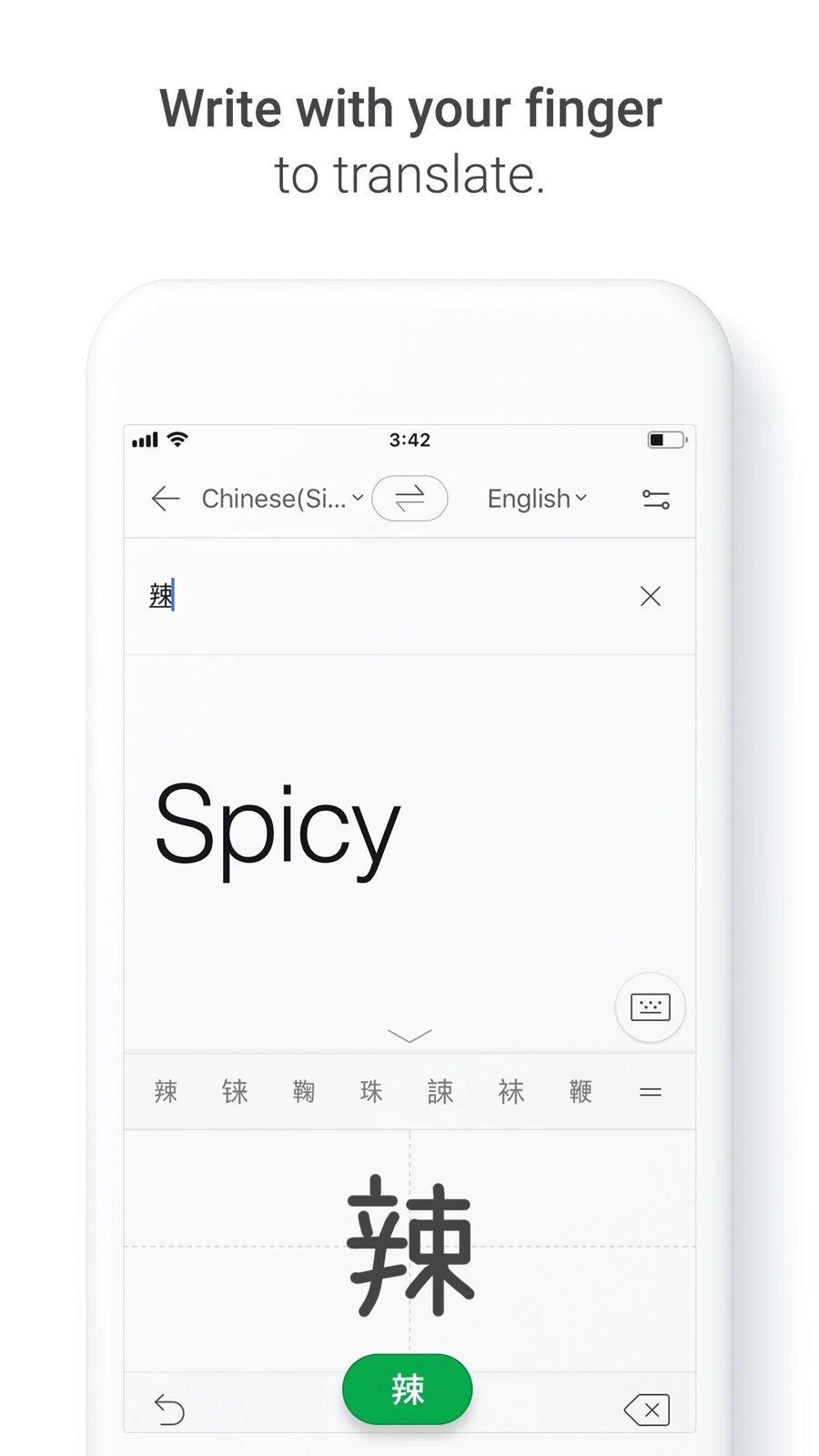
- Papago Mini and Handwriting Input: On Android, enabling the Papago Mini floating bubble allows users to copy text in messaging apps or web browsers and see instant pop-up translations without switching apps. For complex characters that are difficult to type on a standard keyboard, users can draw characters directly using fingertip handwriting recognition.
 Source: NAVER Papago Official App Store Page (official demo image, not Equalang team test)
Desktop Web Workspace and Platform Differences
In addition to mobile apps, users can access the NAVER Papago web workspace directly from desktop browsers.
The web interface features dedicated tabs across the top for Text, Image, Document, Voice, and Website translation, alongside sidebar tools for translation history, saved favorites, and a custom glossary for terminology management. Under the Document tab, users can upload local files to translate full texts with formatting intact.
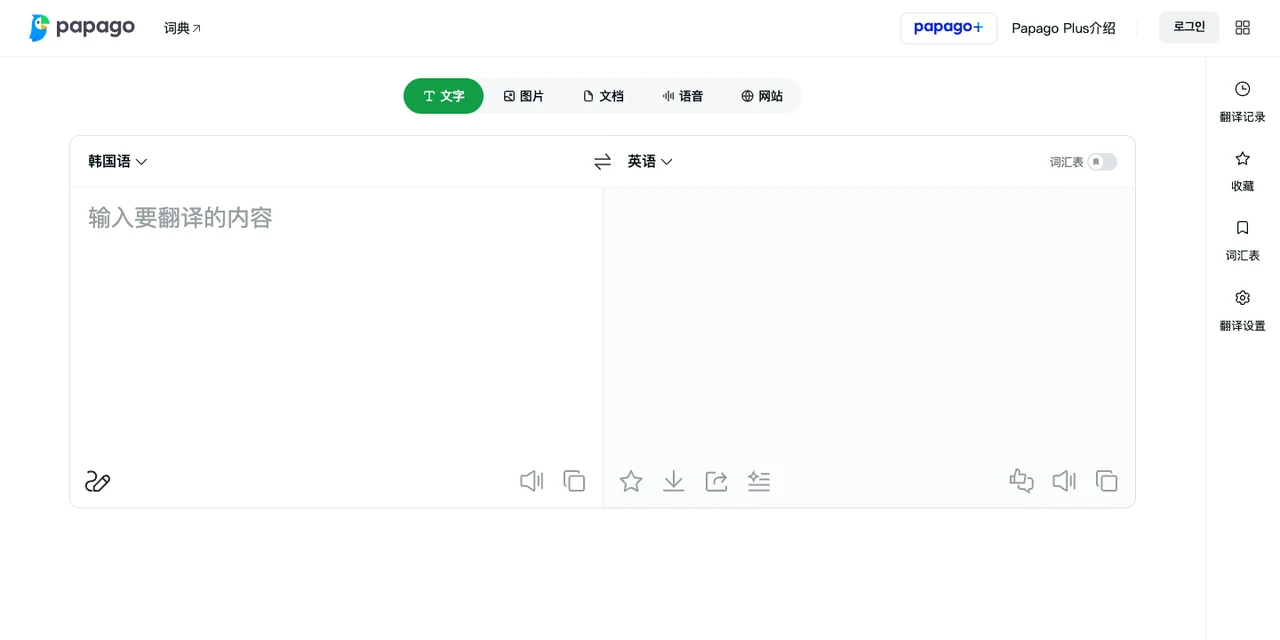
Regarding website translation, it is important to distinguish between desktop and mobile capabilities. Although the desktop interface still shows a "Website" tab, NAVER's official PC help page notes that Papago's PC-based website translation service has ended, directing desktop users toward the NAVER Whale browser. In contrast, according to the mobile help guide, mobile users can still perform URL-based web translation inside the Papago mobile app, Whale, or the Naver app.
Offline Translation: Boundaries and Device Conditions
When traveling on flights, moving through underground transit, or facing weak roaming coverage, offline availability becomes a practical priority. According to NAVER's official offline translation guide, language packages must be downloaded ahead of time, and offline functionality has clear limitations compared to the online service:
- Supported Offline Languages: Offline language packs are available between Korean, English, Japanese, and Simplified Chinese.
- Supported Features: Offline operation is strictly limited to text translation and voice translation.
- Features Not Available Offline: The official documentation states that offline mode does not support image translation, conversation mode, website translation, document translation, Edu study mode, handwriting input, pronunciation playback, phonetic display, extended dictionary data, honorific toggles, or glossaries.
- Device Requirements:
- Android Devices: Offline text translation requires at least 4GB of RAM. Offline voice translation requires at least 4GB of RAM, Android 14 or higher, and a separate voice-specific language pack download.
- iOS Devices: Both offline text and voice translation require at least 4GB of RAM.
Checking these hardware specifications before traveling ensures your device is configured properly before you lose network access.
How Equalang Compares in Functional Focus
While Papago focuses heavily on mobile travel and handheld language learning, Equalang addresses long-form reading, formatted document files, and cross-border collaboration. Both tools assist with multilingual tasks, but their workflows differ across daily scenarios:
- In-Browser Paragraph-by-Paragraph Bilingual Reading: Rather than requiring users to paste URLs into a mobile app or switch default browsers, Equalang works through a standard browser extension. It inserts translations directly beneath each original paragraph on the active page, allowing readers to reference foreign phrasing alongside the translation without disrupting webpage navigation.

- Complex PDF and PPTX Formatting Preservation: In document translation, Equalang focuses on challenging file layouts. For multi-column academic PDFs, it identifies sentences split across page boundaries and stitches them together before translating, while maintaining mathematical formulas and complex tables. In PPTX presentations, text box font sizes dynamically scale down if translated sentences run longer, preventing visual overflow and overlapping graphic elements.
- Bilingual Video Subtitles and Live Captions: The Equalang extension supports dual subtitles across streaming platforms including YouTube, Netflix, and TikTok. For videos with existing subtitle tracks, it displays both original and translated lines. For uncaptioned videos and live broadcasts on YouTube, it provides live speech-to-subtitle translation under supported browser conditions (DRM-encrypted media like Netflix cannot be captured for live audio transcription).
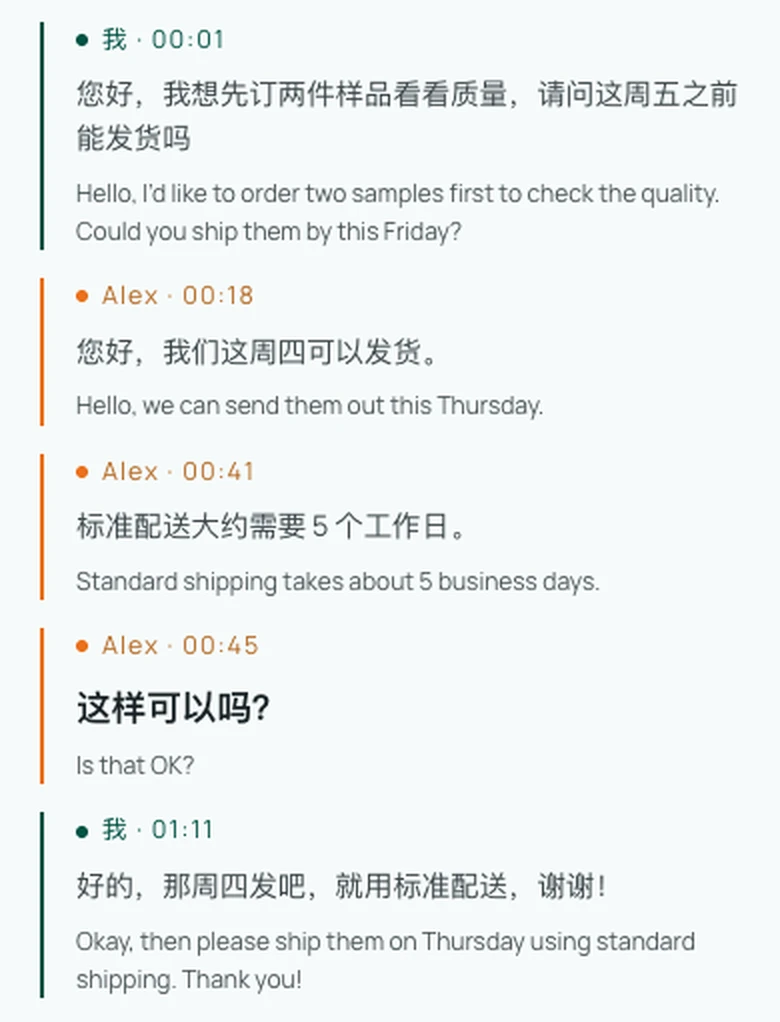
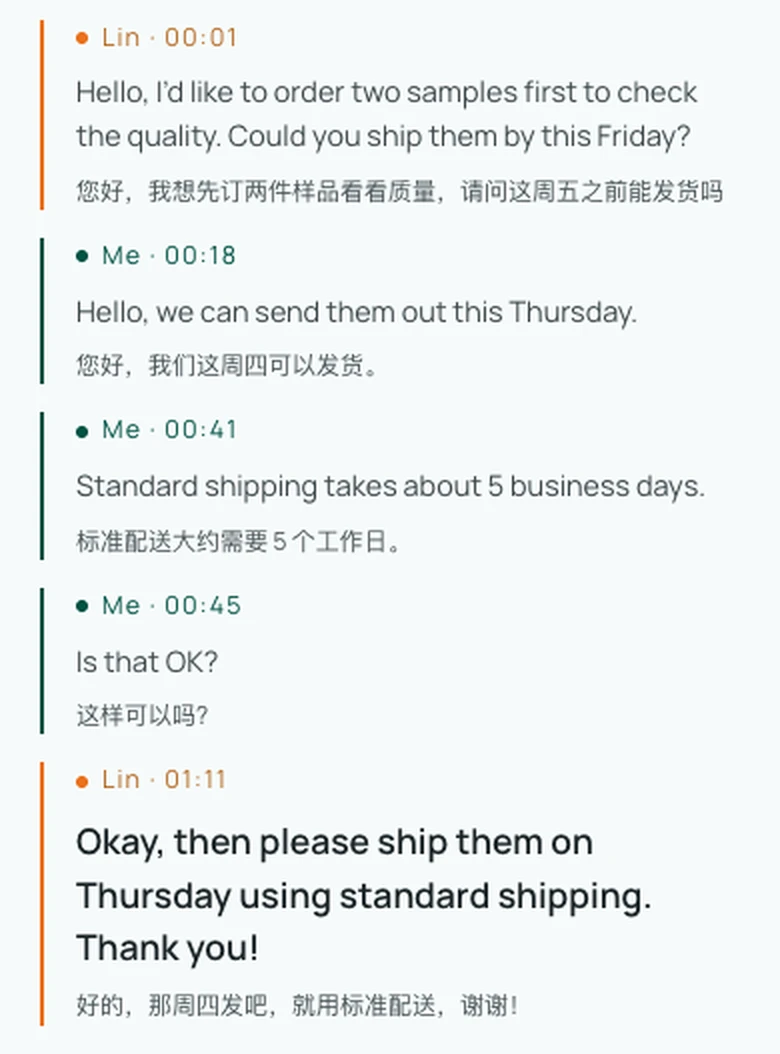
- Clientless Browser Calls and Face-to-Face: Papago's conversation feature requires running the mobile app. Equalang brings spoken dialogue to standard web browsers. In Face-to-Face mode, two people can share a single screen with side-by-side or inverted top-screen views. For remote communication, Translated Call allows a host to generate a link; guests join directly from desktop or mobile browsers by entering a name, without downloading an app or registering an account. Once admitted by the host, both participants speak and hear translations in their own language.
Which Tool Should You Choose?
Choosing between the two depends on your primary task and working environment:
- Choose NAVER Papago when you:
- Are traveling in South Korea and need on-the-spot menu OCR, street sign lookups, or mobile face-to-face dialogue on a single smartphone;
- Are learning Korean or East Asian languages and want to organize textbook photos into Edu study cards, check honorific variations, or explore dictionary references;
- Need a verified offline backup for text or voice lookups between Korean, English, Japanese, and Chinese, with a compatible smartphone.
- Choose Equalang when you:
- Conduct in-depth research on desktop browsers and want side-by-side bilingual reading directly below each source paragraph;
- Need to translate dense academic PDFs with formulas and split sentences, or PowerPoint slide decks that require automatic font fitting;
- Watch international video streams and need synchronized bilingual subtitles, or need to host a cross-language voice conversation over a simple browser link without asking others to install an app.
Understanding where each tool excels allows you to rely on Papago for portable travel moments and switch to Equalang for formatted file translation, deep web research, and browser-based collaboration.
Sources
- NAVER Papago Official Web Workspace
- NAVER Papago Mobile App Details (Google Play)
- Papago Offline Translation Guide (NAVER Help Center)
- Papago Conversation Translation Guide (NAVER Help Center)
- Papago PC Website Translation Service Notice (NAVER Help Center)
- Papago Mobile Website Translation Guide (NAVER Help Center)
- Equalang Official Features and Platform Specification